Tools

Tools
Show in Revit

Several Revit applications are running. Choose one:

This is a free plugin!
A set of auxiliary utilities

Icon

mprTools_32x32 mprTools_16x16

Related news and articles


Using

When Revit is loaded, the plugin adds a new "Utils" panel to the ModPlus tab on the ribbon, or adds icons to the "Utils" panel if such a panel has already been created. The plugin consists of the following commands:

Wall Joins

mprTools/mprWallJoin_32x32 mprTools/mprWallJoin_16x16 mprTools/mprWallJoin_32x32_dark mprTools/mprWallJoin_16x16_dark

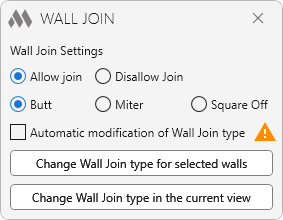
Changes wall join settings.

The following settings are available in the command window:

  • Allow Join – allows wall joins. The join type is set to one of the following options: Butt, Miter, or Square Off
  • Disallow Join – prevents wall joins
  • Automatically change wall join type – applies the selected join settings when walls are created.

Change join type for selected walls – applies the settings to the selected walls.

Change wall join type in current view – applies the settings to all walls in the current view.

Automatic mode is enabled for Revit as a whole, not for an individual project. Its state is preserved between Revit sessions and applies to all projects.

When automatic mode is enabled, the wall join type for walls created by other plugins, for example the Room Finishing plugin, will be changed according to the settings of the Wall Joins command. The join type specified when such walls are created will not be taken into account.

Coping Distance

mprTools/CopingDistance_32x32 mprTools/CopingDistance_16x16 mprTools/CopingDistance_32x32_dark mprTools/CopingDistance_16x16_dark

3

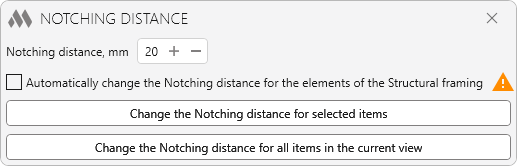
Allows you to change the Coping Distance for Structural Framing elements (beams, columns), either for all elements in the current view or for specified elements.

Automatically change the Coping Distance for Structural Framing elements – enables automatic Coping Distance adjustment. When automatic mode is enabled, any change to the geometry of a Structural Framing element changes its Coping Distance to the value specified in the plugin window.

Automatic mode is enabled for Revit as a whole, not for an individual project. Its state is preserved between Revit sessions and applies to all projects.

Grids Mode

mprTools/GridsMode_32x32 mprTools/GridsMode_16x16 mprTools/GridsMode_32x32_dark mprTools/GridsMode_16x16_dark

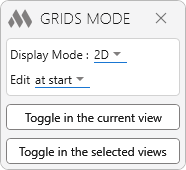
Changes the display mode of grids in the current view or in views selected in the Project Browser.
2

Display Mode – determines the grid display mode:

  • 2D – switches grids to 2D mode;
  • 3D – switches grids to 3D mode;
  • Invert – changes the current grid display mode to the opposite mode.

The second drop-down list specifies which grid ends the mode should be changed for:

  • at start – only at the start of the grids;
  • at end – only at the end of the grids;
  • at start and end – at both ends of the grids.

Toggle in the current view – applies the selected settings to grids in the current view.

Toggle in the selected views – applies the selected settings to grids in views preselected in the Project Browser.

Grid Bubbles Visibility

mprTools/GridsBubbles_32x32 mprTools/GridsBubbles_16x16 mprTools/GridsBubbles_32x32_dark mprTools/GridsBubbles_16x16_dark

6

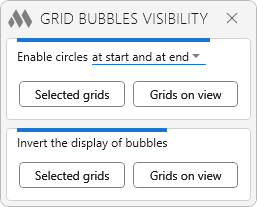
Turns the bubble visibility on or off for the selected grids or for grids in the view

Rebars Outside Host

mprTools/RebarsWithoutHost_32x32 mprTools/RebarsWithoutHost_16x16 mprTools/RebarsWithoutHost_32x32_dark mprTools/RebarsWithoutHost_16x16_dark

For rebars, the check is performed in two ways: if the rebar layout is set to "Single", the bar is checked to determine whether it is located within its host. For all other layout options, the rebar is checked for protrusion outside the host. When checking system reinforcement (for example, area reinforcement), the reinforcement is checked for protrusion outside the host

When the plugin is launched, a dialog box displays information about the number of rebars found in the project:
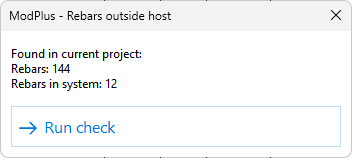
4

After the check is completed, a dialog box displays the check results and allows you to select the rebars:
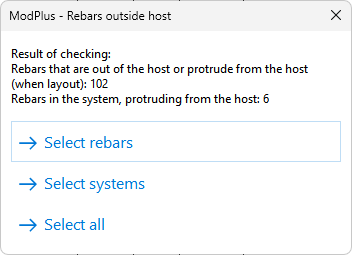
5

Select Annotations

mprTools/PickAnnotations_32x32 mprTools/PickAnnotations_16x16 mprTools/PickAnnotations_32x32_dark mprTools/PickAnnotations_16x16_dark

Quickly selects specified annotations with a selection window: dimensions, tags, and text

Zoom Selected

mprTools/ZoomSelection_32x32 mprTools/ZoomSelection_16x16 mprTools/ZoomSelection_32x32_dark mprTools/ZoomSelection_16x16_dark

Zooms and centers the current view on the selected elements.

If the selected elements are not visible in the current view, you will be prompted to zoom to their coordinates. If Yes is selected, the current view is zoomed and centered on the coordinates of the selected elements.

Remove Zero Segments

mprTools/mprRemoveDimZeroSegments_32x32 mprTools/mprRemoveDimZeroSegments_16x16 mprTools/mprRemoveDimZeroSegments_32x32_dark mprTools/mprRemoveDimZeroSegments_16x16_dark

Removes zero segments from dimension chains

Restore Views

mprTools/mprRestoreViews_32x32 mprTools/mprRestoreViews_16x16 mprTools/mprRestoreViews_32x32_dark mprTools/mprRestoreViews_16x16_dark

Batch opens views and sheets that were open when the previous Revit session ended. Changes must be saved when ending the session.

Open Views

mprTools/mprOpenBrowserViews_32x32 mprTools/mprOpenBrowserViews_16x16 mprTools/mprOpenBrowserViews_32x32_dark mprTools/mprOpenBrowserViews_16x16_dark

Batch opens views and sheets selected in the Project Browser

Disable Temporary Views

mprTools/mprDisableTemporaryViews_32x32 mprTools/mprDisableTemporaryViews_16x16 mprTools/mprDisableTemporaryViews_32x32_dark mprTools/mprDisableTemporaryViews_16x16_dark

Disables Temporary Hide/Isolate mode in all views of the current document.

Graphics Copy

mprTools/CopyGraphicOverrides_32x32 mprTools/CopyGraphicOverrides_16x16 mprTools/CopyGraphicOverrides_32x32_dark mprTools/CopyGraphicOverrides_16x16_dark

Copies graphics override settings in the view from the source element to the target elements

Copy Type and Properties

mprTools/CopyTypeAndParameters_32x32 mprTools/CopyTypeAndParameters_16x16 mprTools/CopyTypeAndParameters_32x32_dark mprTools/CopyTypeAndParameters_16x16_dark

Sets the target elements to the same type as the selected source element and copies the parameter values from the source element to the target elements. Shared parameter values are copied only if their GUIDs match. The type is not changed if the source element's type is incompatible with the target element.

Copy Properties

mprTools/CopyParameters_32x32 mprTools/CopyParameters_16x16 mprTools/CopyParameters_32x32_dark mprTools/CopyParameters_16x16_dark

Copies the parameter values from the selected source element to the target elements without changing their types. Shared parameter values are copied only if their GUIDs match.

Show Information

mprTools/mprElementInfo_32x32 mprTools/mprElementInfo_16x16 mprTools/mprElementInfo_32x32_dark mprTools/mprElementInfo_16x16_dark

Displays basic information about elements and finds elements with the same property values.
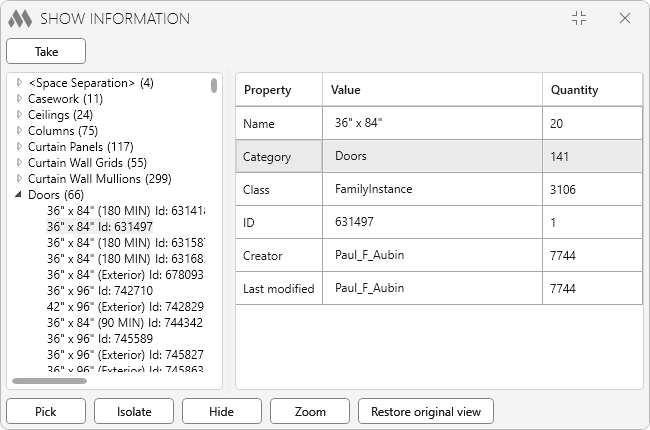
8

Elements selected before the command is launched are automatically added to the list. To obtain information about elements after launching the command, select them in the model and click Get.

The left side of the window displays a list of the selected elements grouped by category. The number of selected elements is displayed for each category.

When an element is selected, a table with its properties is displayed on the right:

  • Property – property name;
  • Value – property value of the selected element;
  • Count – number of elements in the document that have the same value for the corresponding property.

When a row is selected in the table, the following actions become available for elements that have the same value for the corresponding property:

  • Select – selects the elements in the model;
  • Isolate – isolates the elements in the current view;
  • Hide – hides the elements in the current view;
  • Zoom – zooms and centers the current view on the elements;
  • Restore Original View – restores the original state of the view.

Sum of Lengths

mprTools/mprLinesLength_32x32 mprTools/mprLinesLength_16x16 mprTools/mprLinesLength_32x32_dark mprTools/mprLinesLength_16x16_dark

Displays the total length of the selected linear model elements. After launching the plugin, select the elements in the view. The plugin also processes elements selected before launch.

Both the total length of all selected elements and the length of elements in each category are calculated separately:
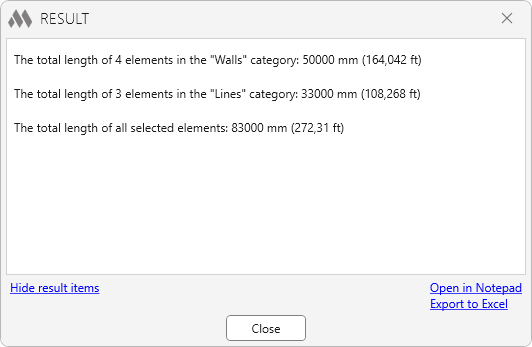
7

Merge Splines

mprTools/mprMergeSplines_32x32 mprTools/mprMergeSplines_16x16 mprTools/mprMergeSplines_32x32_dark mprTools/mprMergeSplines_16x16_dark

Merges Detail Lines or Model Lines created as splines that share a common endpoint.

Show

mprTools/CategoryOnOff/CategoryOn_16x16 mprTools/CategoryOnOff/CategoryOn_16x16_dark

Drop-down list that allows you to show all elements of the specified category or group of categories (for example, all annotations) in the current view

Hide

mprTools/CategoryOnOff/CategoryOff_16x16 mprTools/CategoryOnOff/CategoryOff_16x16_dark

Drop-down list that allows you to hide all elements of the specified category or group of categories (for example, all annotations) in the current view

Unhide Elements

mprTools/mprUnhideSelectedElements_32x32 mprTools/mprUnhideSelectedElements_16x16 mprTools/mprUnhideSelectedElements_32x32_dark mprTools/mprUnhideSelectedElements_16x16_dark

Displays the selected elements in the view by changing their state from hidden to visible.

ModPlus YouTube
ModPlus YouTube
ModPlus YouTube
ModPlus YouTube
New
Fixed an error due to which the window with the plugin results could end up behind the Revit window
New
Added the "Properties copy" command for copying element properties without changing their type
Improved
The "Properties copy" command was renamed to "Copy of type and properties"
Fix
Fixed an error where empty numeric parameters of the source element replaced the target element values with zeros when copying properties
New
Reworked the interface of the "Grids mode" command and added the "Edit" option for selecting the end to switch: start, end or both
New
Reworked the interface of the "Show information" command
Improved
Added a notification about the absence of an element in the view for the "Zoom selected" command
New
Added the new "Show information" command
New
Added the new "Disable temporary views" command
New
Processing of grids in the selected views was added to the "Grids mode" command
New
Added the new "Wall Join" command
Improved
The logic of the "Grid bubbles visibility" command was changed
Improved
Fixed the logic of the "Zoom selected" command
Fix
Fixed localization error
Improved
Deleting zero segments: correct processing of dimensions in a 3D view created on another work plane
Improved
Command "Properties copy": the parameter "Quantity" for the category "Rebars" has been excluded from processing
Improved
Service update
Improved
Correct accounting of view template settings when changing import category visibility
Improved
The command "Hide/Show Links" is divided into two - "Hide/Show Links" and "Hide/Show Import Symbols"
Fix
Added missing icon for dark design theme
Improved
Moving the cursor to the "Switch to 2D" button in the "Grid mode" command
New
Added large icons for all commands except "Hide" and "Show" commands
New
Added "Unhide elements" command
New
Added processing of fittings for pipes, ducts and cable trays in the "Sum of lengths" command
New
Added "Merge splines" command
New
Added "Electrical Devices" item to the "Hide/Show category" command
Improved
Changed the icon of the "Sum of lengths" command
Improved
Accounted for the "Select pinned" option in the "Select annotations" command
Improved
Added processing of imported categories to the Hide Links/Show Links command
New
The "Raster images" category has been added to the Hide/Show command
New
The "Annotations" category has been added to the Hide/Show command
Improved
In the "Open Views" command, added sheet number accounting during sorting
Fix
Fixed a tooltip for some commands on the ribbon
New
The "Links" category has been added to the Hide/Show command
Improved
Additional verification of saved data in the view restore command
Fix
Fix some bugs
Improved
Building a Ribbon tab considering the design theme in Revit 2024
Improved
Added a small icon for the "Notching distance" command
Improved
Calling the method of rebuilding the switchable menu "Favorites" after the buttons on the ribbon are built
Fix
Sum of lengths: fixed a bug that caused non-linear elements to be processed if the elements were selected before the command was run
New
The " Sum of lengths" command now displays the sum of lengths of all selected linear elements
Fix
Ignoring some errors in the parameter copying command
New
Removed plugin loading through manifest file
Improved
Changed icons
New
Added new command "Lines length"
New
Added "Equipment" category to the Hide/Show command
New
Added "Point Clouds" category to the Hide/Show command
Improved
Categories added to the Hide/Show Reinforcement command: Structural fabric Reinforcement, Structural Fabric Areas, Structural Area Reinforcement Symbols, Structural Path Reinforcement Symbols, Structural Fabric Reinforcement Symbols, Structural Area Reinforcement Tags, Structural Path Reinforcement Tags, Structural Fabric Reinforcement Tags
Fix
Additional check of the ability to change the visibility of a category in the hide/show all categories in the view commands
New
Added a new command "Zoom selected"
Improved
Added the ability to hide/show all categories in the view in the Show/Hide commands
Improved
Refinement of copying the isolation of engineering elements in the "Properties copy" command
Fix
Fixed some bugs
Improved
Copying pipe insulation with the copy element properties command
New
From the Show/Hide command removed the categories of the analytical model and added categories: mass, ducts, flexible ducts, pipes, wires, cable trays, conduits
Improved
Opening the views selected in the Project Browser in alphabetical order
New
A new "Open Views" command has been added
Improved
The command that deletes zero dimension segments has been added to delete zero dimensions consisting of one segment
Improved
Added ability to copy graphics override between views
New
New commands "Graphics copy" and "Properties copy" were added
Improved
Service update
New
Added command to remove zero segments from dimensional chains
Improved
Writing information about open views in a document and replaced by saving the information to a text file on disk
Fix
Fixed command launching error
New
A new "Restore Views" command has been added
New
Added the ability to hide/show elements in the "Lines" category
Improved
Added ignoring the color profile of the system when loading icons from plugin resources
Improved
Added processing of the multi-reference annotations to the quick selection of annotations
Improved
Added processing of the detail curves to the quick selection of annotations
Improved
Service update
Improved
Added processing of the "Detail components" category to the quick selection of annotations
Improved
In the quick selection of annotations, the display of an error when interrupting the selection of elements is removed
Improved
Family selection added to annotation quick selection
New
Added new command "Grid bubbles visibility"
New
Added new command "Select annotations"
New
Added the ability to hide/show reinforcement elements
New
Added the ability to hide/show elements in the "Generic Models" category
New
Added the ability to hide/show elements in a view with an applied template in the mode of displaying properties of a temporary view
Improved
Service update
New
Added the ability to hide/show elements of category "Structural Foundation"
Improved
Added the ability to hide/show analytical model categories
Improved
Commands hide/display elements by the category now work for views with the applied template, if the template settings not include override graphics for category
FIX
Fixed error running the command "Grids Mode"
FIX
Removed the inscription in the ribbon for the buttons "Grids mode" and "Rebars outside host"
FIX
Fixed the error “Unexpected tab”
FIX
Added context help call when pressing F1 on buttons in the ribbon
FIX
Replaced the search algorithm of rebar out of the host from checking geometry of rebar to checking the centerlines of rebar, which increases the accuracy of the results
FIX
Added digital signature
FIX
Added new command "Rebars outside host"
FIX
Added check for view template when working the command "Hide/Show"
FIX
ModPlusStyle styling