


3D section box

Several Revit applications are running. Choose one:
Icon


Related news and articles
Using
The plugin creates a 3D section box based on a single element or a group of elements selected in the current model or in a linked file.
When the plugin is launched, the following window opens:
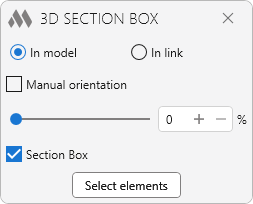
When the Manual orientation option is disabled, as well as when working with preselected elements, the 3D view boundaries are oriented automatically:
- if one element is selected, the orientation is performed based on that element,
- if a set of multiple elements is selected, the orientation is performed based on one of the elements in the set.
Clicking the Select elements button switches to the model to specify the elements for creating a 3D section box.
Select elements for 3D trimming – select elements in the model or in a linked file from any view.
When the Manual orientation option is enabled, after selecting the elements to be cropped, you will be prompted to select an element for orienting the 3D view.
Select an element to orient the view – select the element by which the 3D view boundaries will be oriented.
After completing the element selection, the plugin switches to or creates a 3D view named {3D-username}, where username is the name of the current Revit user, except when the plugin is launched from an existing 3D view.
A 3D view section box will be created around the selected elements with a proportional offset relative to those elements. The offset value can be adjusted using the slider or entered manually as a percentage in the field on the right. When the value is changed, the 3D view section box will be resized uniformly relative to the selected objects.
Section Box – enables or disables the "Section Box" parameter for the created 3D view.
If the plugin is used again on the same 3D view, new 3D view boundaries will be created for the newly selected elements.

 YouTube