


Material Manager

Several Revit applications are running. Choose one:
Icon


Related news and articles
Using
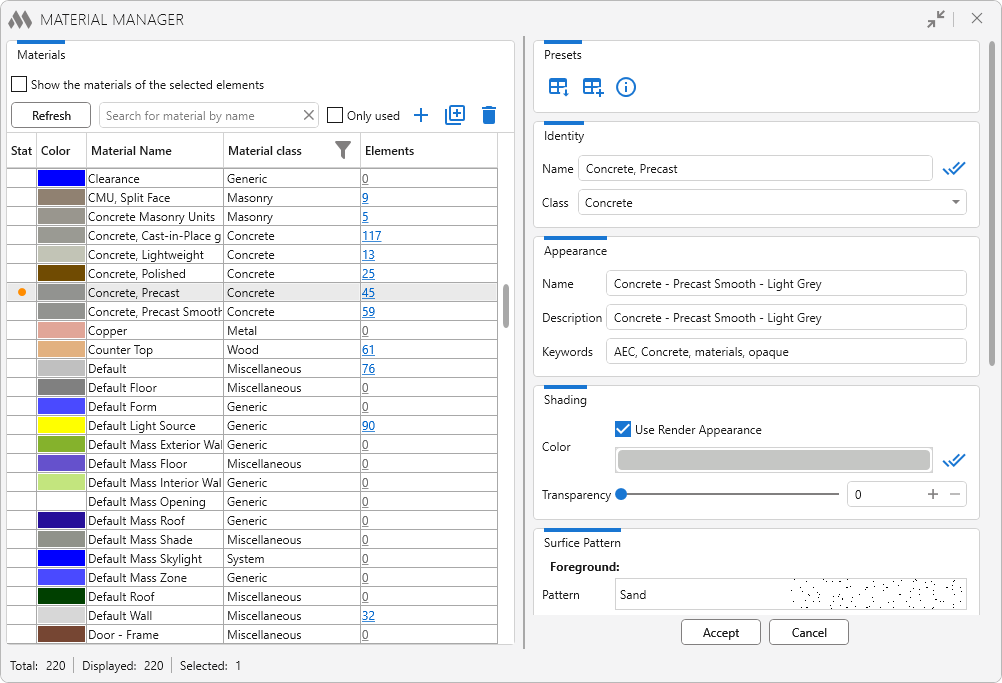
The plugin window is divided into two parts: on the left side there is a table with the list of document materials, and on the right side there are settings for editing the selected materials.
The Materials table is filled with the list of all materials in the current document when the plugin is started. It contains the following columns:
Status – displays whether there are unsaved changes to the material settings
Color – shows the material color in Shaded mode
Material Name – contains the material name
Material class – contains the material class. The list of materials can be filtered by material class using the filter button  in the column header.
Elements – displays the number of instances placed in the model to which the material is assigned. Clicking the number of elements selects these instances in the model. When you hover over a table row, buttons become available that allow you to replace the current material for these elements  and copy the element IDs to the clipboard as comma-separated values
 . When multiple materials are selected, they can be replaced with a single new material in one operation.
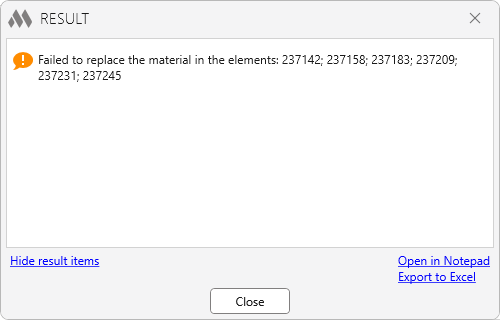
In non-editable families and in elements where the material is set "By Category", the plugin cannot replace the material. In these cases, when you attempt to replace the material, a window is displayed with a list of the IDs of the elements for which the replacement could not be performed.
Columns can be rearranged by dragging their headers with the left mouse button. The contents of individual columns can be sorted by clicking the column name.
Above the table there is the Refresh button (updates the list of materials in the table) and the following control tools:
- a field for quickly searching for a material by name, case-insensitive
- the Show the materials of the selected elements option displays only the materials assigned to the elements selected in the model. When replacing a material in this mode, the replacement is performed only in the selected elements whenever possible
- the Only used option displays materials assigned to types that have at least one instance in the model
- the
 button creates a new material
- the
 button duplicates the materials selected in the table
- the
 button deletes the materials selected in the table.
When one or more materials are selected in the table, tools for working with presets and editing the properties of the selected materials become available on the right side of the window.
The Presets section contains the following buttons:
 – opens the Load preset window, where you can select a previously saved preset and apply it to all materials selected in the table. Presets can be searched by name and deleted from the list
 – opens the Save preset window for saving the properties of the selected material as a new preset. A name must be specified for the preset, and a description can also be added.
A preset is a set of material properties saved to a separate file and available for use in any document. The preset stores the material properties that can be edited in the plugin window, except for the material name, the appearance asset name, and the Model, Manufacturer, URL, and Cost material parameters. A preset is saved from one selected material and can be applied to multiple selected materials at the same time.
Materials can be edited individually or in batch by selecting multiple materials in the table on the left side of the plugin window.
The plugin allows you to edit material properties grouped into sections.
In the Identity section, you can change the material Name and Class. In the Appearance section, you can change the Name, Description, and Keywords of the material appearance asset. You can also configure the material display for the Shading, Surface Pattern, and Cut Pattern modes. In each mode, to the right of each Color palette there is a  button that allows you to apply the selected color to all other modes.
When you click the Highlight materials button, the parameters of the materials selected in the table are displayed in the Properties palette.
To save the changes, click Accept; to return to the original settings, click Cancel.
At the bottom of the plugin window there is a status bar displaying the total number of materials, the number of materials displayed, and the number selected in the table.

 YouTube