Search and replace

Search and replace
Show in Revit

Several Revit applications are running. Choose one:

This is a free plugin!
Search and replace text in specified search scopes

Icon

mprFindAndReplace_32x32 mprFindAndReplace_16x16 mprFindAndReplace_32x32_dark mprFindAndReplace_16x16_dark

Related news and articles


Using

The plugin is used to search for and replace text in selected areas, including text in type and instance parameters. The plugin also allows you to copy the ID of the element containing the found text to the clipboard and display the element on the screen.

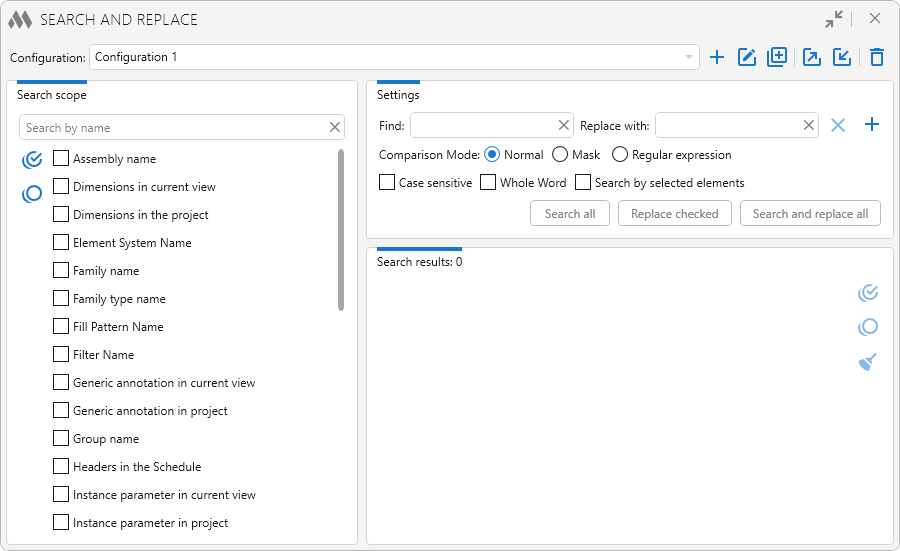
At the top of the plugin window is the configuration drop-down list. The buttons to the right allow you to create a new configuration , rename , duplicate , export export, import import, or delete delete outline the current configuration.

1

In the left part of the plugin window you can see a list of search areas. You have to check the scopes in which you want to search and replace the text. Using the buttons on the left side of the list you can check all items in the list checkbox multiple marked circle outline and uncheck all checked scopes checkbox multiple blank circle outline.

In the upper right part of the plugin window you can find the search settings and search and replace buttons:

Fields to fill in

Find – field for entering the value you're looking for.
Replace with – field for entering the value to be replaced.
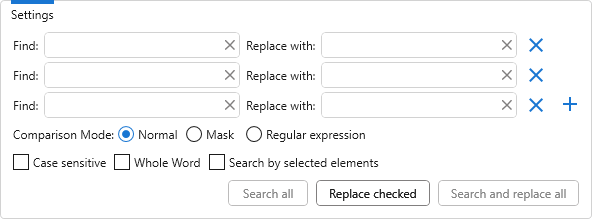
With the plus button, you can add additional fields for multiple searches:
9

Comparison modes

Normal – search and replace mode by exact matches.
Mask – search and replace mode using control characters to substitute parts of the text: * – any number of characters, ? – one arbitrary character, # – a digit. If the mask in the Find field does not contain any control characters, then * in the Replace with field will represent the entire found fragment, to which a prefix and/or suffix can be added. To use control characters in the expression as ordinary string characters, you must escape them with the "\" symbol placed before the character to be escaped (\*, \?, \#, \\). Examples of mask applications are described below.
Regular expression – search and replace mode using a pattern with regular expressions.

Additional options checkboxes

Case sensitive – option for uppercase or lowercase search.
Whole Word – option to search for values that are not part of other words.
Search by selected elements – searches by the model elements selected at the time the plugin is run.
Search empty values – allows searching for empty parameter values.

Startup buttons

Search all – searches the specified search areas with the specified settings and displays the result in the search window (see below). The button will not be available if no value is specified in the Find field or no search area is selected.
Replace checked – replaces the marked search results. The button will not be available if the Replace with field is not filled or there are no marked items in the search results.
Search and replace all – searches the specified search areas with the specified settings and replaces all found values. Herewith the search results are not displayed. The button is not available if no values are specified in the Find and Replace with fields.

Search results are displayed in the lower-right part of the plugin window. Each result contains:

  • a title indicating the model element
  • the text in which the search was performed, with the found value highlighted
  • a preview of the replacement result.

To perform the Replace checked function, you need to check the checkboxes next to the desired positions.

During the work with the search results you can use buttons:

checkbox multiple marked circle outline – check all items in the list.
checkbox multiple blank circle outline – uncheck all items in the list.
broom – clear the result list.

When hovering the cursor over the line with the search result, buttons appear on the right side of the line:

identifier – copy element ID to clipboard.
target – display element.

2

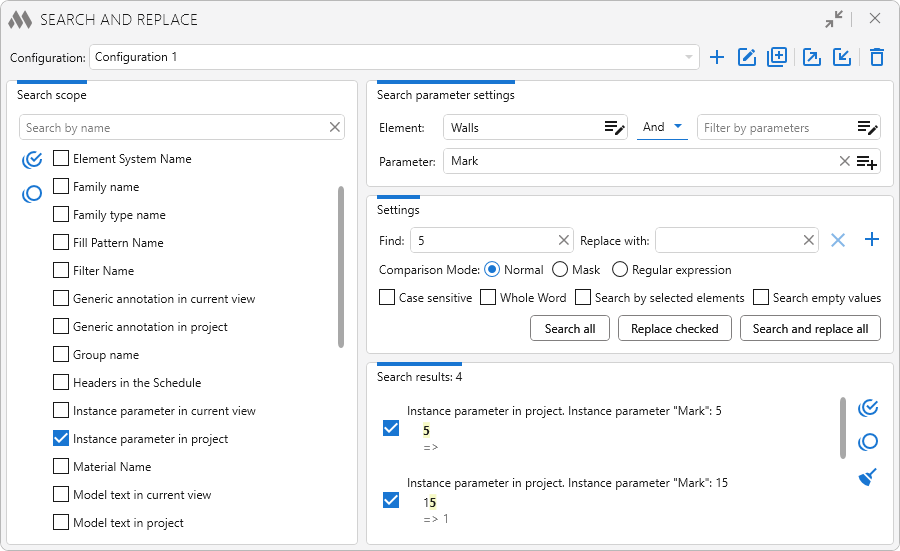
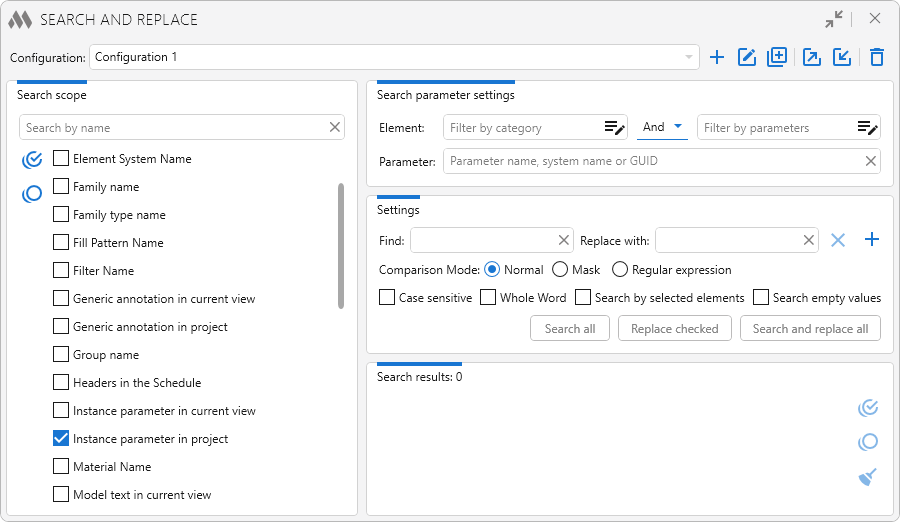
When you select the search area by parameter, the upper right part of the plugin's window adds the parameter search settings.

Element – filter for search elements, consisting of filter by category, boolean operator AND/OR, and filter by parameters (you can read more about working with the elements filter here).

Parameter – field where you specify the name, system name, or GUID of the parameter. If you do not fill the Parameter field, the search will be performed for all string parameters available for editing.

Search results are displayed in the lower-right part of the plugin window. Each result contains:

  • a title indicating the model element
  • the text in which the search was performed, with the found value highlighted
  • a preview of the replacement result.

Examples

Example 1. It is necessary to find all door tags "D-1" on the 1st and 2nd floors and replace them with "D-2". Select the search area "Instance parameters in project":
3

Configure the element filter by categories:
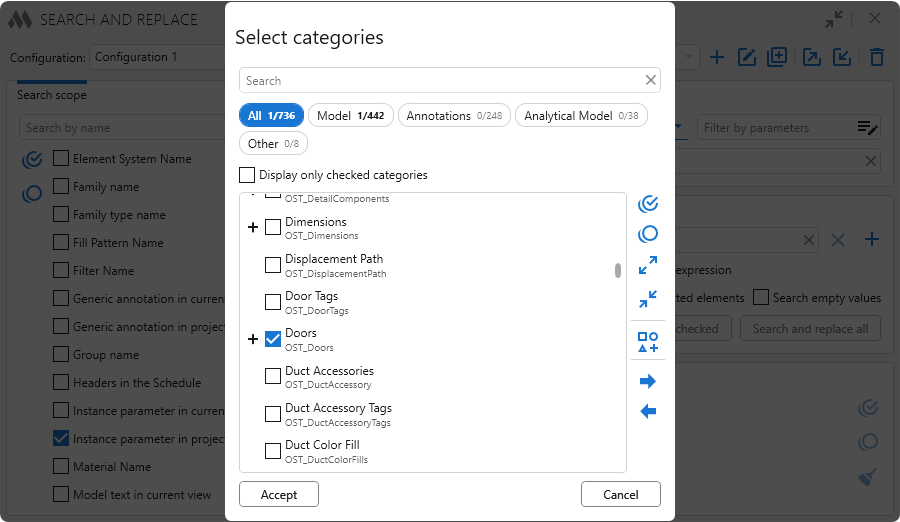
4

Select the "AND" option for the logical operator. Configure the filter by parameters:
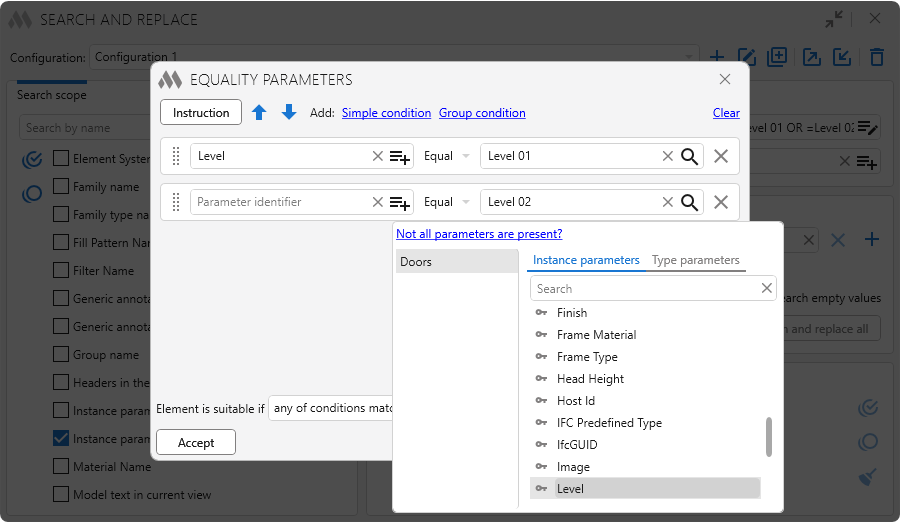
5

Fill in the fields Parameter, Find and Replace with:
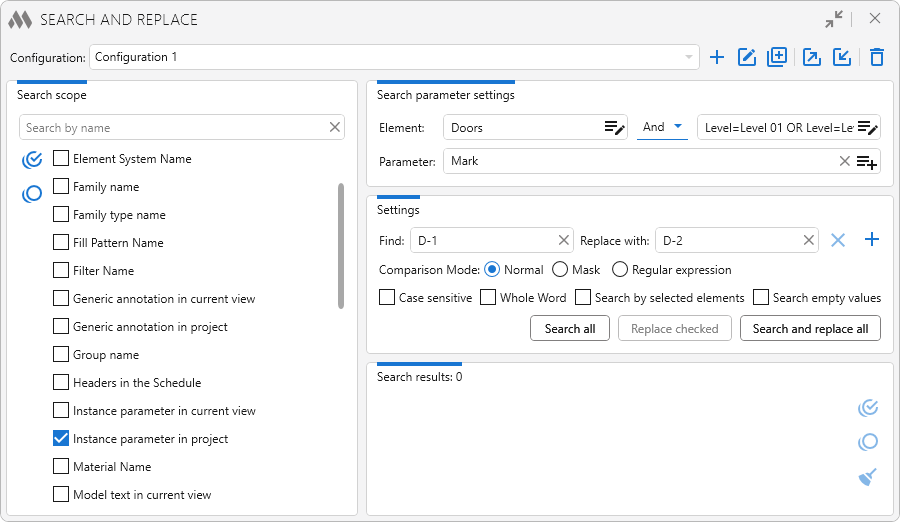
6

Click the Search and replace all button.
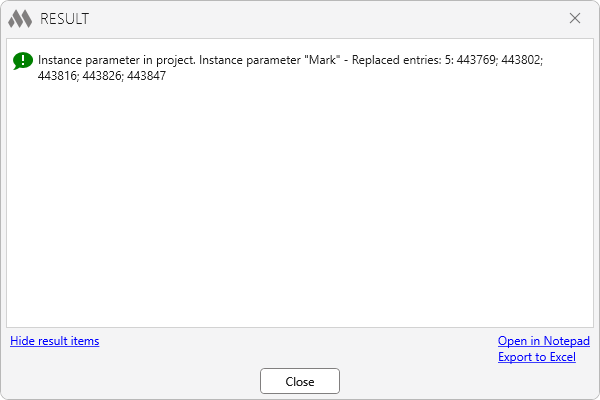
7

Example 2. It is necessary to add the prefix "E" to sheet numbers. Select the search area "Sheet number":
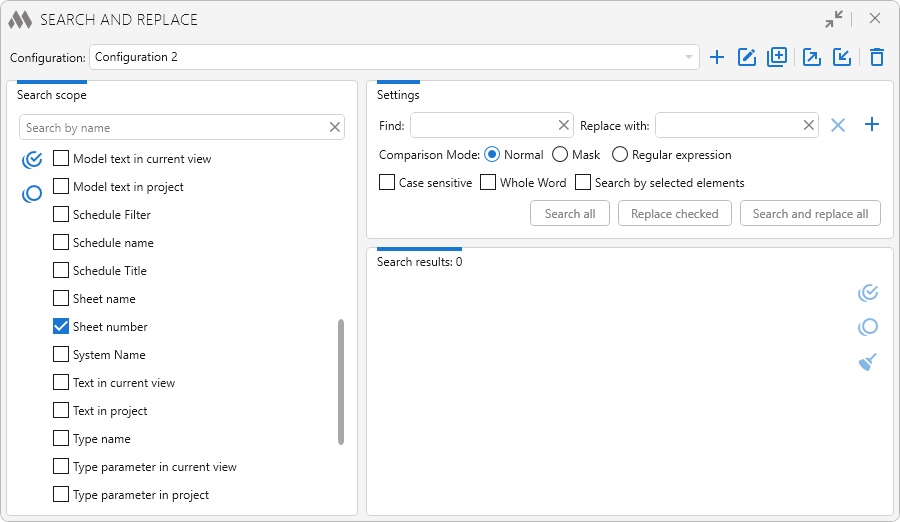
10

Select the comparison mode Mask. Since it is necessary to add a prefix to the number without changing anything in it, enter the control character "*" in the Find field, and in the Replace with field enter the expression "E*". Click the Search all button to visually check the desired sheet numbers:
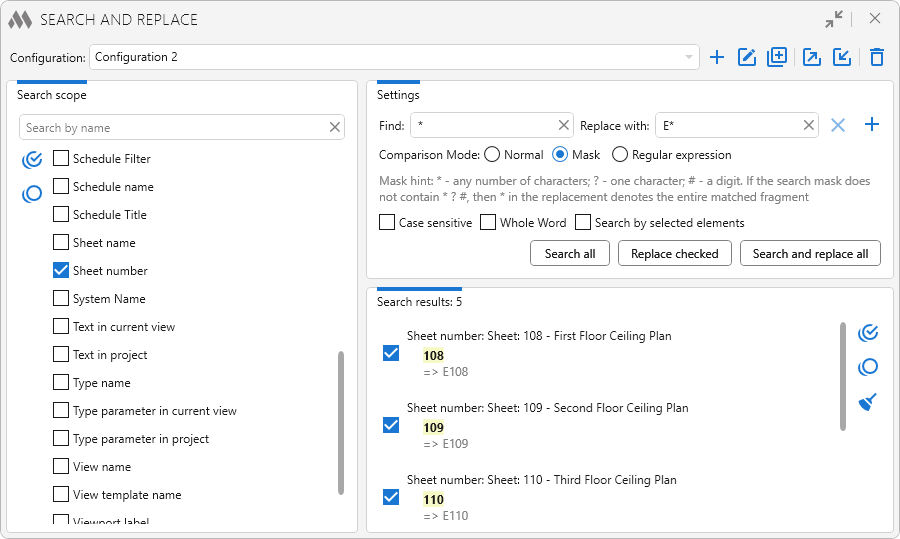
11

After making sure all the required sheets are selected, click Replace checked:
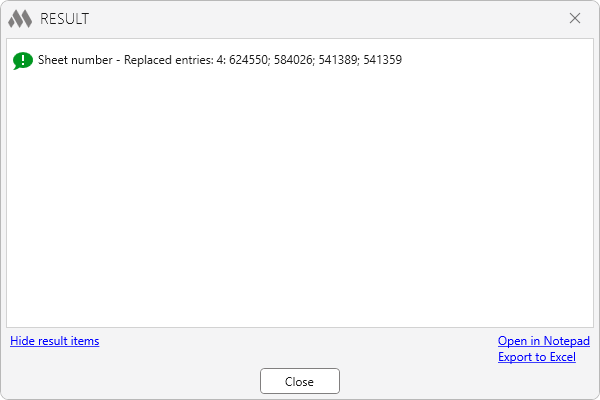
12

Example 3. It is required to change the values of the "View name" parameter from "View-001a", "View-002a", "View-003a" to "View-001b", "View-002b", "View-003b". To do this, select the search area "View name" and enter the corresponding mask values in the fields (replace the variable part of the name with control characters):
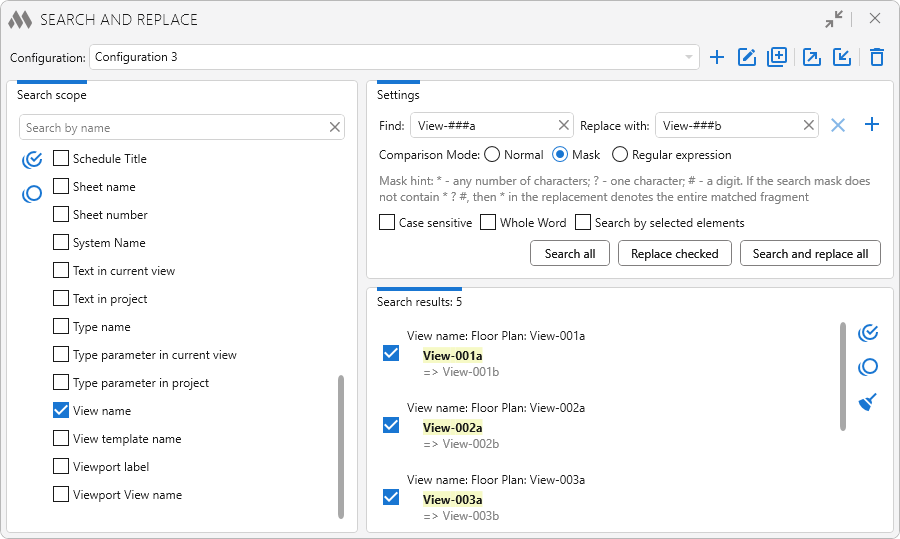
8

Improved
Service update (internal changes)
Fix
Fixed the "viewId is not valid for element iteration" error when searching in schedule filters
Improved
The interface was migrated to the current version of the ModPlus styling library
New
Added search by search scopes
New
Added search in dimensions on the current view and in the entire document
New
Added support for configurations
Improved
Added preview of the replacement result
Fix
Changed the highlight color
New
Added search for parameters with empty values
Improved
Added validation of invalid characters in names
Improved
Added display of the sheet name for schedules
Fix
Fixed the "Method not found" error occurring when launching the plugin
Fix
Fixed a bug where large text notes were processed incorrectly in some cases
New
Added search by fill pattern name
Fix
Fixed text duplication when replacing the content of text annotations
Fix
Fixed an error in processing search by selected elements in the schedule filter
New
Added the ability to use wildcards for searching and replacing parts of text
New
Added multiple search
New
Added search and replace in filter names
New
Added replacement of system names
New
Added replacement of the system name
New
Search and replace in schedule filters
New
Added search and replace in the "Title" section of Schedules
New
Replaced the search and replace algorithm in Text Notes
Improved
Consideration of selected element types when the “By selected elements” option is enabled
New
Added “Check all” and “Uncheck all” options
New
Added search in Schedules name and headers
Fix
Fixed a search error with the "Whole Word" option enabled
New
Added ability to process Text Annotations using regular expressions
Fix
Added a check that the plugin window is already open
Improved
Using the ModPlus.Xaml.Behaviors.Wpf.dll library instead of Microsoft.Xaml.Behaviors.dll to resolve compatibility issues with other plugins
New
Added search and replace in material names
New
Added search and replace in parameters
New
Added search and replace in generic annotations
New
Added search and replacement in viewport view name
New
Added search and replace in sheet number
New
Added an ability to copy element identifier to clipboard
New
Added ability to call the element display function
Improved
Save search settings
Improved
Moved focus to the plugin window after closing the results window
Improved
Changed icons
Improved
Added command access settings on the ribbon
Improved
Setting the Revit window as the parent window for the results window
New
Added the ability to search among the selected elements
Improved
Added the ability to replace with an empty value
Fix
Fixed the error of displaying quotes in search results
New
Added "Viewport title" search scope
Improved
Added ability to turn off the "Regular expression" mode