


MEP Copy

Several Revit applications are running. Choose one:
| Name | Discount | Total value of individual orders | Total value of corporate orders |
|---|---|---|---|
| Regular user | 0% | ||
| 3% discount | 3% | $84 | $180 |
| 5% discount | 5% | $120 | $360 |
| 7% discount | 7% | $180 | $600 |
| 10% discount | 10% | $300 | $900 |
| 15% discount | 15% | $360 | $1 200 |
| Partners | 30% | ||
| BIM Consulting | 50% | ||
| Super VIP | 100% |
Icon


Related news and articles
Using
The plugin consists of several commands:
Copy by level
Copy MEP elements with alignment to selected levels


After running the command, the following action must be performed:
Select MEP elements to copy – select the elements to be copied.
The command also processes pre-selected elements.
After selecting the elements, the level selection window appears:
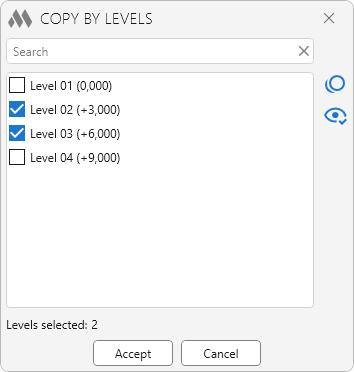
The window is filled with the list of levels of the current project with the possibility of quick search. To the right of the list are buttons that allow you to uncheck all checked levels  and show only the checked levels
 .
In the list you should check the levels to which the selected elements will be copied and start the command execution using the Continue.
When copying elements connected to MEP elements by means of connectors, the copied elements are automatically connected to the corresponding elements if they are available at the connection point at the checked levels.
Copy vertically
Copy MEP elements vertically by a specified distance


After starting the command, the following action must be performed:
Select MEP elements to copy – select the elements to be copied.
The command also processes pre-selected elements.
After selecting the items, the copy settings window appears:
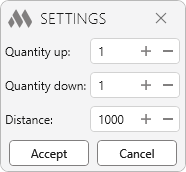
Quantity up – indicates how many times the selected elements will be copied upwards by the specified distance.
Quantity down – indicates how many times the selected items will be copied down to the specified distance.
Distance – specifies the distance between the copies of the selected elements to be created.
When copying elements connected to vertical MEP elements by means of vertical connectors, the copied elements are automatically connected to the corresponding vertical elements if they are available at the connection point.
Copy in direction
Copy MEP elements in direction by distance


After running the command, the following action must be performed:
Select MEP elements to copy – select the elements to be copied. The command also processes pre-selected elements.
Specify a point on the MEP curve to select a direction – select the direction in which the elements will be copied along the MEP curve.
After selecting the elements, the window of copying settings appears:
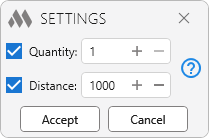
Quantity – specifies the number of times the selected elements will be copied.
Distance – specifies the distance between the copies of the selected elements to be created.
Depending on enabling/disabling the Quantity and Distance options, the plugin can work in the following modes:
- both Quantity and Distance options are enabled
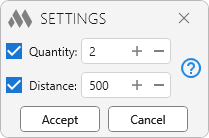
The selected items will be copied the specified number of times by the specified distance in the specified direction.
- Quantity option is enabled
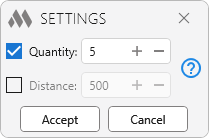
Only elements connected to MEP curves matching the selected direction will be copied. Copying is performed the specified number of times in equal increments to the end of the MEP curve.
- Distance option is enabled
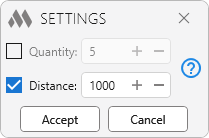
Only elements connected to MEP curves matching the selected direction will be copied. Copying is performed for the specified distance and repeated as long as the elements can be connected to the MEP curves.

 YouTube