Elements join

Elements join
Show in Revit

Several Revit applications are running. Choose one:

This is a free plugin!
Managing adjoining of walls and beams, as well as joining and cutting elements

Icon

mprJoin_32x32 mprJoin_16x16 mprJoin_32x32_dark mprJoin_16x16_dark

Related news and articles


Using

The features of the plugin are divided into tabs:

Adjoining
1

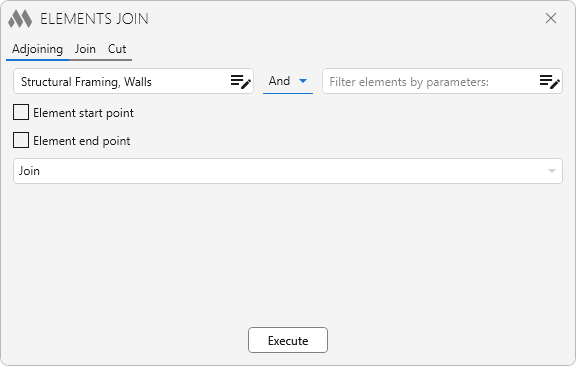
Batch management of end adjacencies.

It is necessary to select the categories of elements for which you want to change the end adjacencies using the elements filter by category.

For a more accurate selection of elements, it is possible to use the element filter by parameters.

Next, it is necessary to check the checkboxes indicating which end of the elements to process and select the processing mode from the drop-down list – Join, Disjoin or Invert. 

When you click the Execute button, a dialog box appears with options for selecting the elements to process – to process the Selected elements, to process all elements In active view, or to process all elements In project.

JOIN
2

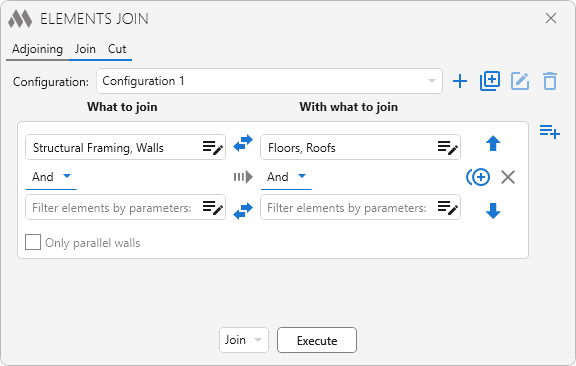
Batch join or detach elements.

At the top there is a drop-down list with configurations. The default configuration cannot be deleted. To the right of the list there are the configuration control buttons:

plus – add a new user configuration
plus circle multiple outline – duplicate configuration
plus circle multiple outline – edit configuration name
arrow down bold – delete the selected user configuration.

Below there is the field with the rules of elements processing. The position of rules in the list influences the order of processing of elements by these rules. To the right of the list of rules there are control buttons:

playlist plus – add a new rule
arrow up bold – move selected rule up
plus circle multiple outline – duplicate rule
arrow down bold – move the selected rule down
close (gray) – delete rule

In each rule you must use the filter elements to set the category of elements, the parameters are set if necessary. On the left you select a category of elements to be joined, and on the right you select one or more categories of elements from which the joined element (elements to be joined) will be cut out.

Using the swap horizontal bold button, you can swap both the filters elements  by category and the filters elements by parameter.

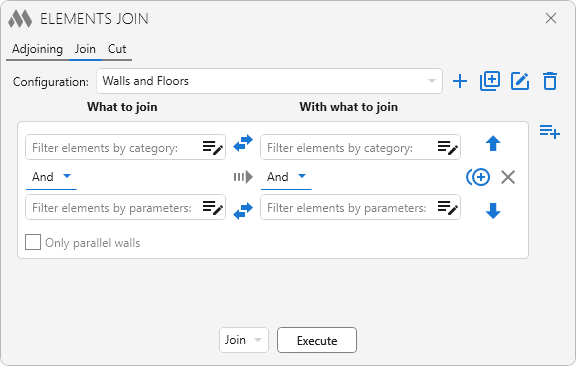
Оnly parallel walls – the option is available only if the "Walls" category is selected on the left and on the right. With this option it is possible to connect finishing walls to the main walls.

In case the elements are already joined, the plugin will change the order in which they are joined.

Below the list of rules select in the drop-down list what action you want to apply to the elements – to Join or to Disjoin.

When you click the Execute button, a dialog box appears with options for selecting the elements to process – to process the Selected elements, to process all elements In active view, or to process all elements In project.

For example, you need to join the walls of mark "W-1" to the floor. Create a new configuration:
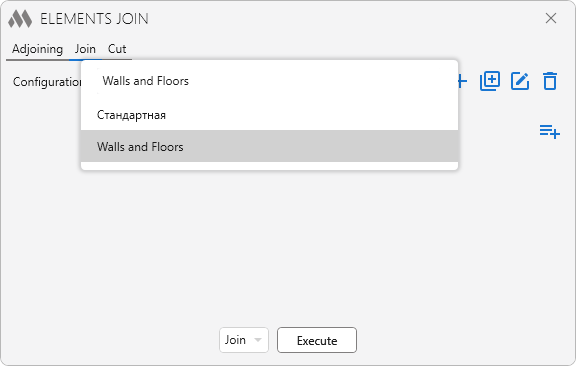
3

Add the rule of elements processing:

4

In the left field of the filter elements by category select "Walls":
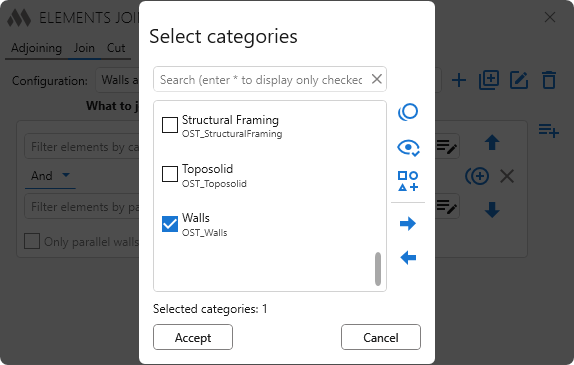
5

In the right field of the filter elements by category select "Floors":
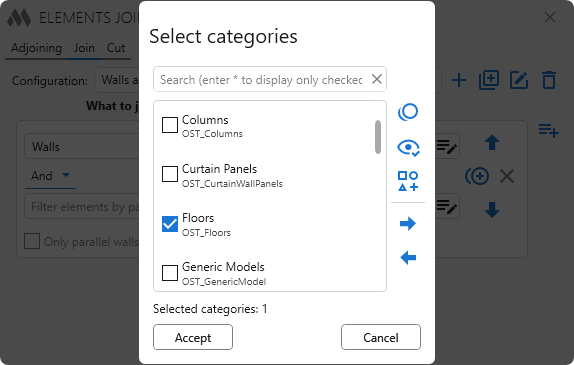
6

In the left field of the filter elements by parameter, create a simple condition:
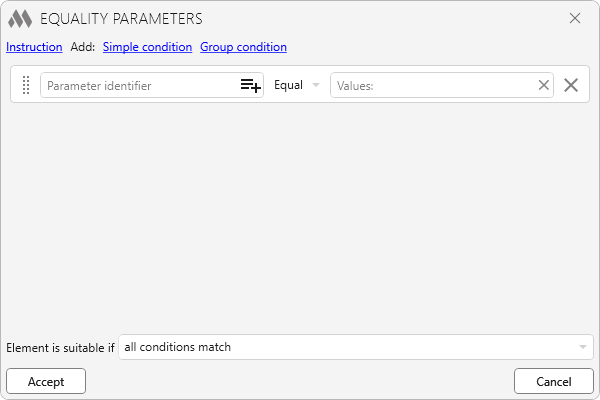
7

In the left field select the instance parameter "Mark":
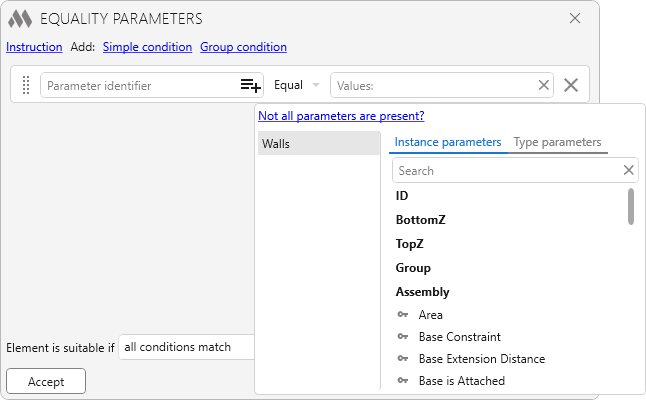
8

In the right field enter the value of the parameter "W-1":
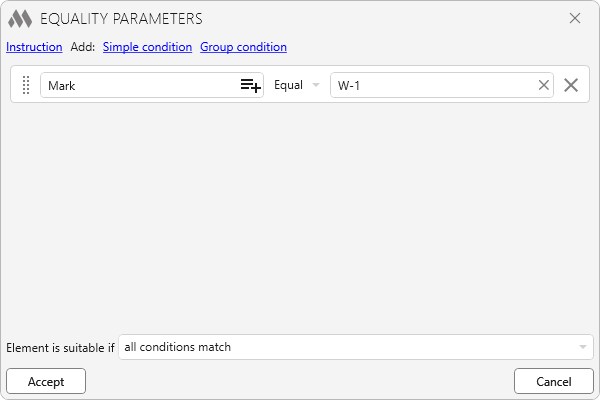
9

Click the Accept button. And then click Execute in the main window:
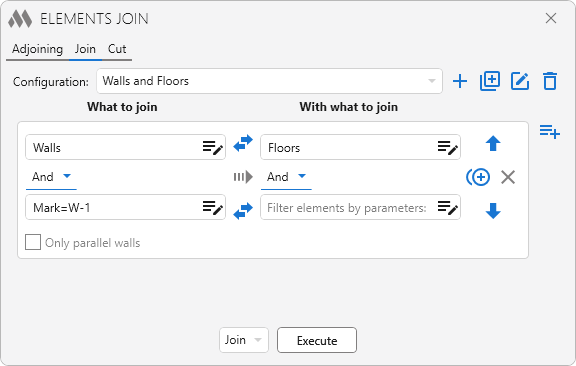
10

CUT

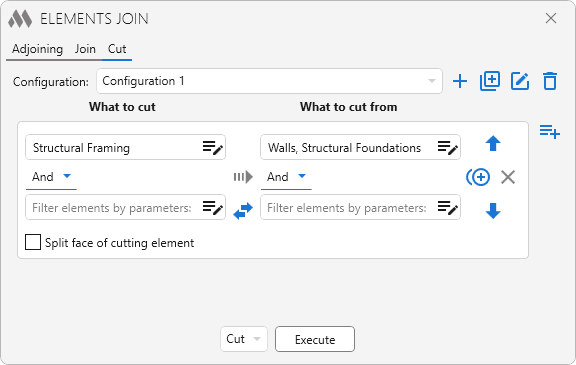
11

Batch cut or cancel cut elements.

At the top there is a drop-down list with configurations. The default configuration cannot be deleted. To the right of the list there are the configuration control buttons:

plus – add a new user configuration
plus circle multiple outline – duplicate configuration
plus circle multiple outline – edit configuration name
arrow down bold – delete the selected user configuration.

Below there is the field with the rules of elements processing. The position of rules in the list influences the order of processing of elements by these rules. To the right of the list of rules there are control buttons:

playlist plus – add a new rule
arrow up bold – move selected rule up
plus circle multiple outline – duplicate rule
arrow down bold – move the selected rule down
close (gray) – delete rule.

In each rule you must use the filter elements to set the category of elements, the parameters are set if necessary. On the left you select the category of elements to be cut, and on the right you select one or more categories of elements from which the element will be cut. 

Using the swap horizontal bold button, you can swap both the filters elements  by parameter.

Below the list of rules select in the drop-down list what action you want to apply to the elements - to Cut or to Cancel cut.

When you click the Execute button, a dialog box appears with options for selecting the elements to process – to process the Selected elements, to process all elements In active view, or to process all elements In project.

ModPlus YouTube
New
Fixed an error due to which the window with the plugin results could end up behind the Revit window
Improved
The interface was migrated to the current version of the ModPlus styling library
Improved
Added the "Ceilings" category to the cut categories list
Improved
Added automatic expansion of the window content when the plugin is relaunched
Fix
Fixed "Method not found" error occurring in Revit 2027
Improved
The "Massing" category has been added to the list of available categories for joining
Improved
Window background change when collapsing window content
Fix
Fixed an issue where undoing the cut did not work in some cases
Improved
Removed pre-check for solid geometry in families when attempting to join them with other elements
New
Added the ability to collapse/expand the window content
Improved
Correct handling of families whose geometry consists of nested families
Fix
Correct display of the standard configuration name when changing the language
Improved
Added the "Walls" category to the list of categories available for cutting
Improved
Added new categories of elements available for cutting
New
Added "Split face of cutting element" option to cut settings
Improved
The category "Doors" has been added to the list of categories to cut out
Improved
The "Walls" category has been removed from the list of categories to cut out
Improved
The category “Walls” has been added to the list of categories to cut out
Improved
Added the category "Toposolid" (Revit 2023 and above) to the list of categories on the Cut and Join tabs
Improved
Some icons have been replaced
Improved
The category “Windows” has been added to the list of categories to cut out
Improved
The category “Rebar” has been added to the list of categories to cut out
Improved
Unpacking groups and assemblies during preselection processing
Improved
Added processing of preselected elements
Fix
Fixed data loading error when selecting a configuration file if organization settings are used
New
Added sorting of configurations
Fix
Fixed a bug where in some cases a message would appear that nothing had been processed
Fix
Fixed a bug where multiple copies of the plugin window could be launched
Improved
Using the ModPlus.Xaml.Behaviors.Wpf.dll library instead of Microsoft.Xaml.Behaviors.dll to resolve compatibility issues with other plugins
Improved
The "Floors" category has been added to the list of allowable "What to cut" categories on the "Cut" tab
Improved
The "Curtain wall panel" category was added to the "Join" tab
Improved
The "Structural foundation" category has been added to the list of allowable "What to cut" categories on the "Cut" tab
Fix
Removed the "Reference planes" category. Fixed some bugs
New
In the "Cut" tab added categories "Reference planes" and "Roofs"
New
Added ability to cut solid elements
Improved
Added a summary message if no elements are selected
Improved
Manual selection of elements to cut at one time
Improved
Changes were made in the work with the organization settings file
New
Changed the list of categories in the "Cut" tab
Improved
Added titles for pairs of processed elements on the " Join" and "Cut" tabs
Improved
Skipping elements without geometry when the " Join" function works
Fix
Fixed "Method not found" error that occurs after updating working libraries to version 14.2.1
Improved
Save the selected configuration
New
Added ability to duplicate configurations and rules
Improved
Changed icons
Improved
Added command access settings on the ribbon
New
Added support for Organization Settings
New
Added "Slab Edges" category to the category list on the "Join" tab
New
Added " Slab Edges " and "Structural Foundations" categories to the category list in the "Cut" tab
New
Added "Walls", " Floors" categories to the list of categories in the "Cut" tab
New
Added ability to swap filters by category and filters by parameters
Fix
The "Cut" tab has been removed unnecessary buttons
New
Using the "Elements filter" tool to filter elements
New
Added "Only parallel walls " option to the "Join" tab
New
Added OST_StructConnections category
New
The "Data Devices" category has been added to the list of categories on the "Cut" tab
New
The plugin window is made non-modal (not blocking Revit)
New
Added an option to cancel a cut
Improved
Added the ability to connect elements by height
Improved
Categories added to the "Cut" tab: Electrical Equipment, Mechanical Equipment, Special Equipment, Plumbing Fixtures
Improved
Ignoring an error that occurs if the user interrupts the selection
Fix
Fixed elements selection logic - now you have to select elements once
New
Added feature to cut elements
Improved
Added saving of the selected tab
Improved
Categories are made unselectable by default
Improved
Added "Roofs" category
Improved
Added sending plugin launch statistics