Coloring elements

Coloring elements
Show in Revit

Several Revit applications are running. Choose one:

Attention! The plugin is purchased for the specified version of Revit!
$7.20
Discount system: 0%
Discount system
Name Discount Total value of individual orders Total value of corporate orders
Regular user 0%
3% discount 3% $84 $180
5% discount 5% $120 $360
7% discount 7% $180 $600
10% discount 10% $300 $900
15% discount 15% $360 $1 200
Partners 30%
BIM Consulting 50%
Super VIP 100%
A subscription is your best choice. Find out why!
To use the purchased license, use the Personal Area of the ModPlus software installed on your computer
Coloring elements in the view by conditions, as well as creating a view template with filters or adding filters to existing views

Icon

mprColorizer_32x32 mprColorizer_16x16 mprColorizer_32x32_dark mprColorizer_16x16_dark

Related news and articles


Using

The plugin allows to color elements in the view by conditions (by category and/or parameters), to reset the coloring, and to add filters to the current template or view.

The plugin's dialog box:
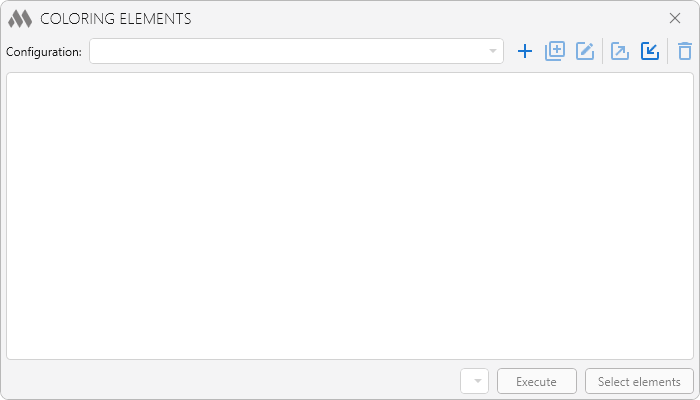
1

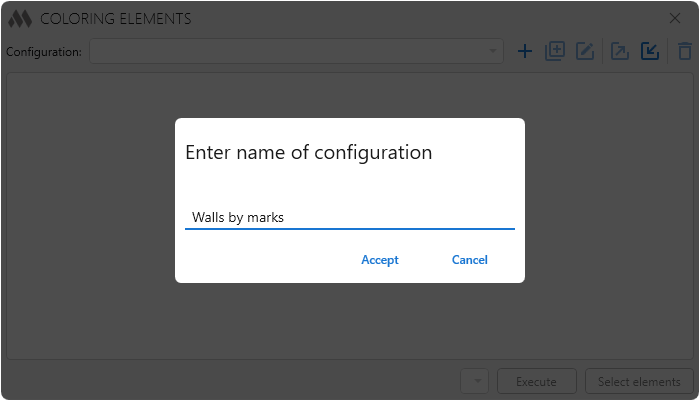
There must be at least one working configuration for the plugin to start working. To create it, click on plus and then enter the name:

2

The following tools are available for working with configurations:

  • plus box multiple outline – duplication the selected configuration;
  • square edit outline – edit the name of the selected configuration;
  • export, import – import and export of configurations, respectively;
  • delete outline – deleting the selected configuration.

To create a working configuration you need to add the conditions of its work. There are two operating modes:
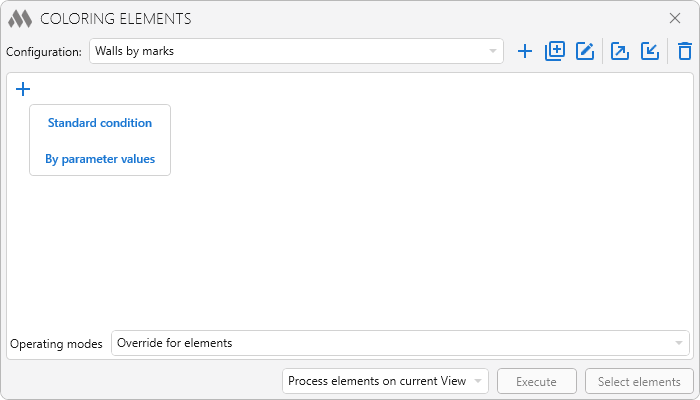
3

STANDARD CONDITION

After adding the condition, it is necessary to fill in at least one of the element filters – specify the category of elements to be coloured (the left part of the condition) or the parameter by which they will be coloured (the right part of the condition).
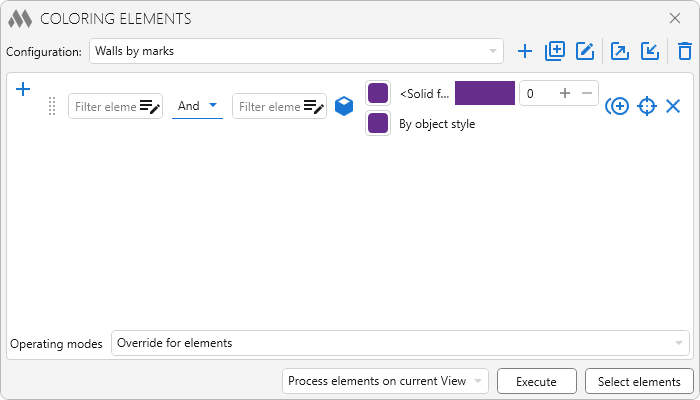
4

The category and parameter in the condition are optional, so they can be used together or separately.

The filtered elements that satisfy this condition can be selected and shown in the model using the target. Using the Select elements at the bottom of the plugin window you can select and show in the model the elements that will be coloured according to all conditions of the current configuration.

The coloring area of elements can be changed by successively clicking on the corresponding button: cube – coloring surfaces and lines, cube outline – coloring only lines or cube variant – coloring only surfaces. For surfaces you can set color, pattern and transparency, for lines – color and swatch.

Use the color palette to select the desired coloring color:
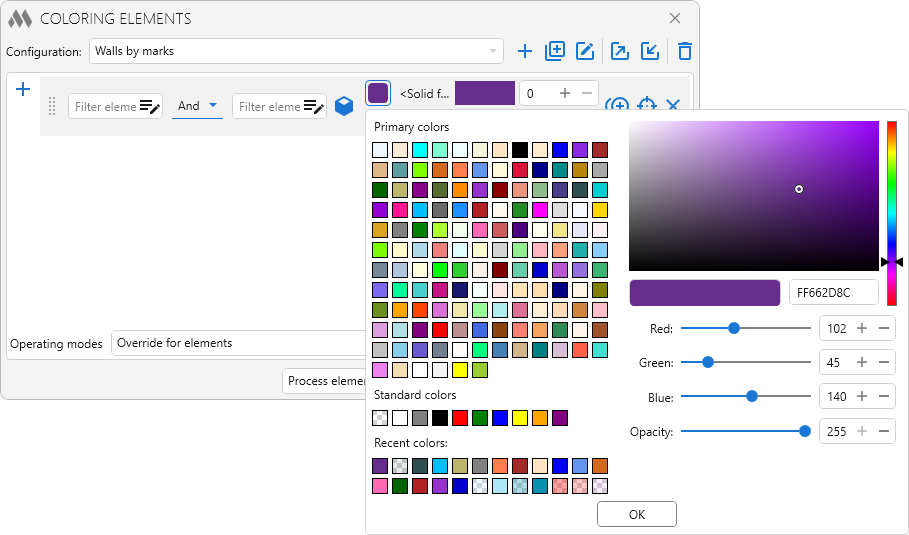
5

Choose a line and surface pattern from the drop-down list:
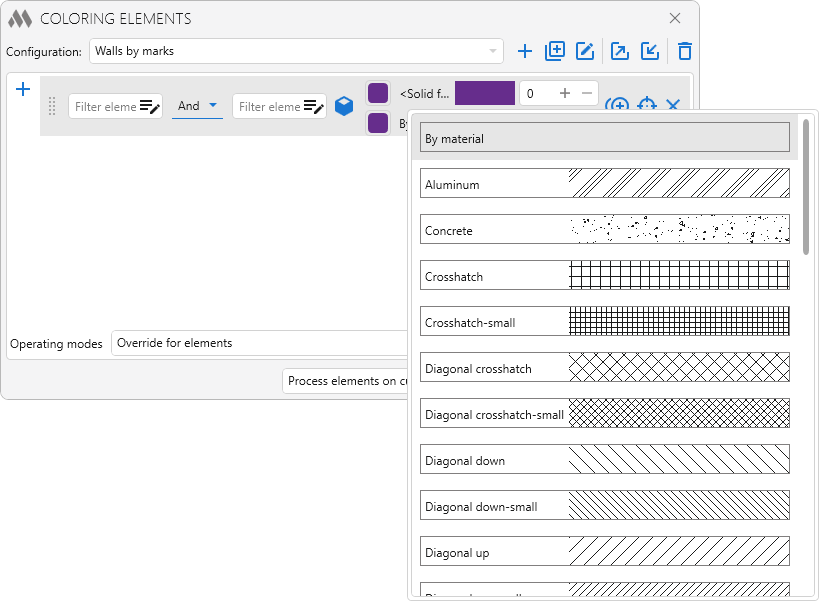
16

The existing condition can be duplicated plus circle multiple outline and deleted close using the corresponding buttons.

If several conditions for coloring elements are set, the individual condition can be moved in the list by dragging it with the left mouse button.

BY PARAMETER VALUES

In cases where there are a large number of values for a single parameter, you can use coloring by parameter value.

Use the elements filter playlist edit to enter categories. After you fill in the categories, the parameter filter will become available.

In the parameter filter, you can create only one condition for a single parameter. You can set multiple values for a parameter, separated by a comma.

After entering a category and parameter filter, you can get a list of values that satisfy these conditions on the Get button:
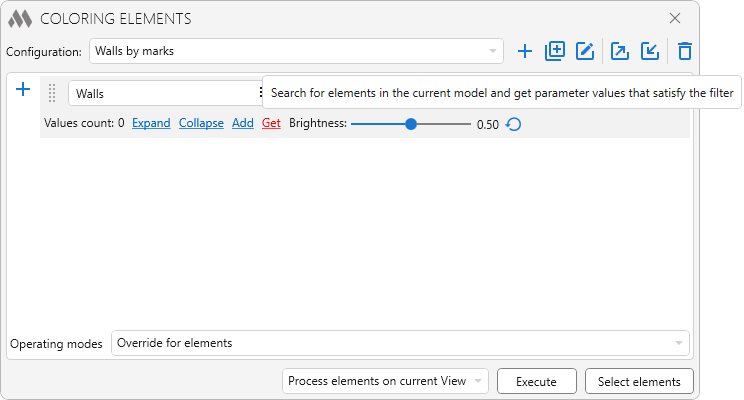
6

You can search for elements that satisfy the filter either from the whole project or from the current view:
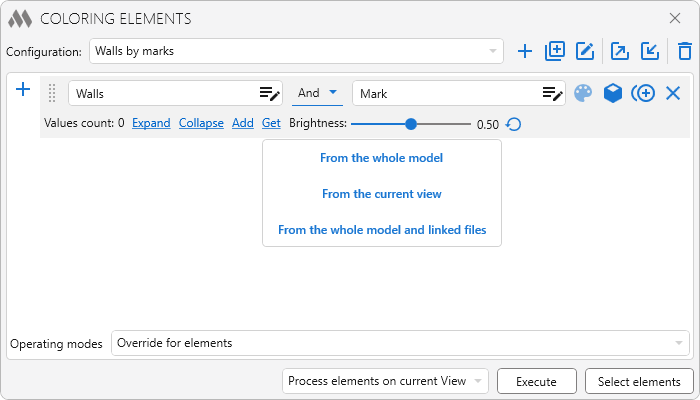
7

You can expand or collapse list, add a new value, or delete a value from the list using the corresponding buttons:
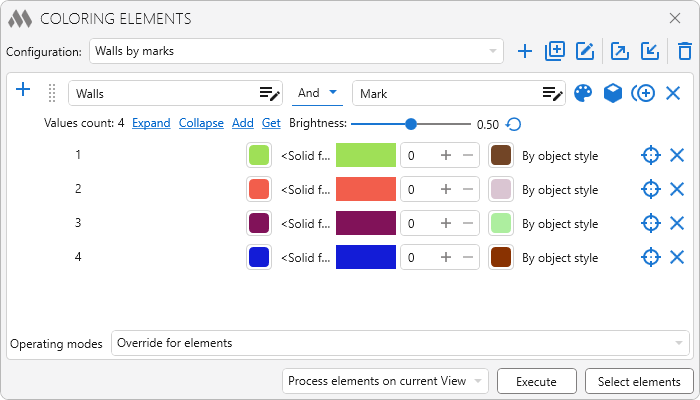
8

For all colors in the list, you can change the Brightness and also restore its original value reload.

A separate sample of lines or surfaces can be applied to all values in the list by selecting the corresponding command from the context menu:
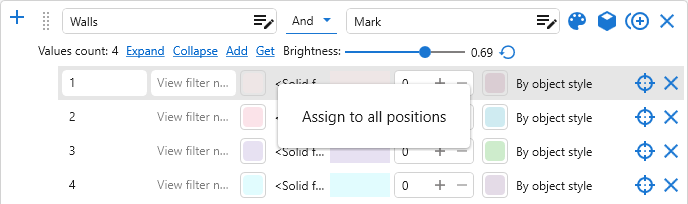
17

Clicking the palette button assigns random colors to all values:
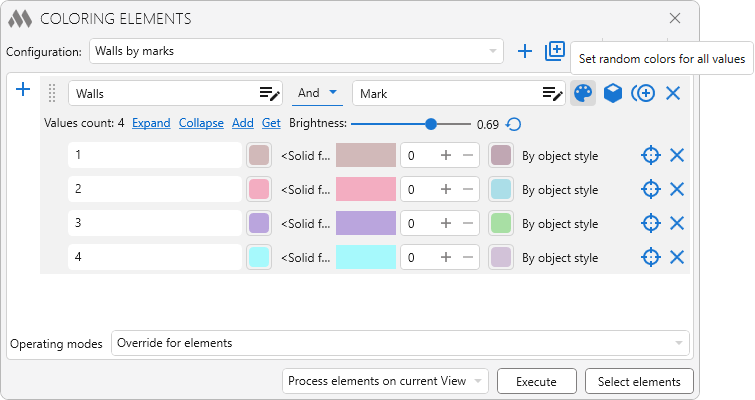
9

At the bottom of the window is an option for the plugin mode, where:

    • Can override on the current view the coloring for elements according to the specified conditions
    • Restore the (original) override in the current view
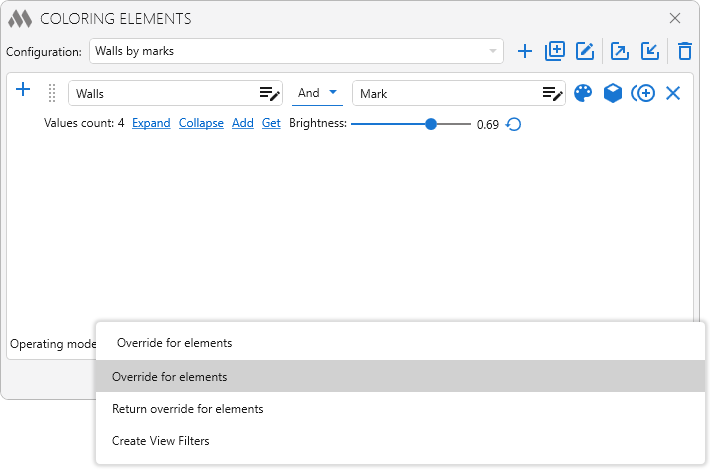
      10
    • Create View Filter – add filters to an existing view template (if one is set for the current view)/to the current view (if no template is defined for it) or creates a new view template with filters:
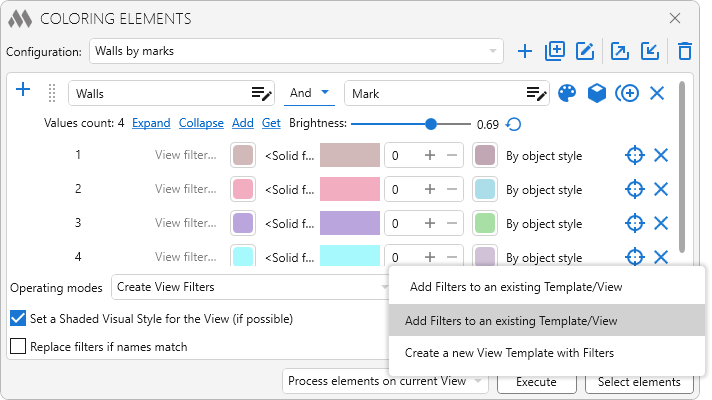
      11

It is not possible to create a view filter for all parameters. If the filter cannot be created, an error window will be displayed:
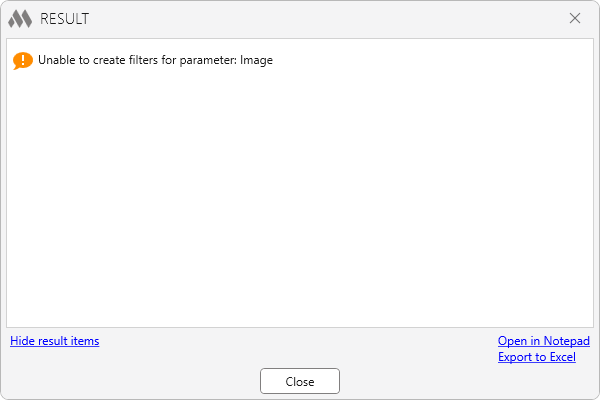
12

In the Create View Filters mode, the following options become available:

  • an option to enable or disable a shaded visual style for the view (if available)
  • an option to replace filters with matching names
  • a field for entering the name of the view filter.
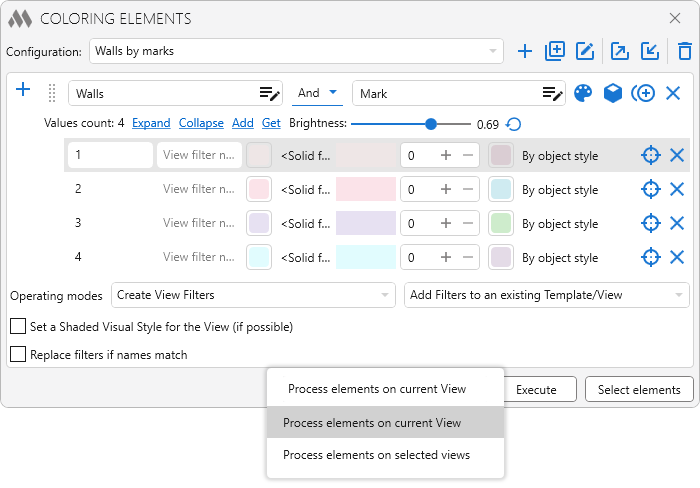
15

The plugin can process elements both in the current view and in several checked views.

To start the plugin, click on the Execute button.

Before applying the plugin:
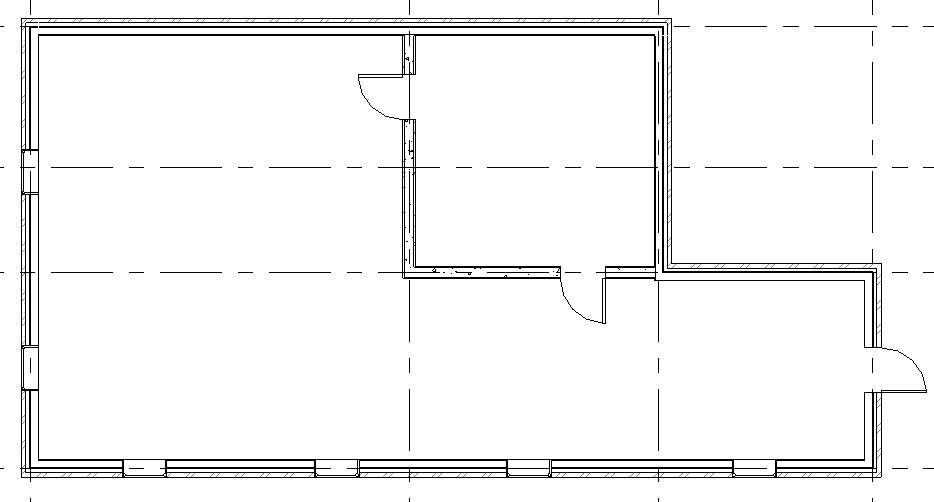
13

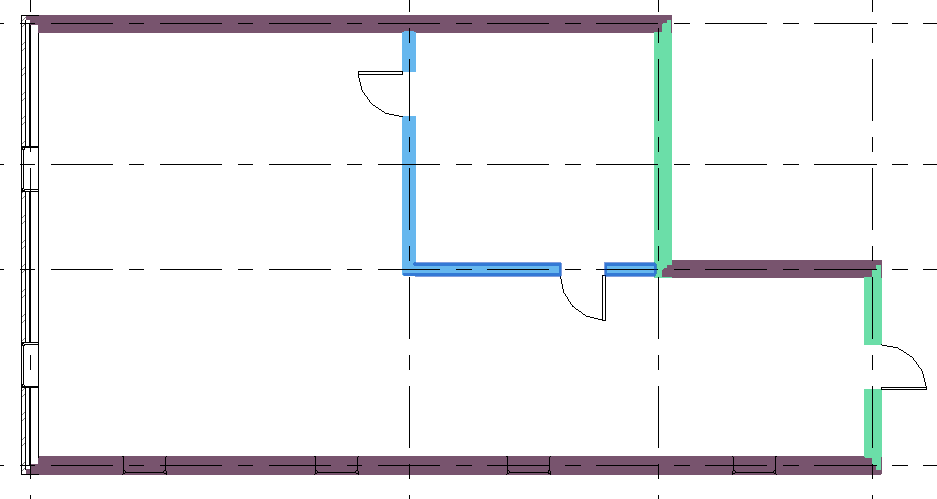
After applying the plugin:

14

ModPlus YouTube
ModPlus YouTube
Improved
Service update (internal changes)
Improved
Fixed some interface issues
Improved
The interface was migrated to the current version of the ModPlus styling library
Fix
Fixed an error that occurred when closing the view selection window if no view was selected
New
Added the ability to collapse the window content
Improved
Removed the application of random colors when copying a condition by parameter values
Fix
Fixed an error where the entire configuration storage file was exported instead of the current configuration
Improved
Service update due to replacement of auxiliary library to prevent conflicts with other plugins
Fix
Correct handling of annotations when working with multiple views
New
Added background coloring when creating a filter
New
Added a brightness slider to the condition by parameter values
New
Added the option "Replace filters when names match"
New
Added the ability to set a filter name in the condition by parameter value
New
Added an option to get parameter values from elements of linked files
New
Added a context menu to fill pattern and line type to apply settings to all positions
New
Added the ability to process multiple selected views
Improved
Added the ability to export the configuration specified by the organization settings
Improved
Display the current configuration name in the Rename dialog box
Fix
Fixed a bug where color matching in conditions by parameter did not work after duplicating a configuration
Fix
Fixed a bug where run buttons were available after deleting all configurations
Improved
Some icons have been replaced
Improved
Changed order of configuration editing buttons
Fix
Fixed a bug where the contents of the switched Organization Settings configuration were not reloaded
Fix
Fixed resetting of some parameters when duplicating configurations
Fix
Fixed plugin freezing in some cases when selecting a line type
Fix
Fixed resetting of user settings when "Get" is pressed
Improved
Changed position of some buttons
New
Added ability to specify surface pattern and transparency
New
Added ability to specify line type
New
Added ability to select elements by filter
New
Added support for Organization Settings
Improved
Plugin window made non-modal (does not block Revit window)
Improved
Ignoring positions without value when creating filters by parameter value
Fix
Fixed an error that incorrectly created filters on parameters with data type "Double"
Fix
Fixed error of getting parameter values when using the system name or GUID of a parameter
Fix
Fixed a bug where only the last condition among conditions with the same element filter was applied
Improved
Using the ModPlus.Xaml.Behaviors.Wpf.dll library instead of Microsoft.Xaml.Behaviors.dll to resolve compatibility issues with other plugins
New
If the "Family name" or "Type name" parameter is specified, the values of these parameters will always be taken from the type
Fix
Fixed "Method not found" error that occurs after updating working libraries to version 14.2.1
New
Added an option to set the coloring area - lines or surfaces
New
Added ability to drag and drop conditions in the list
New
Added ability to duplicate configuration
New
Added an option to disable the setting of a Shaded Visual Style for the View when creating view filters
New
Added the ability to set the name of the view filter in the standard conditions
Improved
Changed icons
Improved
Added command access settings on the ribbon
Improved
Added remembering of the selected configuration
Improved
In the condition by parameters, when getting the parameter values, the colors of already existing values are not replaced
Fix
Fixed a bug that prevented creating filters in a view without a template
Improved
For conditions by parameter values, added the ability to set the search area (model or view) when obtaining values
Improved
Added checks of the current view for the possibility to create or change the template
Improved
Displayed information about parameters that cannot be used to create filters
Fix
Fixed some bugs
New
Added export/import list of configurations
Improved
Coloring of projection and section lines
New
Correct creation of filters, taking into account the type of parameter data
Fix
Fixed an error checking the uniqueness of names of created filters
Fix
Fixed an issue with reading text parameter values in Revit versions older than 2023
Fix
Fixed an issue with creating filters based on parameters with non-specified values
New
Added condition "By parameter values"