Model cleaning

Several Revit applications are running. Choose one:
Icon


Related news and articles
- New plugin for Revit: Model cleaning
- Revit. Model cleaning: view filters, schedules, and unused shared parameters
- Revit. Model cleaning. Cleanup views, empty worksets, and unused filters
Using
The plugin contains different cleaning options for the model, which differ in the way they can be used. The cleaning options are divided into separate tabs:
- Basic сleaning
- View templates
- View filters
- Views
- Schedules
- Project parameters
- Shared parameter
- Unused shared parameters
- Unplaced rooms
- Unplaced spaces
- Unplaced areas
- Lookup tables
- Line patterns
For each clearing option, multiple selection is available in the list. Selection is performed by holding down the Ctrl or Shift key and clicking with the left mouse button.
BASIC CLEANING
The tab settings window at the top contains a tool for setting up and using model cleaning configurations. To create a new configuration, click on  and check the necessary items in the list. The current configuration can be renamed
 or deleted
 .
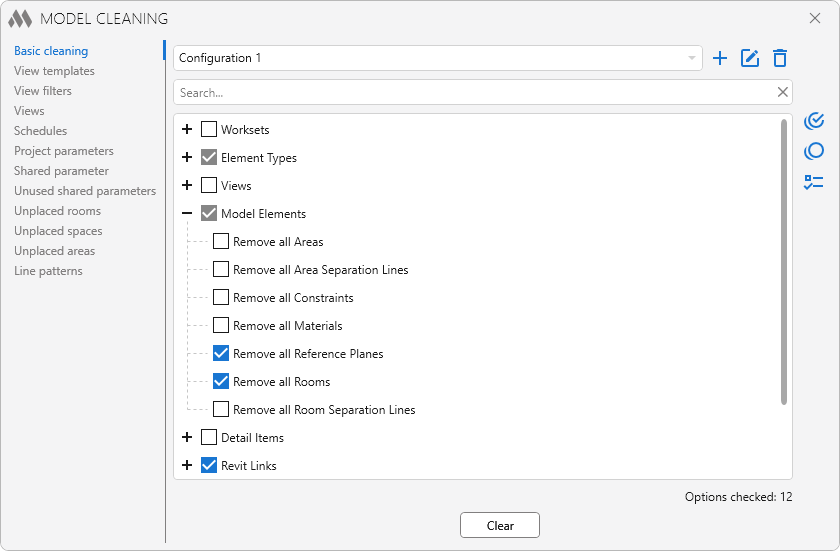
The middle part of the window contains a list of actions that can be performed to clean the model. This list may vary depending on where the plugin is running (in the project or in the family editor), as well as on the content of the project. For example, in a file configured for collaboration, the option Remove all elements in workset "..." will be available, and the option Remove all empty worksets will be present starting with Revit version 2023. In the list, you must check the items that you want to apply to clean the model.
For a quicker orientation among the positions, you can use the search bar.
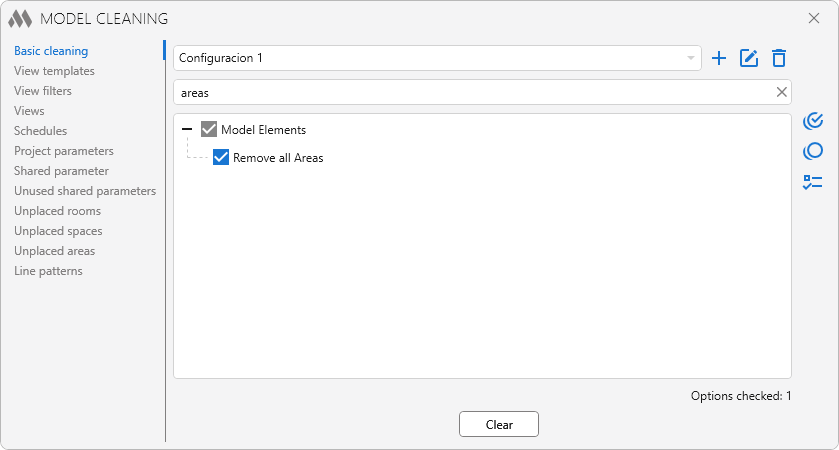
For a quick selection of the necessary items there are tools:
 – select all items in the list;
 – deselect all items in the list;
 – switch (invert) the selection of items in the list.
Clear – starts cleaning on the selected items in the list.
Deletion on some items in the list is irrevocable.
VIEW TEMPLATES
The tab contains a list of view templates in the project.
It is possible to find out whether view templates are used in the project and to see which view they are applied to by clicking on the link Show. The data in all columns can be sorted by left-clicking on the column header.
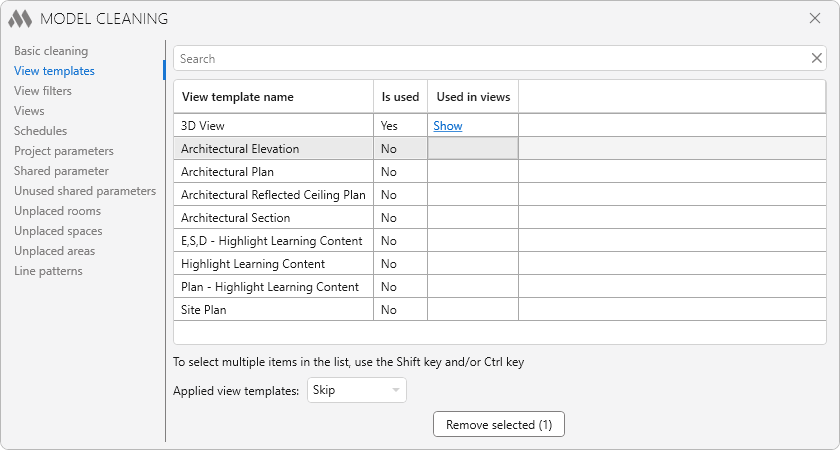
At the bottom of the window are the tools:
Applied view templates – when cleaning starts, view templates that have been applied to views are either skipped or deleted along with the view template links.
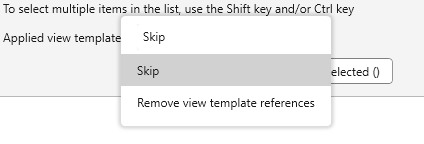
Remove selected (...) – start clearing the selected templates.
VIEW FILTERS
The tab contains a list of all view filters, as well as information on which template and on which views they are used.
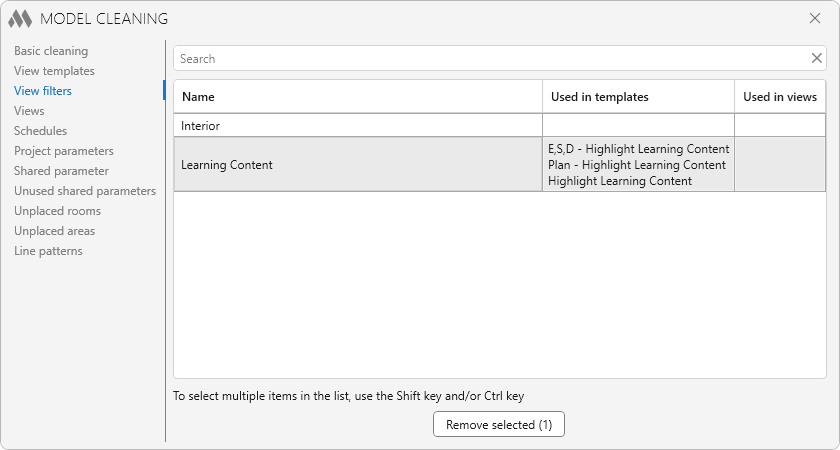
To start cleaning, select the filters and click the Remove selected (...) button.
VIEWS
The tab contains a list of views of the current document, except for Schedules. For each view, it displays information about the sheets on which the view is placed. You can delete all views except the active one. Also from this tab (and from the Schedules tab) you can open a view by double-clicking it.
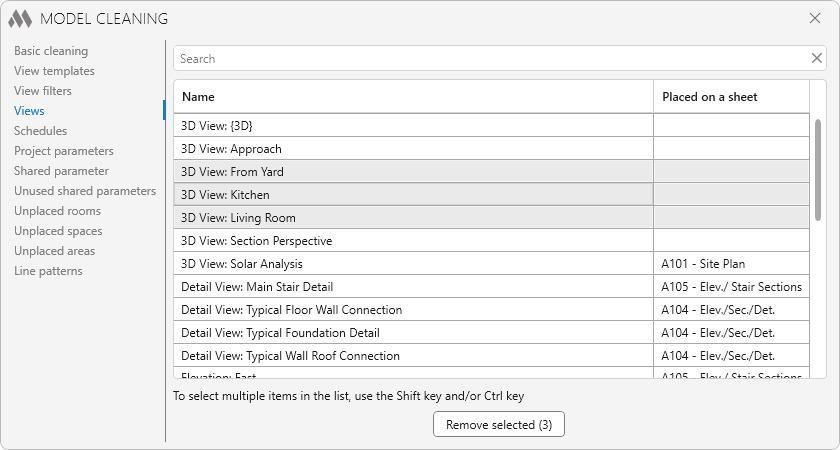
To start cleaning, you should select the views and click the Remove selected (...) button.
SCHEDULES
The tab contains a list of Schedules that are in the project, as well as information on which sheets the Schedules are placed.
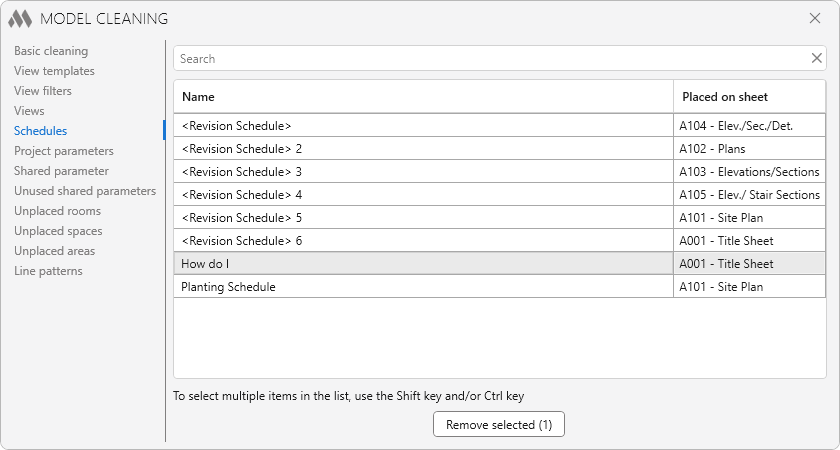
To start cleaning, select the Schedules and click the Remove selected (...) button.
PROJECT PARAMETERS
The tab contains a list of project parameters, and there is also an option to search the parameter in Schedules, families (types and instances placed in the model), Project Information and filters by pressing the Search button.
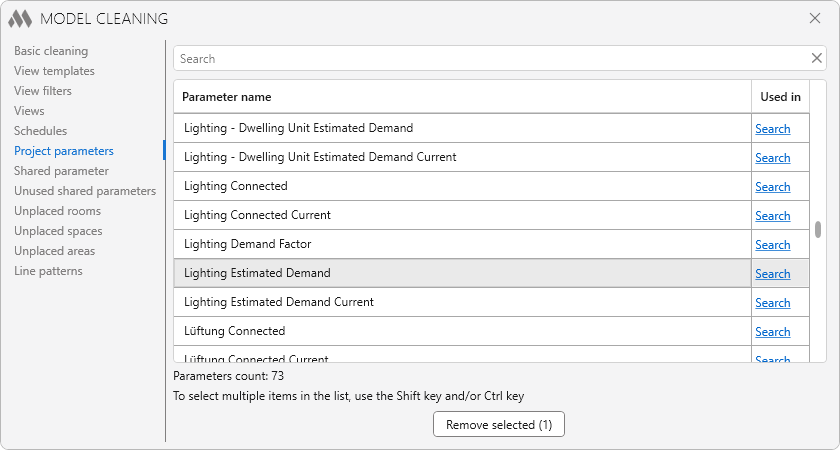
To start cleaning, select the parameters and click the Remove selected (...) button.
To form a list of shared parameters, click on the Collect button.
The tab displays a list that also contains information about the parameters:
- Parameter name;
- Guid – unique identifier of the parameter;
- Project parameters – whether the shared parameter has been added to the project parameters;
- In current SPF by Guid – whether the parameter is used in the current SPF by Guid (where SPF – Shared Parameter File);
- In current SPF by name – whether the parameter is used in the current SPF by name.
There is also an option to search the parameter in Schedules, families (types and instances placed in the model), Project Information and filters by pressing the Search button.
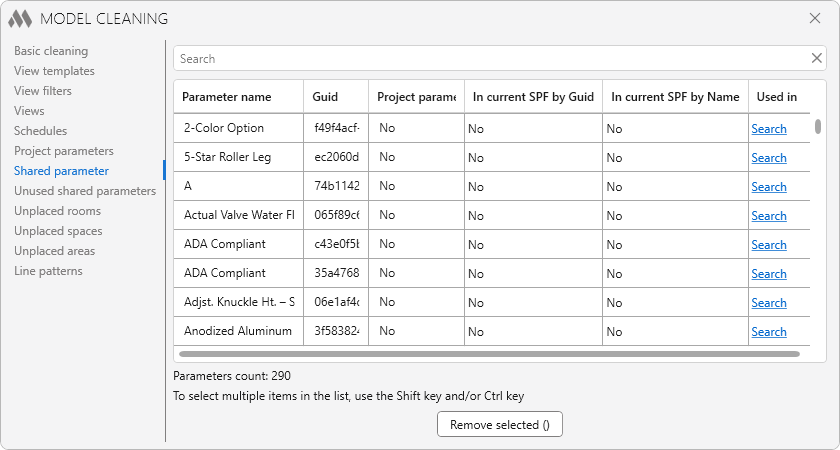
To start cleaning, select the parameters and click the Remove selected (...) button.
To form a list of unused shared parameters it is necessary to click the Search button. Searching for unused shared parameters may take some time, because it will require opening all families (including nested families) in the project.
You can display a list of all shared parameters when searching for unused shared parameters using the Open a list of all found shared parameters in Notepad option.
In the tab you will see a list, which also contains information about the parameters:
- Parameter name;
- Guid – unique identifier of the parameter;
- In current SPF by Guid – whether the parameter is used in the current SPF by Guid (where SPF – Shared Parameter File);
- In current SPF by name – whether the parameter is used in the current SPF by name.
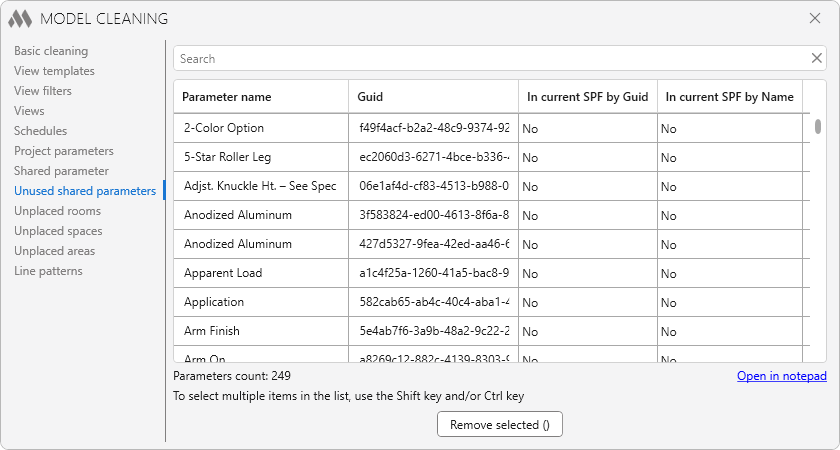
It is possible to open the list of unused shared parameters in the text editor "Notepad" using the Open in notepad button.
To start cleaning, select the parameters and click the Remove selected (...) button.
UNPLACED ROOMS
In the tab, there is a list of rooms that are not placed and are in the project.
Unplaced rooms are rooms that have been deleted from the view, but they are not deleted from the project and remain in its database. If necessary, these rooms can be placed again in another view keeping the room properties (name, finishing materials).
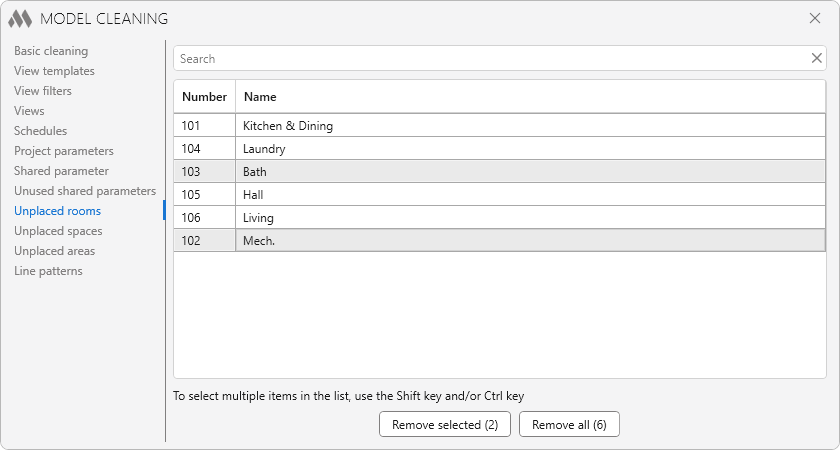
To start cleaning, select rooms and click the Remove selected (...) button, or remove all rooms using the Remove all (...) button.
UNPLACED SPACES
The tab has a list of spaces that are not placed and are in the project.
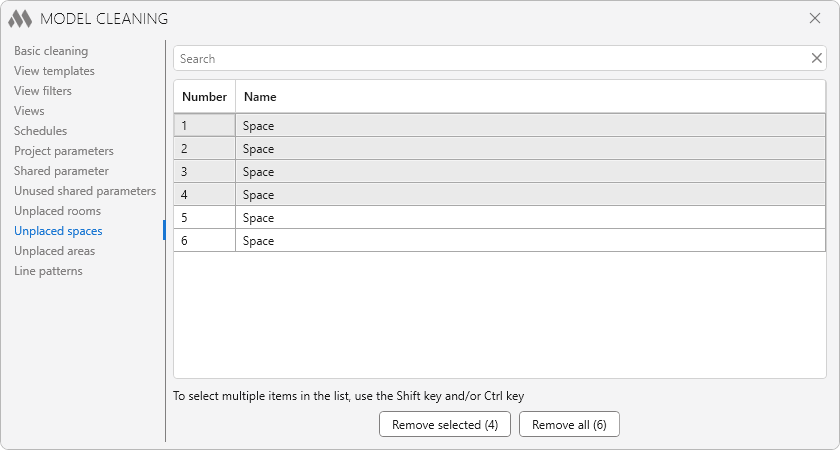
To start cleaning, select spaces and click the Remove selected (...) button, or remove all spaces with the Remove all (...) button.
UNPLACED areaS
The tab has a list of areas that are not placed and are in the project.
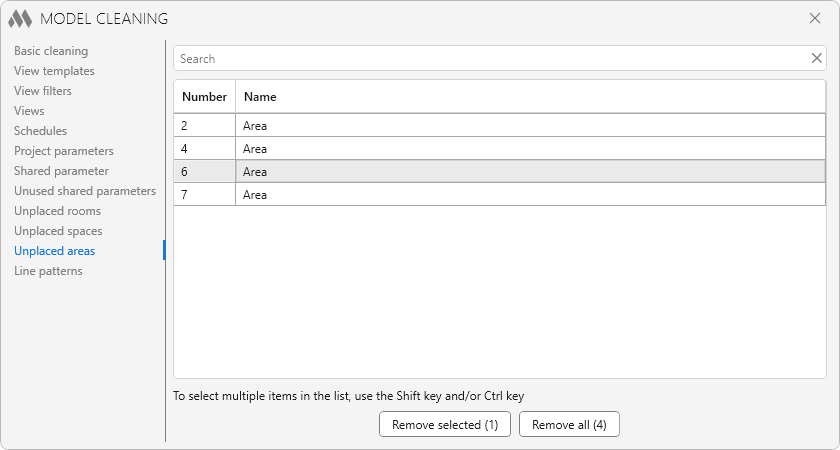
To start cleaning, select areas and click the Remove selected (...) button, or remove all areas with the Remove all (...) button.
LOOKUP TABLES
The tab is only available in the Family Editor. The tab contains a list of Lookup Tables imported into the family, as well as information about using the table.
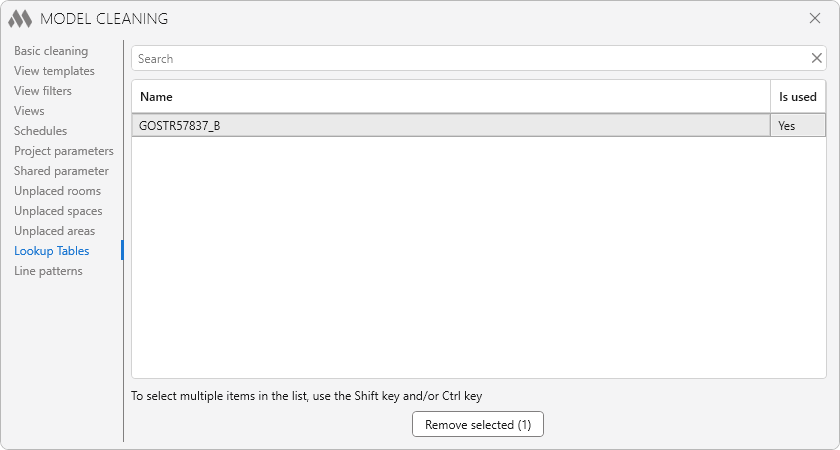
To start cleaning, select the tables and click the Remove selected (...) button.
LINE PATTERNS
This tab is intended for finding and removing unused line patterns in the project.
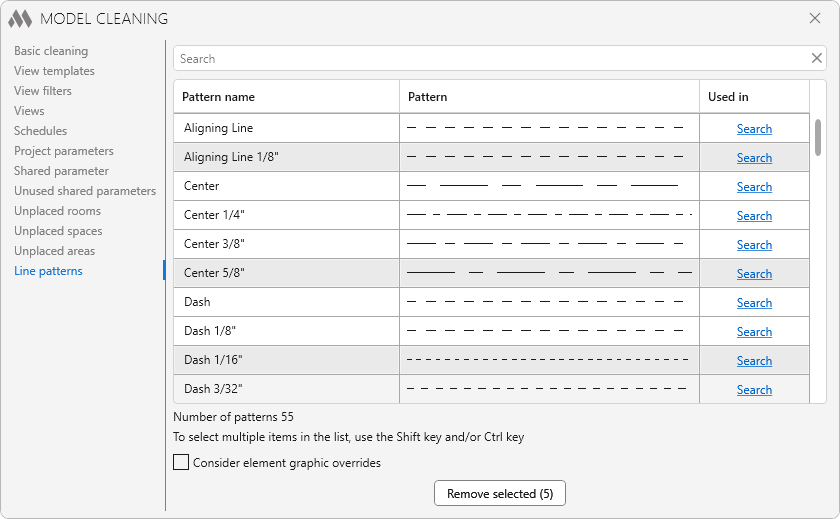
When the Search button is clicked, the plugin searches for project elements that use the selected line pattern.
Consider element graphic overrides – when this option is enabled, the plugin additionally analyzes element graphic overrides in views.
To start the cleanup, select the line patterns and click the Remove selected (...) button.
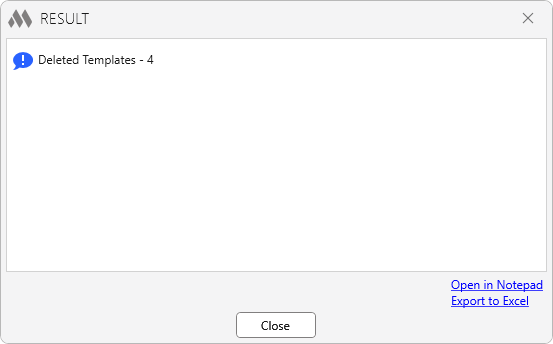
After applying some clearing options, a window displaying the cleaning results will appear.