


Calculator

| Name | Discount | Total value of individual orders | Total value of corporate orders |
|---|---|---|---|
| Regular user | 0% | ||
| 3% discount | 3% | $84 | $180 |
| 5% discount | 5% | $120 | $360 |
| 7% discount | 7% | $180 | $600 |
| 10% discount | 10% | $300 | $900 |
| 15% discount | 15% | $360 | $1 200 |
| Partners | 30% | ||
| BIM Consulting | 50% | ||
| Super VIP | 100% |
Call options
- ModPlus floating menu or palette
- AutoCAD ribbon
- Command line: _mpCalc
Icon


Related news and articles
Using
In the upper left part of the window there is a button that opens the menu for selecting the work option – Calculator; Interpolation; Degree, slope:
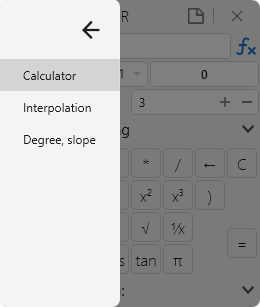
Calculator
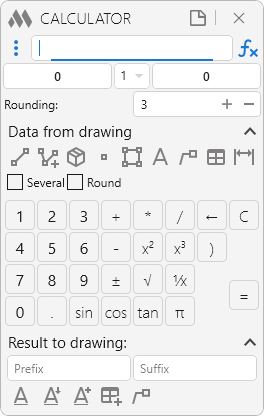
Input field – field for entering the formula. After pressing the button "=" or on the keyboard of the button Enter the formula from the window will be calculated, and the result is displayed in the corresponding field.
 – the context menu for inserting functions. For more information about the functions, see below in the table.
Output field – field for outputting the result of calculating the formula.
Result multiplier – a number from the drop-down list, by which the result of calculating the formula is multiplied.
Prefix – field for specifying the prefix. When adding a result to the drawing, the prefix will be added to the beginning of the result.
Output field – field for outputting the result of calculating the formula.
Suffix – field for specifying the suffix. When adding a result to the drawing, the suffix will be added to the end of the result.
Rounding – the indication of the number of decimal places to which the value in the output field will be rounded.
Group Data from drawing contains functions for obtaining values from the drawing (the value is added to the end of the line of the input field). For some data retrieval options, it is possible to retrieve data from several objects by ticking the Several. Then when you select several objects from which you want to get the values, a window for selecting the sign will appear, which will be inserted between the values:
Round – indicates whether the values obtained from the drawing are rounded to the specified number of decimal places.
 – measure the distance between two points
Go to AutoCAD to query two points:
First point: – specifying a point on the screen
Second point: – specifying a point on the screen
 – get the sum of lengths from entities
Go to AutoCAD to query two points:
First point: – specifying a point on the screen
Second point: – specifying a point on the screen
– get the height 3D Solid
Select a 3D Solid that has the “Height” property: –select the corresponding object
 – get coordinates
Go to AutoCAD to specify a point on the screen:
Specify point: – specifying a point on the screen
Select a coordinate [X/Y/Z]: – selecting the corresponding coordinate of the specified point
 – get the area
Go to AutoCAD to select an entity:
Get the area [Polyline/Hatch]: – the choice of the entity from which the area will be obtained
 – get value from text
Go to AutoCAD to select an entity:
Select single-line or multi-line text: – select single-line or multi-line text
Several mode:
Select several single-line or multi-line texts: – select several single-line or multi-line texts
 – get a value from the multileader
Go to AutoCAD to select an entity:
Select multileader: – select multileader
Several mode:
Select several multileaders: – select several multileaders
 – get value from table cell
Go to AutoCAD to select an entity:
Select table: – select table
Select cell: – selecting a cell in a table
Several mode:
Select table: – select table
First corner of the frame: – selecting the cell in the table, which will be the first corner of the selection frame
Second corner of the frame: – select a cell in the table, which will be the second corner of the selection frame
 – get the value from the size
Go to AutoCAD to select an entity:
Select dimension: – select dimension
Several mode:
Select several dimensions: – select several dimensions
The group of control buttons includes buttons for adding/removing of digits in the input field, for the purification of the input field, for calculating the formula as well as certain functions. A complete list of buttons and functions (including those missing in the group of control buttons) is given in the table:
| Buttons | |
| 0...9 | Adding to the end of the text in the input field a digit corresponding to the pressed button |
| . | Adding a dot at the end of the text |
| + | Adding a plus sign to the end of the text in the input field |
| - | Adding a minus sign to the end of the text |
| * | Adding the "multiply" sign to the end of the text in the input field |
| / | Adding the "divide" sign to the end of the text |
| x² | Raising the second power of a number from the input field or result field (if there is no value in the input field) |
| x³ | Raising the third power of a number from the input field or result field (if there is no value in the input field) |
| √ | Extracting a square root from a number from the input field or the result field (if there is no value in the input field) |
| ± | Adding/deleting the minus sign as a result |
| 1/х | Divide the unit by the number from the input field or the result field (if there is no value in the input field) |
| sin | Returns the sine of the specified number from the input field or the result field (if there is no value in the input field) |
| tan | Returns the tangent of a given number from the input field or the result field (if there is no value in the input field) |
|
π |
The display in the input field of the number "pi" |
|
← |
Erasing one (last) character in the input field |
|
C |
Clear input field and output field |
|
= |
Calculating the formula in the input field and displaying the result in the output field |
|
Functions not found in the group of control buttons |
|
|
Abs(x) |
Returns the absolute value of the specified number |
|
Acos(x) |
Returns the angle whose cosine is equal to the specified number |
|
Asin(x) |
Returns the angle whose sine is equal to the specified number |
|
Atan(x) |
Returns the angle whose tangent is equal to the specified number |
|
Ceiling(x) |
Returns the smallest integer greater than or equal to a given number |
|
Exp(x) |
Returns e raised to the specified degree |
|
Floor(x) |
Returns the largest integer less than or equal to a specified number |
|
IEEERemainder(x,y) |
Returns the remainder of dividing the specified number by another specified number |
|
Log(x,y) |
Returns the logarithm of the specified number |
|
Log10(x) |
Returns the logarithm with base 10 of the specified number |
|
Max(x,y) |
Returns the larger of the two specified numbers |
|
Min(x,y) |
Returns the smaller of the two specified numbers |
|
Pow(x,y) |
Returns the specified number raised to the specified degree |
|
Round(x,y) |
Rounds a value to the nearest integer or specified number of decimal places |
|
Sign(x) |
Returns the value that specifies the sign of a number |
|
Truncate(x) |
Computes the integer part of a number |
The group Result to drawing contains functions for inserting the result from the output field into the drawing:
 – insert result as a single-line text
Go to AutoCAD to insert an entity:
Insertion point: – specifying a single-line text insertion point
 – add result to existing one-line text (with content replacement)
Go to AutoCAD to select an entity:
Select single-line text: – select one-line text to replace its contents
 – add result to multiline text
Go to AutoCAD to select an entity:
Select multiline text: – selecting multi-line text to add results to it
– insert result into a table cell
Go to AutoCAD to select an entity:
Select table: – select table
Select cell: – selecting a cell in a table
– insert result in the form of a multileaderGo to AutoCAD to specify points:
Specify point: – specifying the location of the leader arrow
Insertion point: – the location of the leader shelf
Prefix – field for specifying the prefix. When adding a result to the drawing, the prefix will be added to the beginning of the result.
Suffix – field for specifying the suffix. When adding a result to the drawing, the suffix will be added to the end of the result.
 – opens a journal in which the last calculations are displayed:
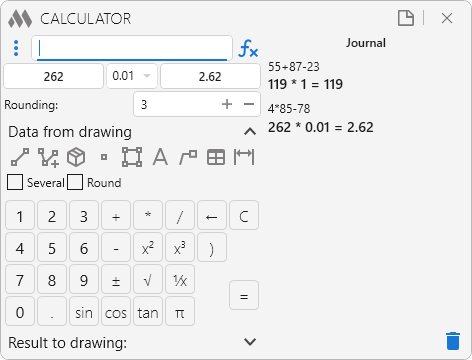
If you select in the calculation journal, it will be re-entered in the input field. The journal is kept only in the current session of the function. When you close and restart the function, the journal will be cleared.
 – clearing the calculations journal
Interpolation
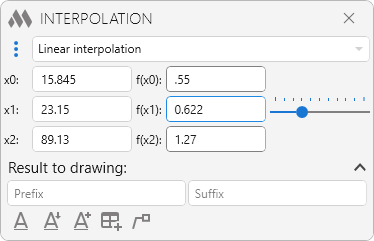
Three options (selection in the drop-down list) – linear interpolation, linear extrapolation of the smaller and linear extrapolation of the larger. Calculation of the value occurs "on the fly" – i.e. when you enter the required values into cells.
Degree, slope
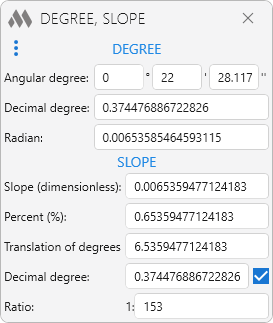
Allows you to translate degrees and slopes into different values. Calculation of the values occurs "on the fly" – i.e. when you enter a value in any field.

 YouTube