


Block replace

Call options
- ModPlus floating menu or palette
- AutoCAD ribbon
- Command line: _mpBlkReplace
Icon


Related news and articles
Using
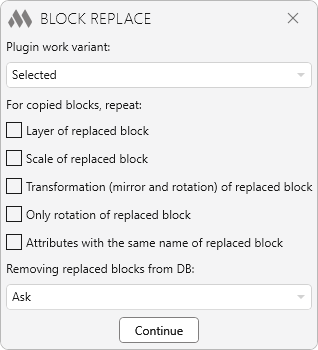
After launching the plugin, you need to select the Plugin work variant. The following operation modes are available:
Selected — allows you to replace all selected blocks with one specified block
Similar — allows to replace all instances of one block by one specified block
Replacing entities — allows you to replace selected entities of Circle, Ellipse and Point types with the specified block.
In the middle part of the plugin window, you can specify which properties of the replaced block should be repeated for the copied blocks: layer, scale, transformation (mirror and rotation), rotation only, attributes with the same name as the replaced block.
For the Similar option, you need to specify on which sheets the replacement should be performed:
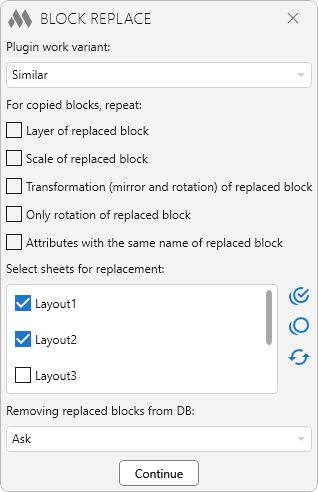
Then you should choose one of the options for the Removing replaced blocks from DB:
- Ask — after replacing blocks, you will be prompted to execute the following command:
Remove replaced blocks from the drawing database? [Yes/No]: — Yes — remove block descriptions from the drawing database; No — plugin termination.
- Automatically remove — descriptions of replaced blocks will be removed from the drawing base, by analogy with the command "Purge" (_PURGE).
- Do not remove — descriptions of replaced blocks will not be removed from the drawing database.
Continue — switch to selection of the replacement block and objects to be replaced. The plugin also processes pre-selected objects — the replacement block can be selected before starting the plugin.
SELECTED
Select replacing block: — select the block to which the blocks selected next will be replaced.
Select multiple blocks to replace them: — selects one or more blocks. The selection may include a replacement block.
SIMILAR
Select replacing block: — select the block to which the following selected blocks will be replaced.
Select replaced block: — selects a single block, all instances of which are to be replaced.
REPLACING ENTITIES
Select replacing block: — selects the block to which the following selected primitives will be replaced.
Select multiple objects to replace: — select one or more primitives of Circle, Ellipse and Point type.

 YouTube