


Type manager
Several Revit applications are running. Choose one:
| Name | Discount | Total value of individual orders | Total value of corporate orders |
|---|---|---|---|
| Regular user | 0% | ||
| 3% discount | 3% | $84 | $180 |
| 5% discount | 5% | $120 | $360 |
| 7% discount | 7% | $180 | $600 |
| 10% discount | 10% | $300 | $900 |
| 15% discount | 15% | $360 | $1 200 |
| Partners | 30% | ||
| BIM Consulting | 50% | ||
| Super VIP | 100% |
Icon


Related news and articles
Using
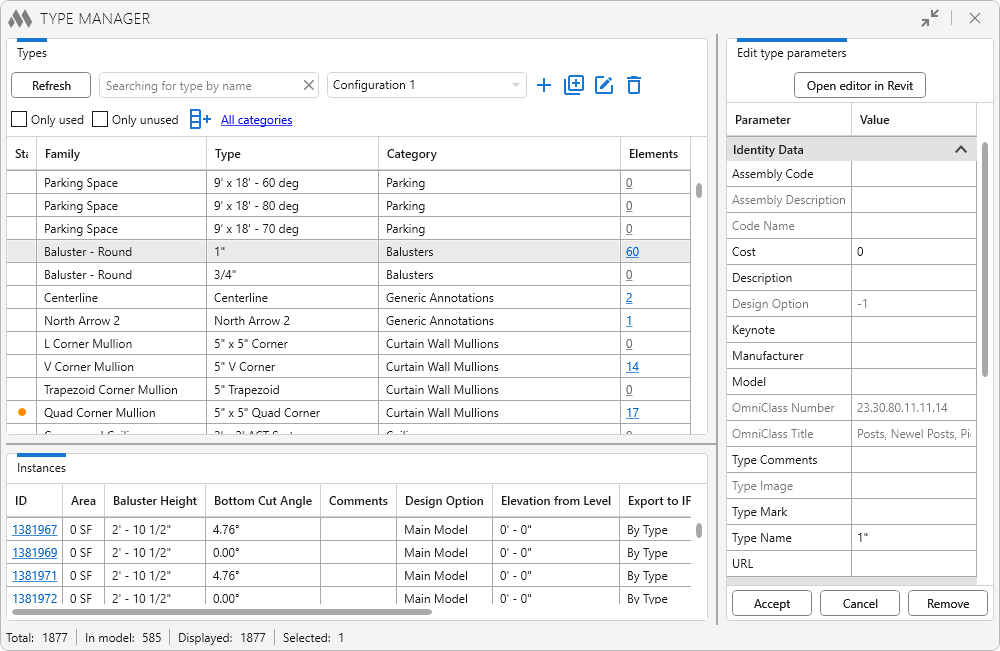
The plugin window consists of three tables: Types, Edit type parameters, and Instances.
When the plugin is started, the table Types is filled with the list of all Types of the current project. It contains the following mandatory columns:
Status – displays the presence of unsaved changes to the Type.Family – family name.
Type – Type name.
Category – category of elements (if any).
Elements – number of instances of the Type placed in the model. When clicking on the value of the element number in the model, these elements will be selected. When you put the cursor over a line,
 becomes available. It allows you to copy the ID values of the elements of the corresponding type to the clipboard, comma separated.
Using the  button you can add additional columns to the table. The opened window will show the list of type parameters of all Types visible in the table:
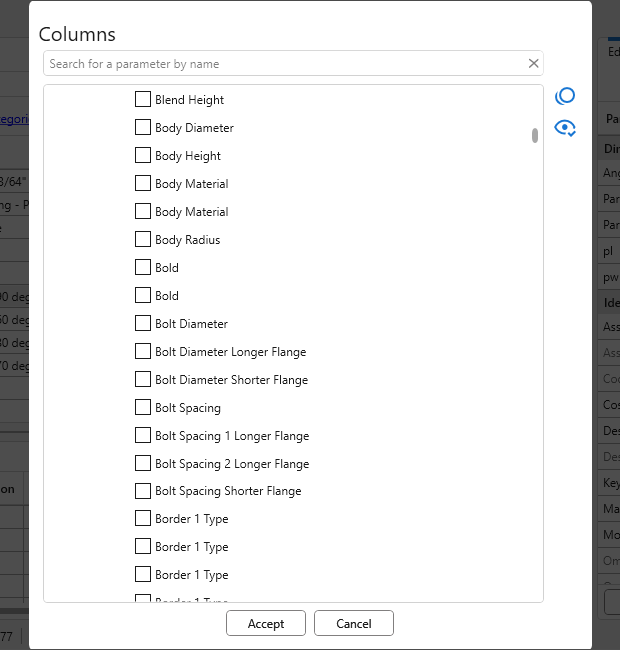
The required parameter can be found using the quick search field, the  button displays only the checked parameters, and
 unchecks all checked parameters.
Columns can be swapped by dragging them behind the header with the left mouse button. The contents of all columns can be sorted by clicking on the column name.
The Refresh button (refreshes the list of Types in the table) and filtering tools are located above the table:
- a field for a quick search for Type by name without case
- the Only used option allows you to display the that have at least one instance in the model
- the Only unused option allows you to display types that do not have any instances in the model
- All categories button opens the window for selecting element categories.
Configurations allow you to save the main plugin settings: added columns, selected categories, Only used/Only unused options. To the right of the configuration dropdown are buttons to create a new configuration  , duplicate a configuration
 , edit the configuration name
 , and delete the current configuration
 .
When a type is selected, the Type Parameter Editing table on the right side of the plugin window becomes available.
When selecting a Type, the table Edit type parameters become available in the right part of the plugin window.
At the top of the table is the Open editor in Revit button, which opens the Type Properties dialog box.
The left column of the table contains the type parameters of the selected Type, and the right column contains the values of the parameters. If you change the value of one or more parameters, you must click Accept to save the changes or Cancel to return to the original values. If you do not click any of the buttons, then in the Status column in the table Types there will be a color indication. It warns that the changes have not been applied. The Delete button allows you to delete the selected type from the project, if possible.
If you select several Types in the list, the parameters common to all Types will be displayed in the right part of the plugin window. In this case, you can batch change the values of these parameters for the selected Types.
If you select one Type that has instances placed in the model, the table Instances is filled in at the bottom of the plugin window. It contains all instances of the selected Type. The column ID is present for all Types, the other columns correspond to the instance parameters of the placed elements.
By selecting one or more rows (using the Ctrl or Shift keys), the corresponding instances are selected in the model. When clicking on an instance ID, that instance will be selected and shown in the center of the screen, and the view on which the instance is located will be opened.
At the bottom of the plugin window there is a status bar displaying the total number of Types, the number of Types placed in the model, displayed and selected Types.