


Copy elements

Several Revit applications are running. Choose one:
Icon


Related news and articles
- New Revit Plugin: Copy elements to the documents
- Revit. Copy elements. Duplicate filters and views, redesign settings, and use sets
- Revit. Copying model elements between projects
Using
The plugin allows copying data from the current or linked document to other open Revit documents. Depending on the type of data being copied, two operation modes are available:
- Elements – copying types, families, and other project elements that do not have geometric placement in the model
- Model elements – copying instances of elements placed in the model while preserving their position
At least two documents must be open for the plugin to work.
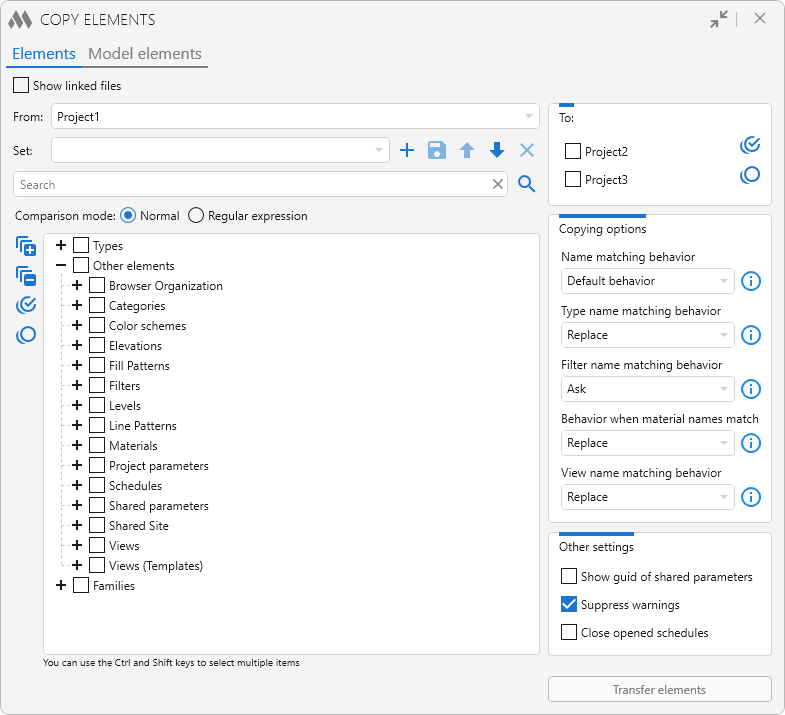
Elements
This tab is intended for copying types, families, and other elements from the current or linked document to selected open documents.
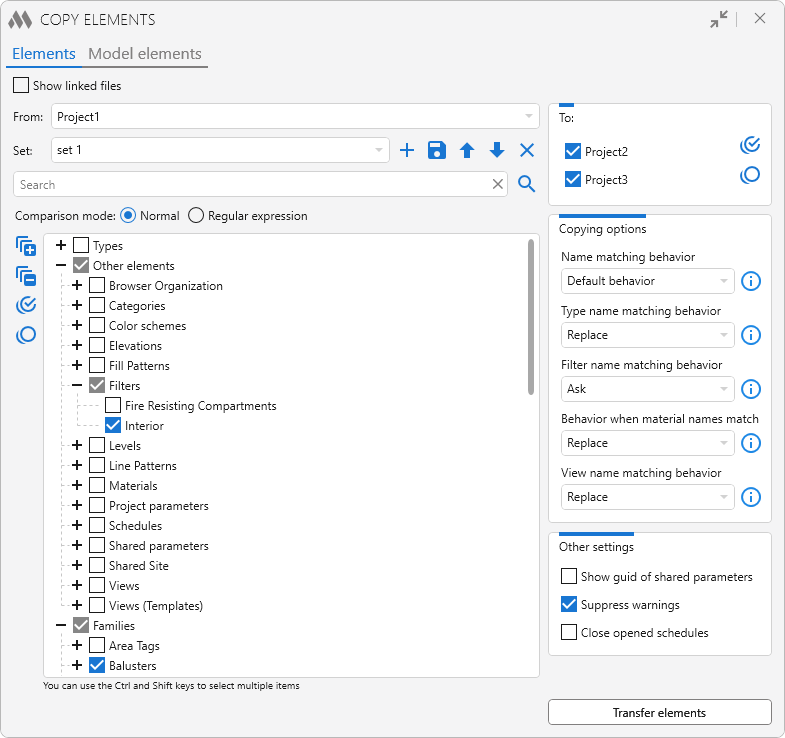
The plugin window is divided into two main parts. On the left side, the source document from which copying is performed is specified, and a list of elements available for copying is displayed. Elements are grouped by categories and presented as a tree.
For convenient navigation, a search box is provided, allowing you to quickly find the required elements. The following element search modes are available:
- Normal – searches by matching part of the name
- Regular expression – allows using regular expressions to search by complex patterns.
When the Show linked files option is enabled, linked files of open projects are added to the list of source documents.
Using the Sets option, you can save and reuse presets for repeated copying of elements. To create a set, select the elements to be copied in the tree and use the  button to save a new set by assigning it a name in the dialog that opens. To save changes to the current set or delete the current set, use the
 and
 buttons respectively. Sets can also be exported
 and previously exported sets can be imported
 .
To the left of the element list are buttons that allow you to:
 — expand all elements in the list.
 — collapse all elements in the list.
 — select all visible elements.
 — clear selection from all visible elements.
On the right side of the plugin window, there is also a list of open documents into which the selected elements can be copied. Next to the list are buttons that allow you to select all documents or clear the selection from all marked documents . Below the list, copy options are defined for cases when names of associated elements, types, filters, or views match. For each copy option, a detailed description is provided in the plugin window (when hovering over  ). When selecting the Default behavior option, elements are copied with an added numeric suffix.
Additional options are located below:
- Show GUID of shared parameters — displays the GUID of shared parameters in the element list
- Suppress warnings — when enabled, suppresses Revit warnings that occur during the copying process
- Close opened schedules – when copying schedules, Revit automatically opens the created schedules in the target document. When this option is enabled, such schedules will be closed after the copying process is completed.
Perform copy – starts the process of copying the selected elements to the chosen documents. During the process, a progress indicator and a Cancel button are displayed, allowing the operation to be interrupted.
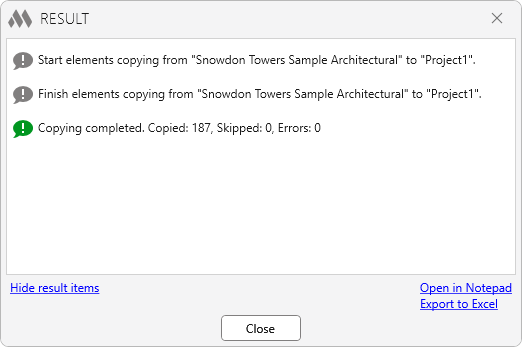
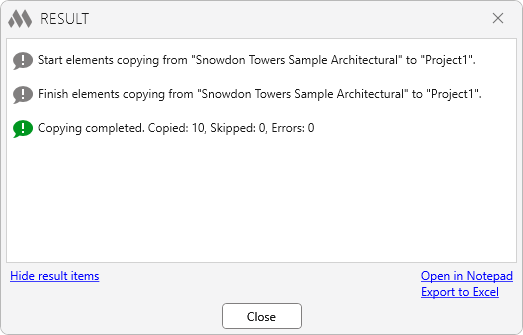
After the copy operation is completed, a window with the results is opened:
Model Elements
This tab is intended for copying model elements from the current document or linked files to selected open documents.
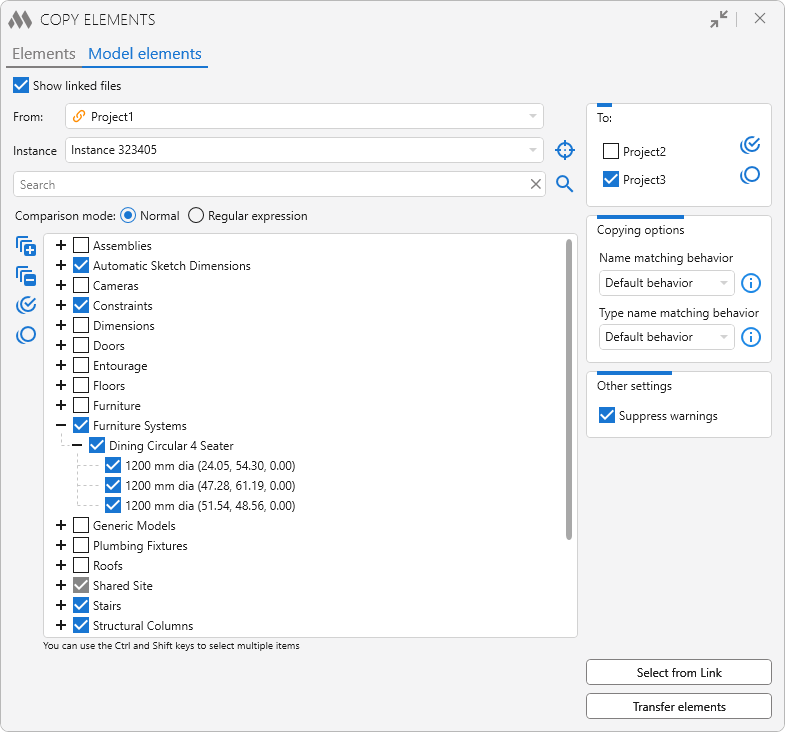
On the left side of the plugin window, a list of elements from the source model available for copying is displayed. Elements are grouped by categories. For each element, if available, its type and the coordinates of the start point are additionally indicated.
The copy parameters and additional settings are fully identical to those of the Elements tab.
Insertion coordinate system – determines the coordinate system used to preserve the position of copied model elements in the target document:
- Internal origin – the position of elements is determined relative to the internal origins of the source and target documents
- Project base point – the position of elements is determined relative to the project base points of the source and target documents
- Shared coordinates – the position of elements is determined using the shared coordinates of the source and target documents.
Selected in model – this button is available when copying from an open document. It allows you to automatically select in the list the elements that were preselected by the user in the model.
Select from link – this button is available when copying from a linked file. It allows you to select elements for copying directly in the linked document.
Perform copy – starts the process of copying the selected model elements to the chosen documents. After the copy operation is completed, a window with the results is opened:

 YouTube