


Search and replace

| Name | Discount | Total value of individual orders | Total value of corporate orders |
|---|---|---|---|
| Regular user | 0% | ||
| 3% discount | 3% | $84 | $180 |
| 5% discount | 5% | $120 | $360 |
| 7% discount | 7% | $180 | $600 |
| 10% discount | 10% | $300 | $900 |
| 15% discount | 15% | $360 | $1 200 |
| Partners | 30% | ||
| BIM Consulting | 50% | ||
| Super VIP | 100% |
Icon


Related news and articles
Using
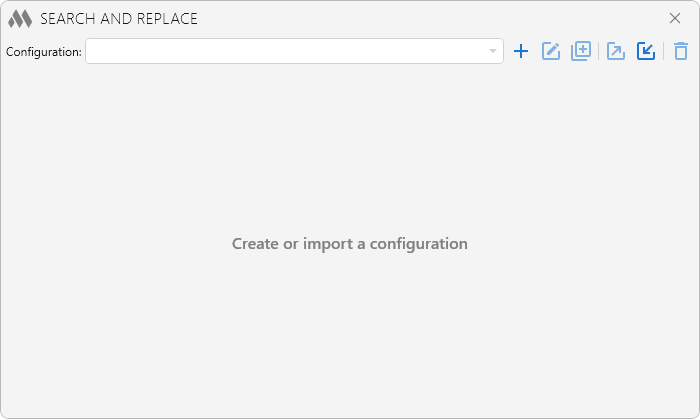
To start working with the plugin, you must create a configuration by clicking  . Created configurations can be duplicated
 , renamed
 , exported
 , imported
 and deleted
 using the corresponding buttons.
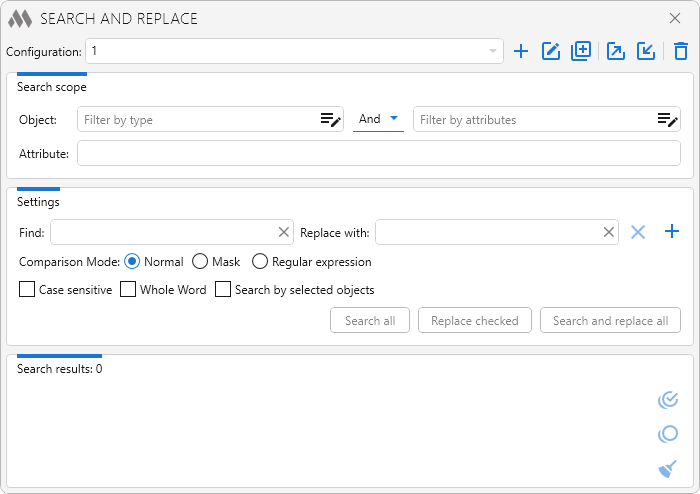
The plugin is divided into three sections: search scope, settings, and the search results.
search scope
The Objects whose properties and parameters are to be searched are specified using the Object filter. The Object filter includes a type filter and an attribute filter, which can be applied separately or combined by selecting the logical operator AND/OR.
Attribute – the field where the name of the object's property or parameter is specified. If the Attribute field is left empty, the search will be performed across all editable attributes.
Settings
This section contains search settings and the buttons for running search and replace.
Using the
button you can add additional fields for multiple search operations: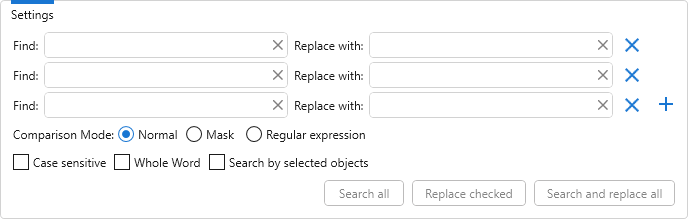
Comparison Mode:
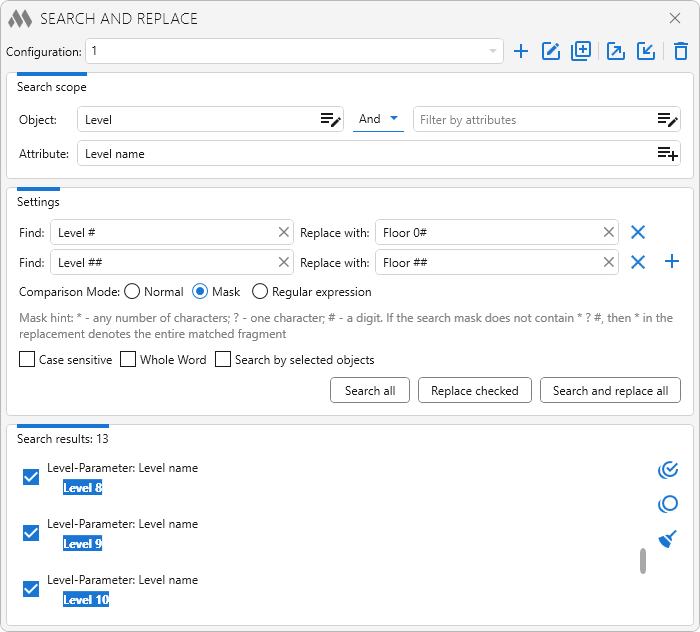
Mask – search and replace using wildcard characters: * – any number of characters, ? – any single character, # – a digit. If the wildcard in the Find field contains no wildcard characters, then * in the Replace with field will represent the entire found fragment, allowing you to add a prefix and/or suffix. To use wildcard characters as literal characters, escape them with "\" (\*, \?, \#, \\). Examples of using wildcards are described below.
Regular expression – search and replace using a pattern with a regular expression.
Case sensitive – enables case-sensitive search.
Whole word – finds values not included in other words.
Search by selected objects – performs search on objects selected at the moment the plugin is started.
To start search and/or replace, the following commands are used:
Search all – searches in the specified objects with the given settings and displays the search results. The button is unavailable if the Find field is empty or the object filter is not set.
Replace checked – replaces the checked search results. The button is unavailable if no search results are checked.
Search and replace all – searches with the given settings and replaces all found values without showing results. The button is unavailable if the Find field is empty.
Search results
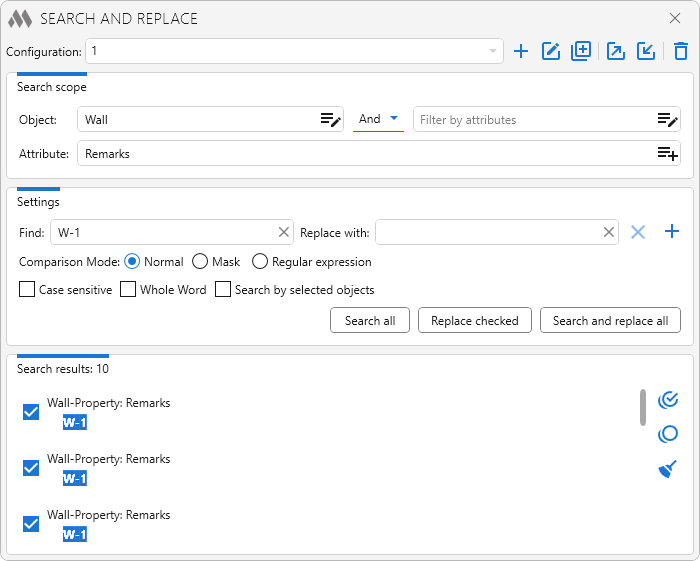
The search results are displayed in the lower part of the plugin window. Each result item contains a header indicating the object and attribute, as well as text where the match was found, with the matched part highlighted. To execute the Replace checked command, check the required result items.
Buttons available for interacting with search results:
 – check all items.
 – uncheck all items.
 – clear results list.
When hovering the cursor over a search result item, a  button appears on the right, allowing you to show the object in the model.
In Renga versions 5.1–8.7, the search is performed across model objects and all assemblies. In Renga versions 8.8 and higher, the search is performed on objects of the current view (model or assembly).
Examples
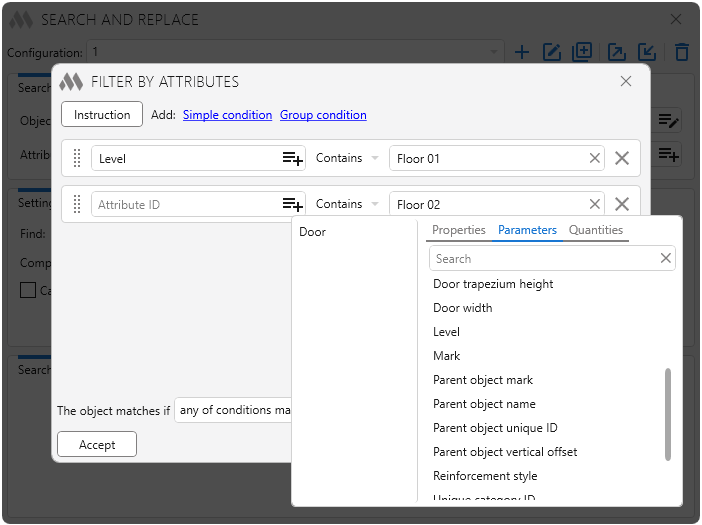
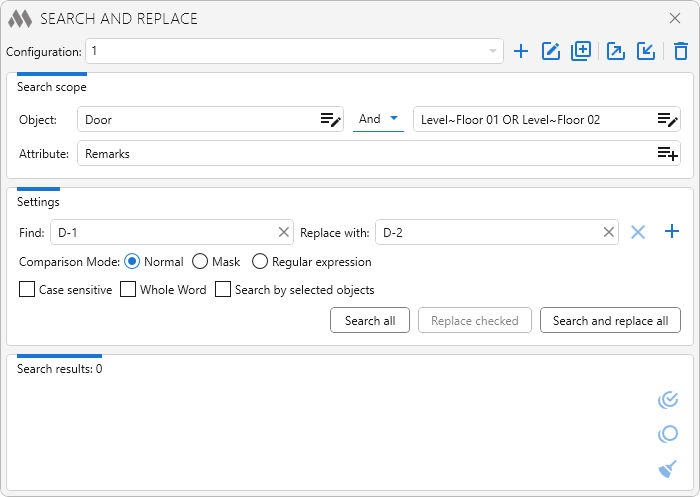
Example 1. We need to find all door marks "D-1" on floors 1 and 2 and replace them with "D-2".
Configure the type filter:
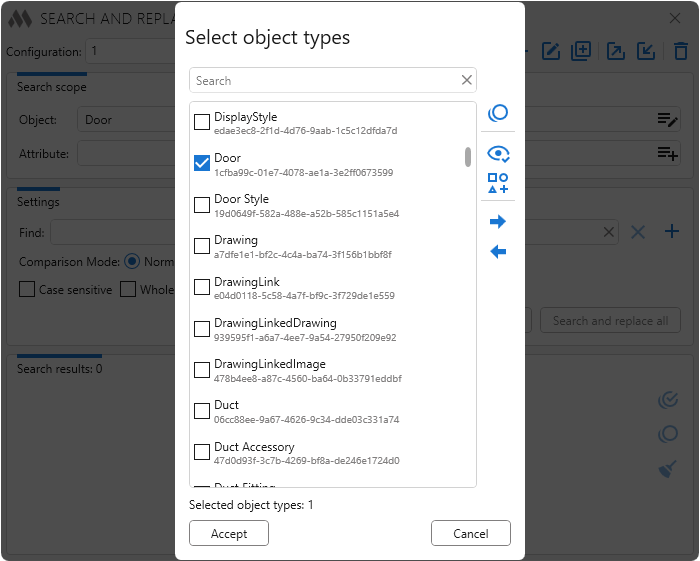
Select the "AND" logical operator. Configure the attribute filter:
Fill the Attribute, Find and Replace with fields:
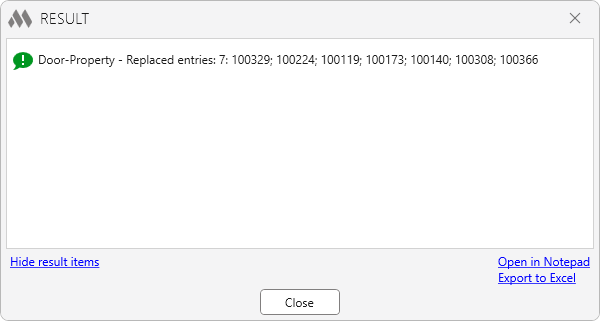
Click Search and replace all:
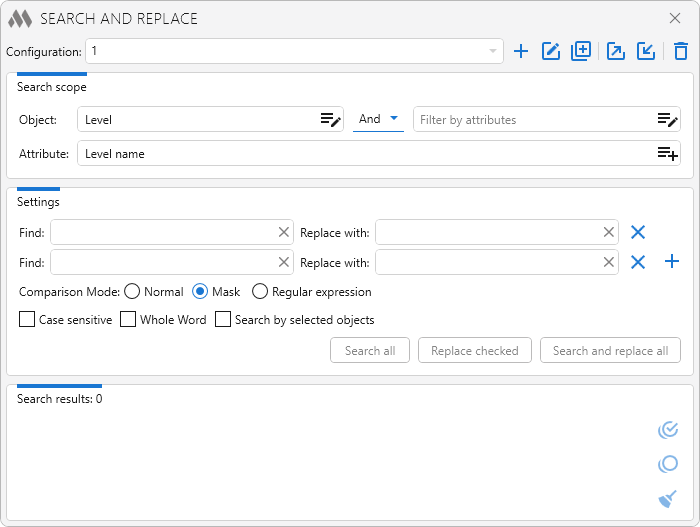
Example 2. We need to change the "Level" parameter value from "Level 1", "Level 2", etc. to "Floor 01", "Floor 02", etc.
Select the Mask comparison mode. Since the number after the word “Level” may contain one or two digits, we add additional fields for multiple search:
Replace the variable part (the level number) in the Find and Replace with fields with wildcard characters. Click Search all to visually verify the affected parameters:
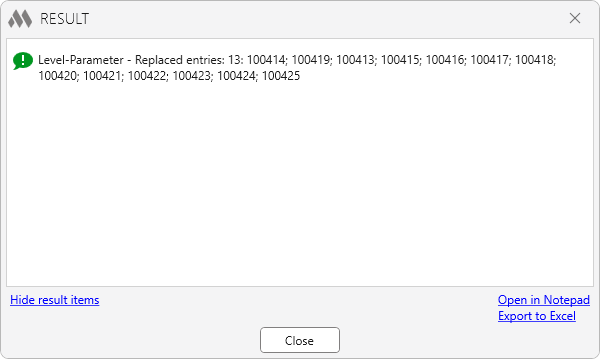
After making sure all required elements are selected, click Replace checked:

 YouTube