


Worksets

Several Revit applications are running. Choose one:
| Name | Discount | Total value of individual orders | Total value of corporate orders |
|---|---|---|---|
| Regular user | 0% | ||
| 3% discount | 3% | $84 | $180 |
| 5% discount | 5% | $120 | $360 |
| 7% discount | 7% | $180 | $600 |
| 10% discount | 10% | $300 | $900 |
| 15% discount | 15% | $360 | $1 200 |
| Partners | 30% | ||
| BIM Consulting | 50% | ||
| Super VIP | 100% |
Icon


Related news and articles
- New plugin for Revit: Worksets
- Revit. Worksets. The "Workset Processing" command
- Organization settings
Using
The dialog window of the plugin:
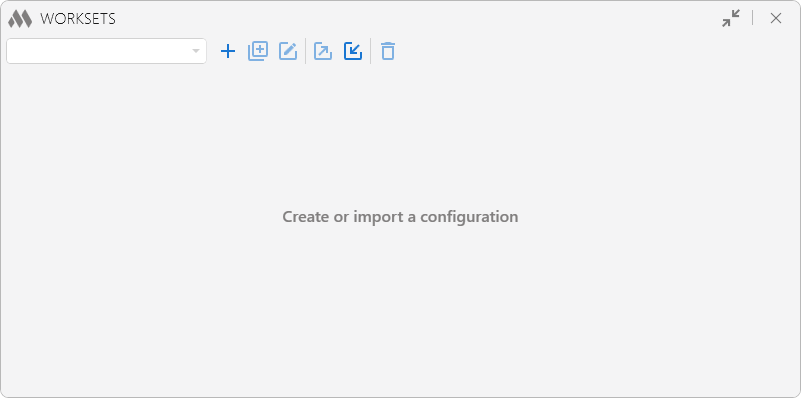
There must be at least one working configuration for the plugin to start working. To create it, click on  and then enter a name.
The configuration management buttons are located next to the drop-down list of configurations:
– create a new configuration. – duplicate the current configuration.
 – edit configuration name.
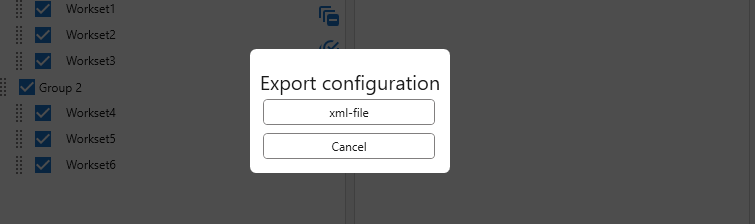
 – export configuration. A dialog opens to select configuration export options:
 – import configuration. A dialog will open with options for choosing a configuration import:
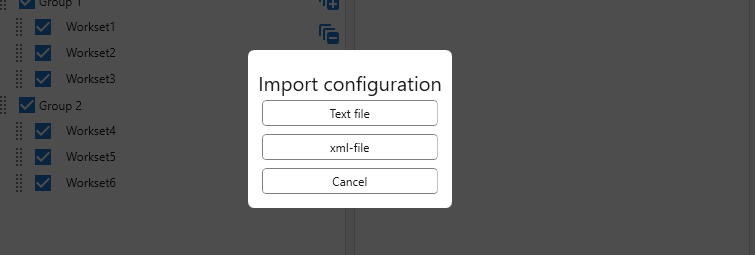
Import from a text file is described below.
Import from an xml file allows you to import configurations that were previously exported by this plugin.
 – delete current configuration.
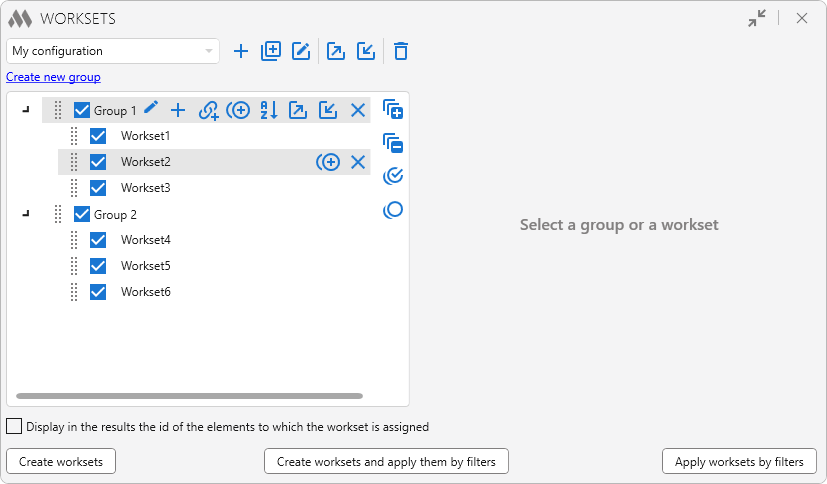
The left part of the window contains a tree view of the groups of worksets included in the configuration and group controls.
Configurations and groups of worksets are conditional in nature and serve for more flexible management of worksets, as well as provide the ability to exchange configurations between users.
To create a new group, click the Create new group button below the configuration list field and enter the group name in the dialog window.
Each created group in the tree has group control buttons:
 – edit group name (appears on mouseover). – create a new workset. Next worksets in the group can be created by pressing Enter in the workset name entry field.
 – add worksets by link names of the current document. A workset will be created for each linked file, in which filters will be configured to apply this workset to existing link instances.
 – duplicate the current workset group.
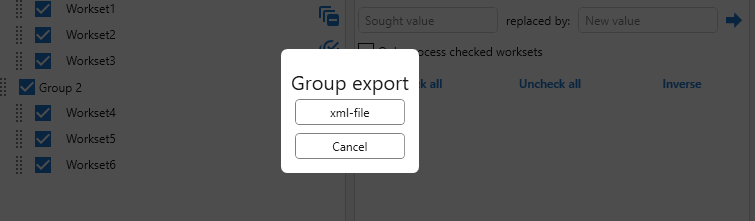
 – sort the worksets in the group in alphabetical order. – group export. The dialog for selecting the group export options opens:
– import group. The group import options dialog opens:
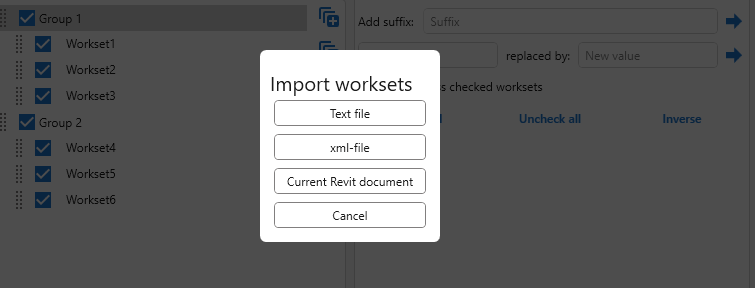
Import from a text file is described below.
Import from an xml file allows you to import groups that have been previously exported by this plugin.
Import from current document Revit allows you to import custom worksets from the currently open document.
When importing groups, worksets are imported into the current group.
 – delete current group (appears on mouseover).
The workset in a group can be duplicated with the current filter settings and deleted using the corresponding buttons that appear on mouseover.
To the right of the workset list are the list management buttons:
 – expand the lists of the worksets within the groups
 – to collapse the lists of the worksets within the groups
 – check all items in the list
 – uncheck all items in the list.
Workset groups and worksets can be dragged in the list by holding down the left mouse button.
When you select a group or a workset in the tree, additional settings will be displayed in the right part of the window. These settings are described below.
At the bottom of the window are buttons to start the plugin:
Create worksets – create custom worksets in the current document.
Create worksets and apply them by filters – creation of custom worksets in the current document and setting them for elements according to apply filters (described below). When you click, two creation options are available: On active view or In model.
Apply worksets by filters – setting worksets for elements according to apply filters. Only worksets that are in the current configuration and in the current Revit document will be processed. When you click, two processing options are available: On active view or In model.
When creating and setting worksets, all three buttons process only the checked worksets in the checked groups.
After executing the selected command, the results window appears. To display in the results window the id of the elements that are assigned a workset, you must enable the corresponding option at the bottom of the plugin window.
Import worksets from a text document
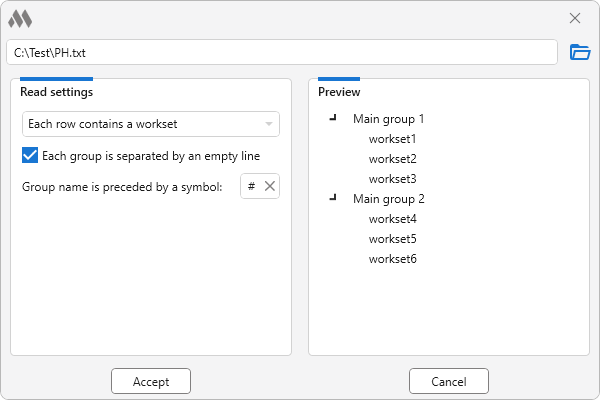
The upper part of the import window contains a field that points to the text document being processed. After selecting the text file, it will be immediately processed according to the current settings and a preview of the result will be displayed on the right side of the window. You can change the reading settings in the left part of the window and immediately see the result.
Reading a file provides two processing options:
Each row contains a list of worksets – when choosing this option, it is assumed that the worksets are written on one line and separated by a specific character, which you can specify in a special field. If there are several such lines in a file, then you can indicate that each line is a separate group.
Each row contains a workset – when choosing this option, it is assumed that a workset is indicated on each line of the file. At the same time, you can specify that the empty lines in the file are conditional separators of groups, and lines starting with a certain character are the names of groups (with the exception of the character itself).
When importing worksets into a group, a drop-down list will be displayed at the bottom of the window to select the group whose worksets you want to import. When you import a configuration, the entire group processing result is imported.
Additional group controls
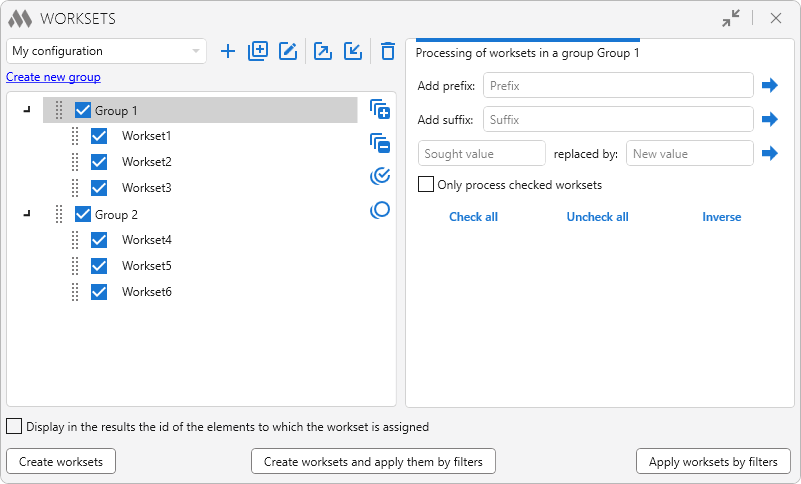
When you select a group in the tree on the right side of the window, additional group management tools will appear:
Add prefix: – add prefix to all worksets in the group.
Add suffix: – add suffix to all worksets in the group.
Sought value replaced by: new value – search and replace in the names of the worksets of the current group.
 – performance of one of the functions listed above.
Only process checked worksets – when this check box is checked, the functions listed above will only process checked worksets in the group.
Check all – check all worksets in the group.
Uncheck all – uncheck all worksets in the group.
Inverse – invert checked worksets in a group.
Settings for applying a workset
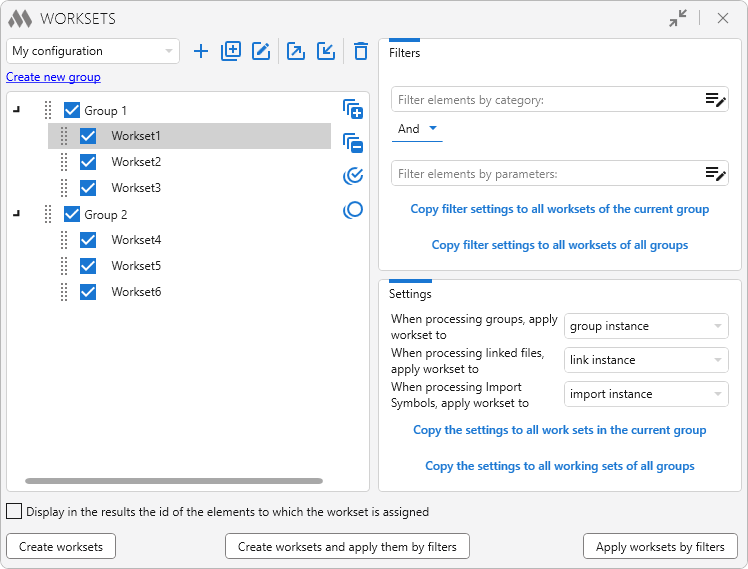
When you select a workset in the tree on the right side of the window, application Elements filter and additional management tools will appear.
For example, according to the filter settings, the walls (category) of the first floor (parameter) will be added to Workset1:
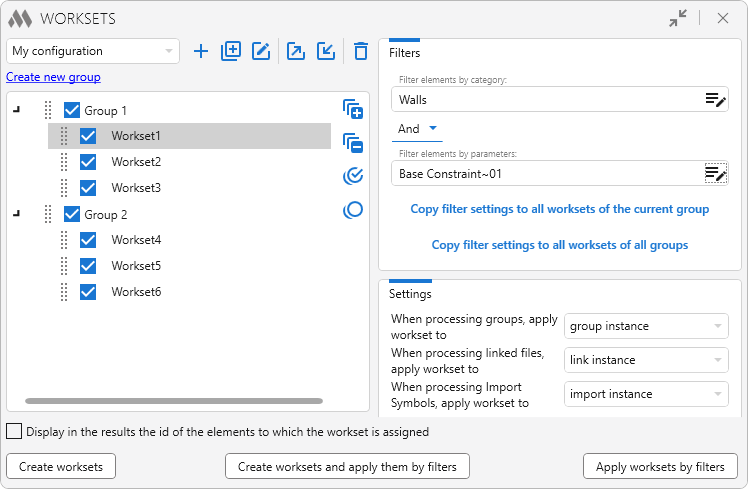
When processing groups, apply workset to group instance, group type, group instance and group type – option that allows you to specify how to apply the workset – to group instances and/or group types.
When processing linked files, apply workset to link instance, link type, link instance and link type – option to specify how to apply the workset to linked files – to link instances and/or link types.
When processing Import Symbols, apply workset to import instance, import type, import instance and link type – option to specify how to apply the workset to linked files – to import instances and/or import types.
Copy filter settings to all worksets of the current group (all groups) – copies the current settings of the apply filters, respectively, to all worksets of the group or all worksets of all groups in the current configuration.
UPDATE WORKSETS


Calling the command Apply worksets by filters In model with current settings without using the plugin window.
WORKSET PROCESSING


Utilities for working with elements that are in specific worksets. The command is called from the Revit ribbon and has the following dialog box:
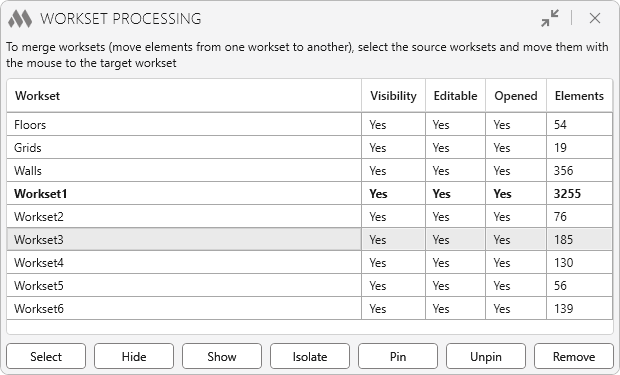
The plugin window lists all the worksets in the project. Opposite each one you can see its visibility in the current view, whether it is editable, whether it is currently open and the number of elements in it.
To merge worksets (move elements from one workset to another), select the source worksets and move them with the mouse to the target workset.
The following buttons are located at the bottom of the window:
Select – select elements in the model in the selected worksets.
Hide – disable the visibility of the selected worksets in the current view.
Show – enable the visibility of the selected worksets in the current view.
Isolate – isolate elements in the selected worksets in the current view.
Pin – pin the elements in the selected worksets.
Unpin – unpin the elements in the selected worksets.
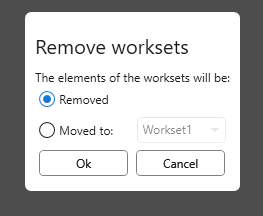
Remove – remove the selected worksets. If the worksets to be removed contain elements, the following dialog box will open:

 YouTube
 YouTube