


Schedule lookup

Several Revit applications are running. Choose one:
Icon


Related news and articles
Using
- Find an unknown Schedule inside the whole project that contains a definite:
a) field name
b) column heading
c) cell value. - Find an unknown Schedule inside the whole project that contains several user specified values.
- Find a Schedule containing a field name even if this field is hidden.
- Determine whether specified value comes from a key schedule and key schedule name if it does.
- All of the above searches can be done ignoring the value case or knowing only a part of the value.
When you run the plugin, a search window appears:
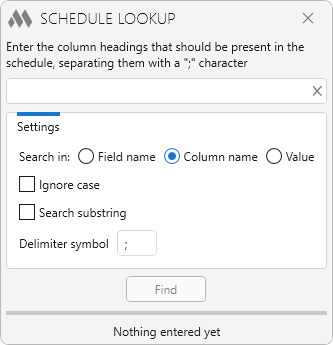
At the top of the plugin window there is a field for filling the value that the Schedule you are searching should contain. You can specify multiple search values by typing them in the delimiter character. In this case, only the Schedule that contains all the specified values will be searched.
To quickly enter a delimiter character, just type two spaces in a row.
Next, specify where to search for the entered values:
Field name – in the names of fields or parameters.
Column name – in column header names.
Cell value – in cell values.
Below you can specify additional settings:
Ignore case – case insensitive search for values.Search substring – indicates that the value entered in the field is part of the search value. For example, to search for a value "Basic" it will be enough to specify in the search field "Bas" and check this box.
Delimiter symbol – change the delimiter character used to separate multiple values specified in the search field.
Next are the search controls, a field with progress and search status.
Find – run a Schedule search using the specified parameters
In the event that the Schedule with the desired values are found, a window with search results will be displayed:
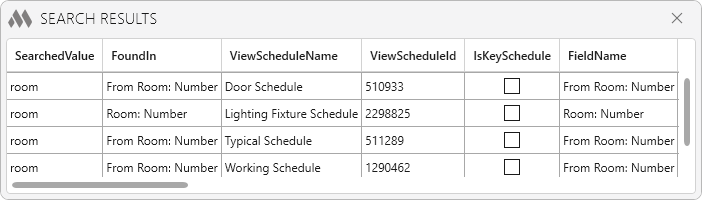
When you double-click the left mouse button on the line in the list of results, a detailed search result window will be displayed:
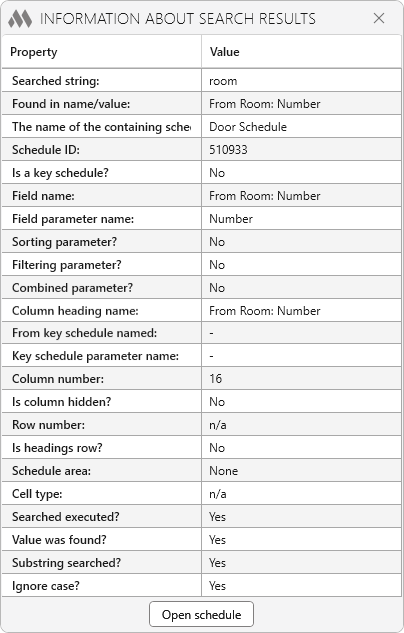
At the bottom of the window is the Open schedule button, which allows you to display a Schedule with the search values.