


Patterns

Several Revit applications are running. Choose one:
| Name | Discount | Total value of individual orders | Total value of corporate orders |
|---|---|---|---|
| Regular user | 0% | ||
| 3% discount | 3% | $84 | $180 |
| 5% discount | 5% | $120 | $360 |
| 7% discount | 7% | $180 | $600 |
| 10% discount | 10% | $300 | $900 |
| 15% discount | 15% | $360 | $1 200 |
| Partners | 30% | ||
| BIM Consulting | 50% | ||
| Super VIP | 100% |
Icon


Related news and articles
Using
The main window of the plugin consists of three main parts: the main menu, the list of patterns, the properties of the selected pattern.
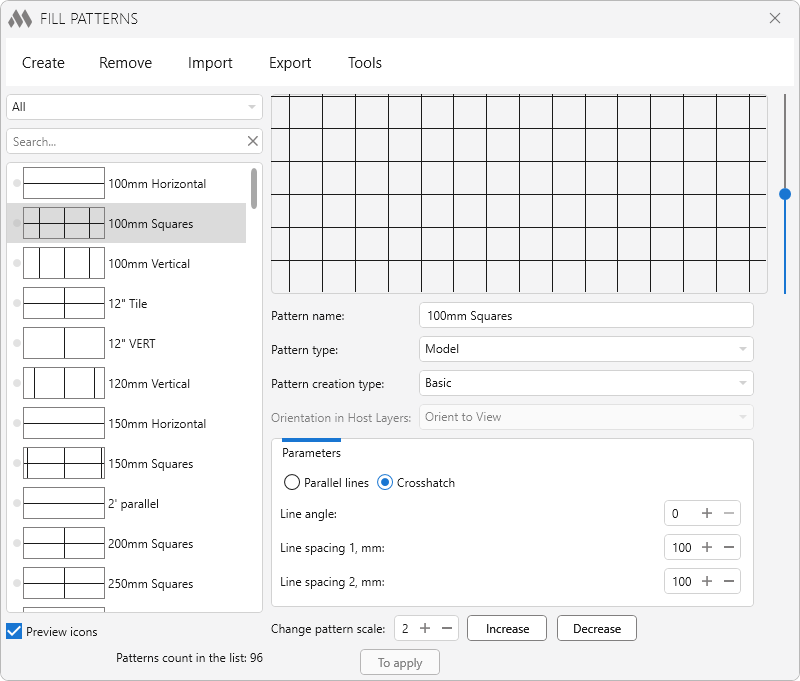
Patterns list
Each position in the patterns list is marked with a red circle if the pattern has been edited or created in the plugin. After clicking the To apply button, all changes will be recorded in the current document.
 – if the pattern has been edited, using this button you can return to its initial state
Preview icons - option that allows to hide the preview icons in the patterns list
Selected pattern properties
The properties of the selected pattern are similar to the standard properties of the Revit pattern editing window.
You can change the type of pattern from Basic to Custom.
Custom pattern properties are different from the Basic patterns properties:
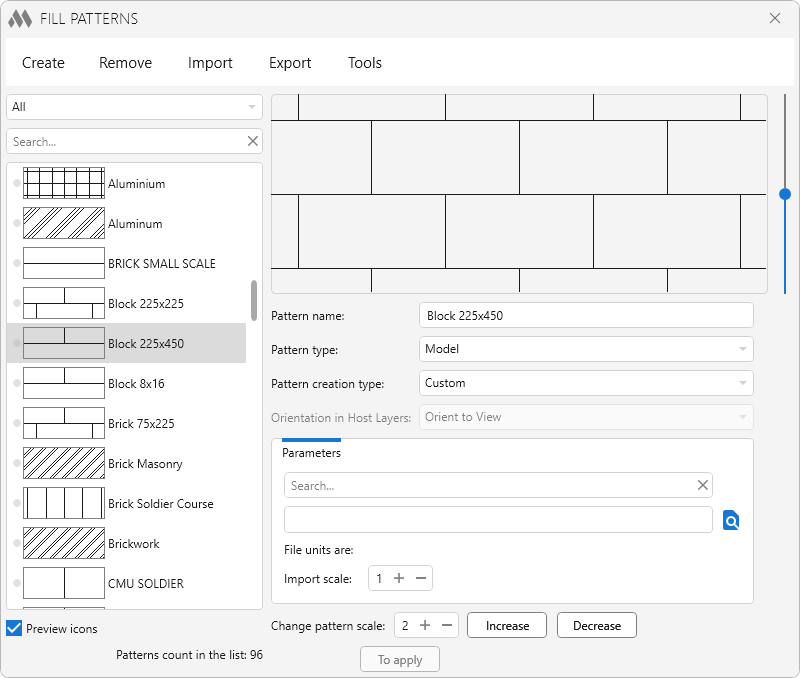
 – pat file selection (.pat) to indicate the pattern
You can change the scale of the selected pattern. To do this, set the scale factor at the bottom of the properties of the selected pattern and click the corresponding button – Increase or Decrease.
Main menu
The main menu of the plugin contains commands for creating or deleting patterns, importing or exporting patterns, and additional utilities.
Create
New empty patterns – creates a new pattern in the list with the type Basic and sets the standard values for the angle and spacing.
Duplicate selected pattern - creates a new pattern in the list identical to the selected one with the same name and suffix ( 2).
From drafting view – allows you to create pattern from the geometry located in the drafting view. To call a command, you must first open the drafting view.
After calling the command, you will be asked to indicate two points that are opposite corners of the bounding box of the new pattern, and then select the objects from which the pattern will be taken. Then a window will open for further pattern adjustment:
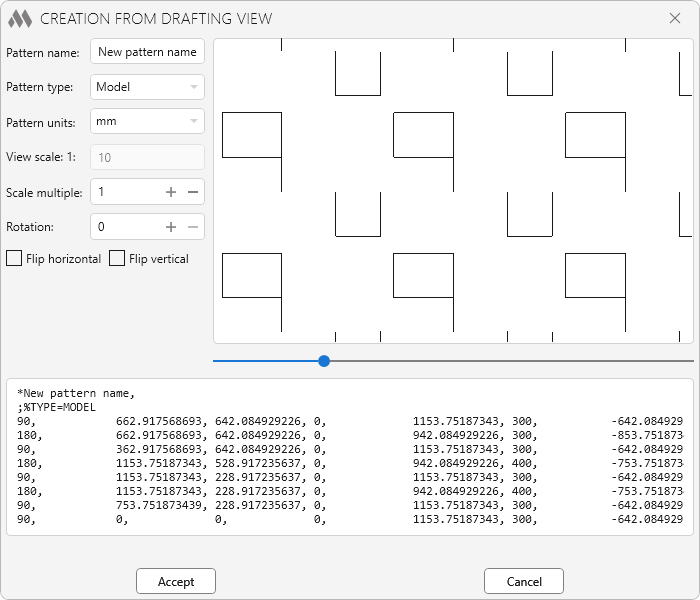
In the left part of the window, there are pattern settings, in the right - a preview, and in the bottom - pattern output to pat-standard.
Patterns created from a drafting view may not display correctly in the preview!
Using a graphical editor – before opening the graphic editor, you will be asked to select the type of pattern and the units of pattern:
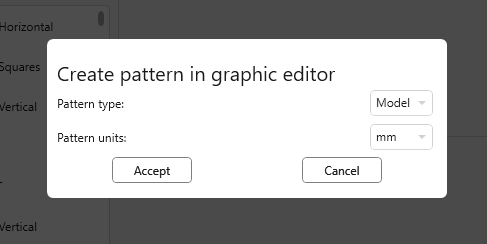
These properties cannot be changed in the editor.
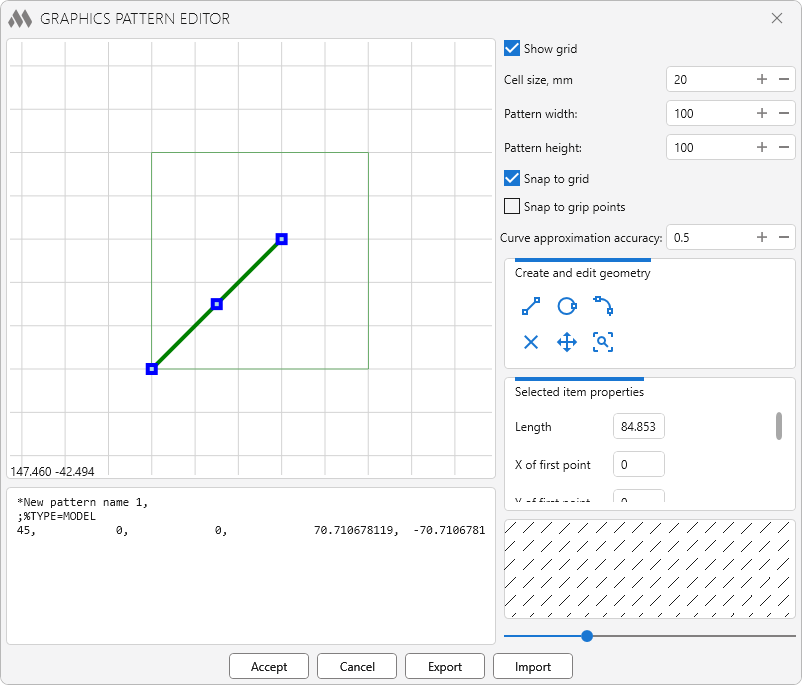
In the left part of the window of the graphic editor there is a field for creating a pattern.
In the upper right part some settings are set, as well as the width of the pattern. The borders of the pattern are displayed in thin green lines and cannot be edited.
Use the following commands to create or modify geometry.:
 |
– create line |
 |
– create circle |
 |
– create arc |
 |
– delete selected geometry |
 |
– move selected geometry |
 |
– zoom all |
At the bottom of the window are pattern output in pat-format and preview.
Patterns created in the graphics editor may not display correctly in the preview!
The Export and Import buttons allow you to export geometry to xml file/import geometry from a specified file.
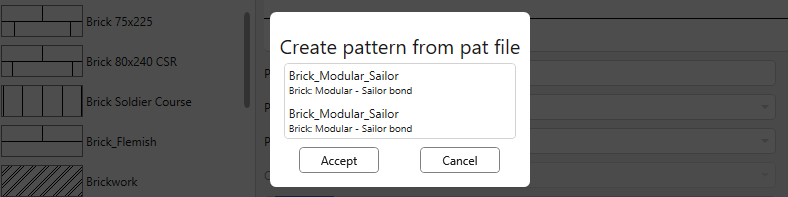
Load from pat file – create pattern from pat file. After selecting a pat-file, a list of patterns in the file will be displayed, from which you want to select the desired pattern:
Remove
This menu item contains several commands for removing patterns under different conditions.
Import
Import selected pat file – allows importing all patterns from the specified pat file.
Import pat files from folder – allows importing all patterns from all pat files located in the specified folder
Export
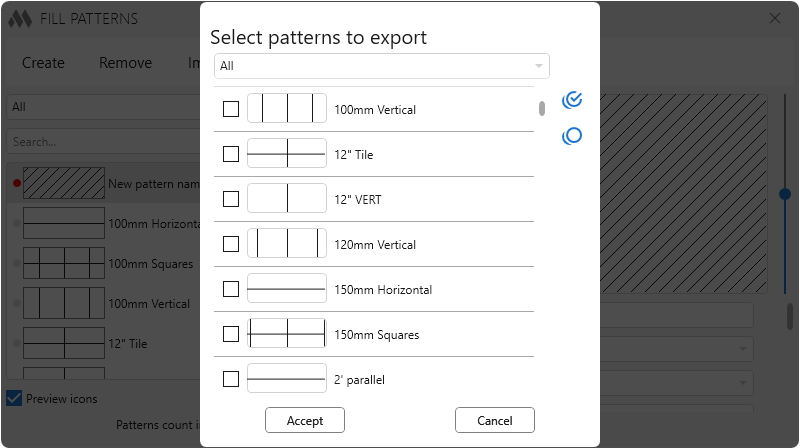
Export to pat file – opens a dialog for select patterns:
 |
– check all |
 |
– uncheck all |
After selecting the required patterns and clicking the Accept button, a dialog will appear for selecting the units (millimeters or inches) in which patterns will be exported, and then the save file window for pat.
Tools
Remove Solid pattern duplicates – removal of duplicates of solid patterns. In some cases, when synchronizing or copying from project to project, duplicates of solid patterns may appear that cannot be deleted by standard means
Display current pattern in notepad – quick display in notepad (without saving to disk) of the current pattern in pat-format

 YouTube