


MEP clash solver

Several Revit applications are running. Choose one:
| Name | Discount | Total value of individual orders | Total value of corporate orders |
|---|---|---|---|
| Regular user | 0% | ||
| 3% discount | 3% | $84 | $180 |
| 5% discount | 5% | $120 | $360 |
| 7% discount | 7% | $180 | $600 |
| 10% discount | 10% | $300 | $900 |
| 15% discount | 15% | $360 | $1 200 |
| Partners | 30% | ||
| BIM Consulting | 50% | ||
| Super VIP | 100% |
Icon


Related news and articles
- New plugin for Revit: MEP Element Intersection
- Revit. Intersection Bypass. Redesign, Improvements, and Template-Based Workflow
Usage
The plugin has two operating modes: Standard and By templates, each with its own tab. The plugin window opens above all windows and does not block Revit, allowing bypasses to be created without restarting the command.
Standard
This tab is used for manual configuration of bypass parameters and selection of elements for creating bends.
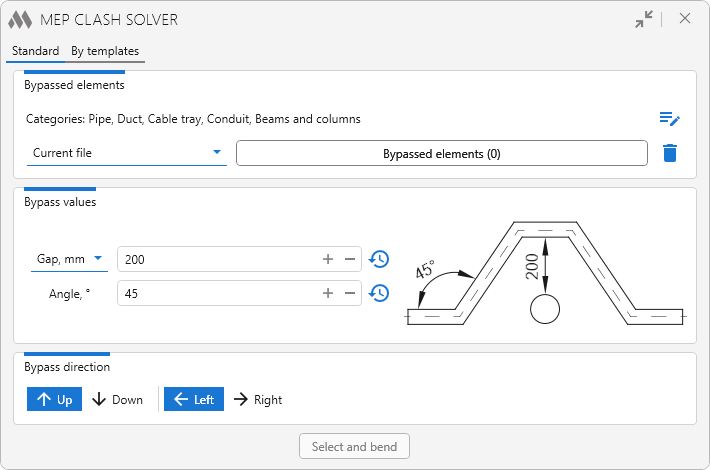
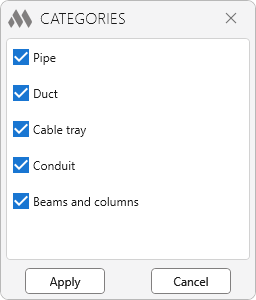
In the Bypassed elements settings group, the elements that need to be bypassed are specified. Clicking  opens a selection window where the required categories must be checked:
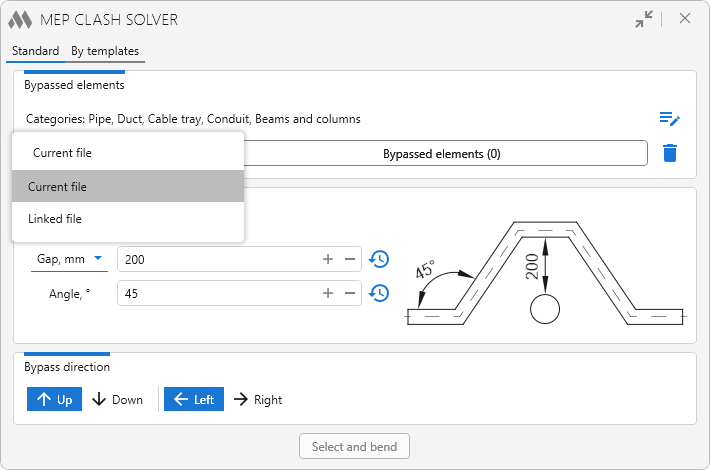
Using the dropdown list, you can select the source of the bypassed elements: Current file or Linked file.
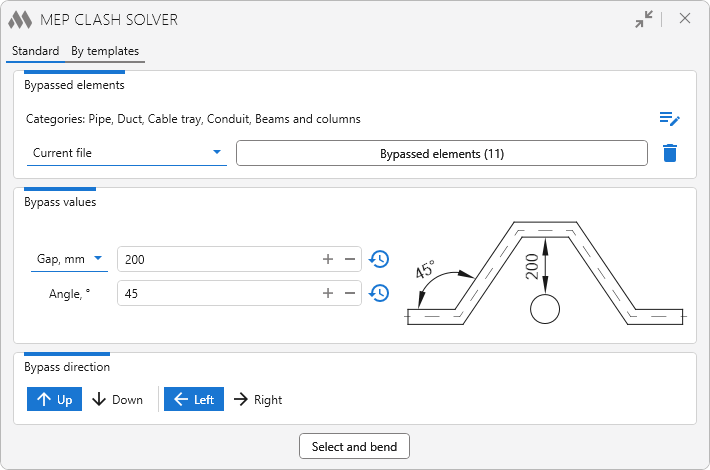
To select bypassed elements, click the Bypassed elements (…) button. After that, elements in the model can be selected individually or with a selection box. The number of selected elements is displayed on the button.
To clear the collection of bypassed elements, use the delete button  .
In the Bypass values group, the parameters of the created bypass are specified:
- Offset setting – sets the offset relative to the axis or outer face of the bypassed element in millimeters
- Angle, ° – sets the angle of the created bend.
To the right of each parameter is a value history button  . Clicking it displays a list of recently used values, from which the required value can be quickly selected without manual input.
In the Bypass direction group, the direction for creating the bypass when elements intersect is specified.
For vertical offset, the following options are available:
- Up
- Down
For horizontal offset, the direction is determined relative to the active view:
- Left
- Right
After selecting the bypassed elements, the Select and bend button becomes active. After clicking it, select the elements in the model for which the bypass should be created.
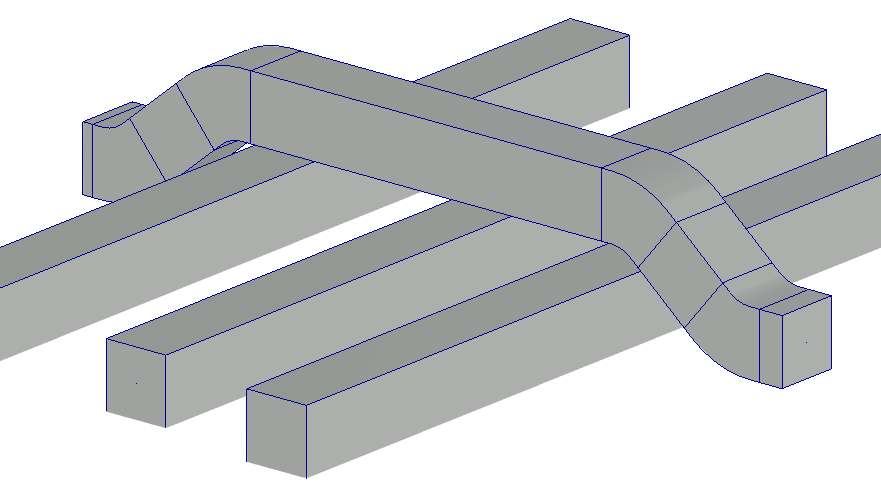
If one selected element intersects several bypassed elements, the bypass will be created through all intersected elements at once.
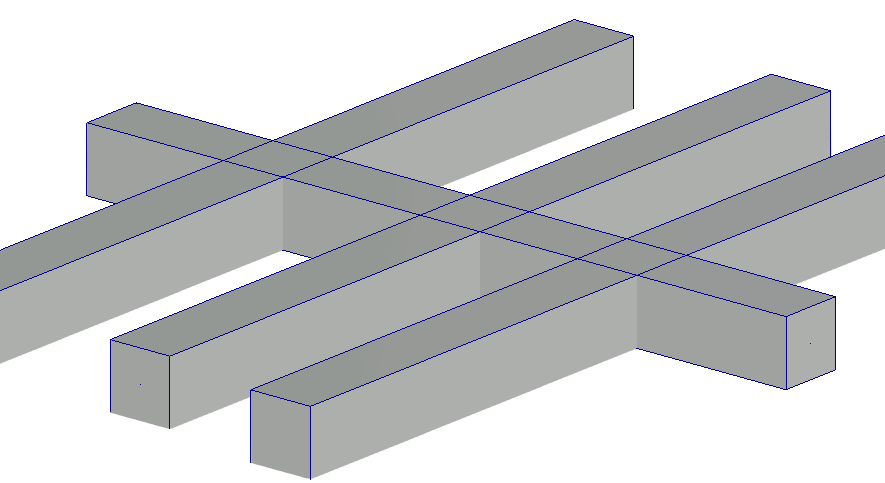
Before intersection bypass:
After intersection bypass:
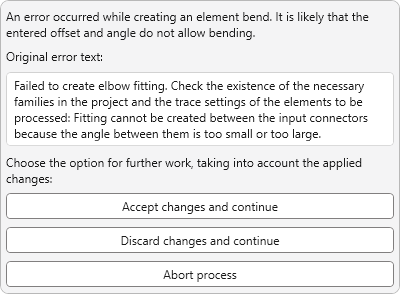
If an error occurs while creating the bend (for example, due to an invalid angle or insufficient clearance), a message with further action options will be displayed:
By templates
This tab is intended for batch creation of bypasses using preconfigured templates and filtering rules.
The main bypass algorithm is the same as on the Standard tab.
To begin, create a template configuration by clicking  . Created configurations can be duplicated
 , renamed
 , exported
 , imported
 , and deleted
 using the corresponding buttons.
A template is a set of rules in which bypass settings are defined:
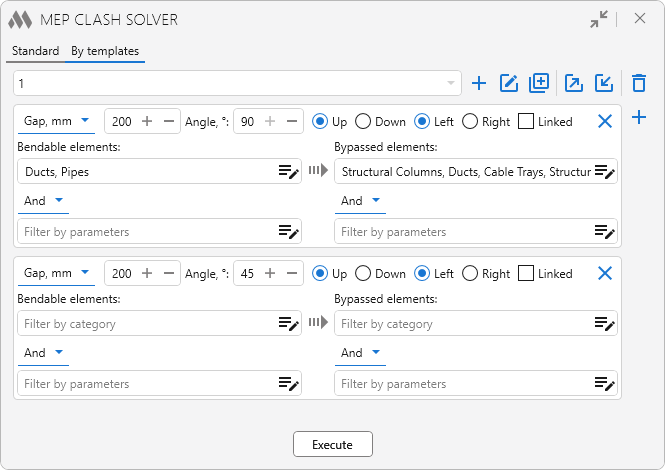
To add or remove rules, use the buttons and  respectively.
The top row of the rule repeats the bypass settings from the Standard tab. Below are the element filters for bent and bypassed elements.
To perform the intersection bypass, click the Execute button.

 YouTube