


Export to Excel
Several Revit applications are running. Choose one:
Icon


Related news and articles
- New plugin for Revit. Export to Excel
- Revit. Export to Excel 2.0. Configurations and sets, formatting and exporting large Schedules
Using
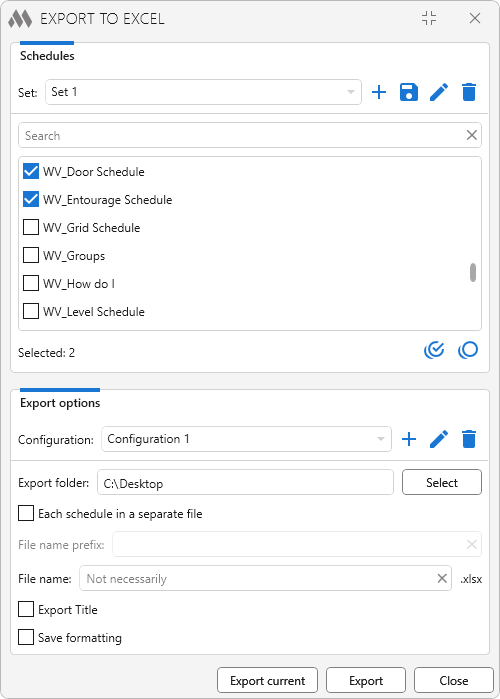
The plugin window consists of two main groups: selection of Schedules for export and export options.
The Schedules selection group contains:
Set – includes a drop-down list of sets of Schedules checked in the list of Schedules and commands that allow to add a new set  , save changes in the current set
 , rename the current set
 and delete the current set
 .
Below there is a list of Schedules of the current document (except for change Schedules), an input field for searching on the fly in the list of Schedules, and buttons for checking all visible Schedules and unchecking all visible Schedules.
Schedules pre-selected in the Project Browser are automatically checked in the list of Schedules when the plugin starts.
The Export options group contains the following options:
- Configuration – consists of a drop-down list of plugin settings configurations and commands that allow you to create a new configuration , edit the name of the current configuration and delete the current configuration .
- Export folder – field for entering the path to the export folder. The path can be specified either directly in the field or through the explorer by pressing the Select button.
- Each schedule in a separate file – if this option is enabled, each Schedule will be exported to a separate Excel file. If the option is disabled, all Schedules will be exported in one Excel file to different sheets.
- File name prefix – add a prefix to the name of the created Excel files. The option is available when the Each schedule in a separate file option is checked.
- File name – field for entering the name of the exported file. The field is available when the option Each schedule in a separate file is unchecked. If the field is not filled in, the name of the current document will be used as the file name.
- Export Title – the option allows exporting the Schedule Title as well as the Footer. The width and number of columns of the Title may not match the width and number of columns of the Schedule.
- Save formatting – when exporting, text font and height, text color, cell background color, border presence and thickness, row height, cell merge will be saved. Column width is always saved, regardless of whether the option is checked or not.
If the Schedule view is currently open when the plugin is started, the Export current button becomes active in the plugin. It allows you to export the current Schedule to Excel without searching and and checking it in the list of Schedules with current export settings.
Export button exports to Excel the Schedules checked in the list of Schedules with current export settings.