


Spot dimensions
Several Revit applications are running. Choose one:
Icon


Related news and articles
Using
There are two options to create spot dimensions (select the appropriate command on the ribbon):
- by elements of the current file
- by elements from linked files.
The plugin works on Section and Elevation views.
When you start the plugin, you must select the elements in the view with a selection rectangle. The plugin also handles pre-selected elements of the current file. After selecting, a window will appear:
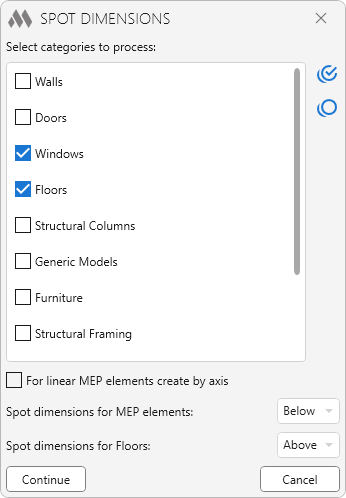
This window displays a list of categories derived from the selected elements, in which you must check the categories for further processing.
You can use buttons to work with the list of categories:
 — check all items in the list.
 — uncheck all items in the list.
When you select MEP elements, the following options become available:
For linear MEP elements create by axis — the option, when it is enabled, the spot dimension is set only along the element axis.
Spot dimensions for MEP elements: — option that allows you to specify the position of spot dimensions. The following options are available: Above, Below, Above and below.
If you select floors, you can also specify the position of spot dimensions using the Spot dimensions for Floors: option.
When working with curtain walls, it is important to keep in mind that when selecting with the frame, the list will include the entire curtain walls (walls category) as well as its panels and mullions. Each of these elements can be selected manually. If you check only the "Walls" category in the plugin window, the top and bottom spot dimensions of the stained curtain wall will be set for the outermost mullions or panels. If you select the "Curtain wall mullions" and "Curtain wall Panels" categories, the spot dimensions will be set for the elements of the respective categories.
After clicking Continue you will be prompted to specify the location point of the spot dimensions.

 YouTube