


CAD manager
Several Revit applications are running. Choose one:
Icon


Related news and articles
Using
All work of the plugin is done directly through the plugin window.
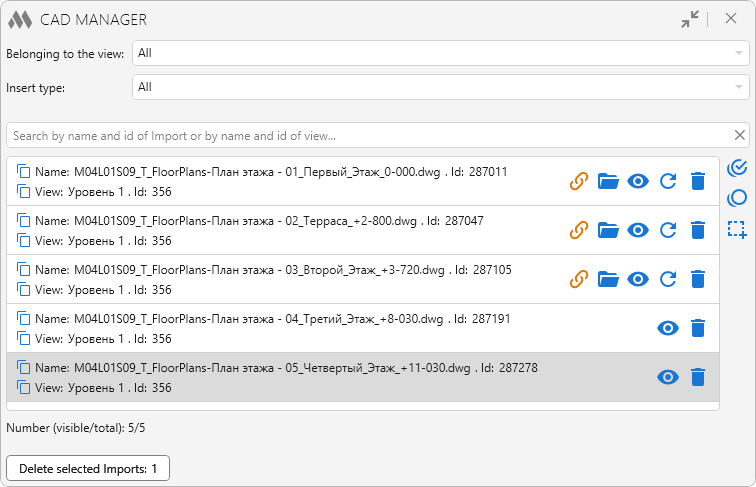
Plugin window does not block Revit. The list of Dwg-imports changes dynamically when you add/remove a Dwg-import with Revit and when you switch the document in Revit.
It is possible to filter list of Dwg-imports by type of view and type of import.
Belonging to the view – option to filter dwg-imports in the list by view belonging:
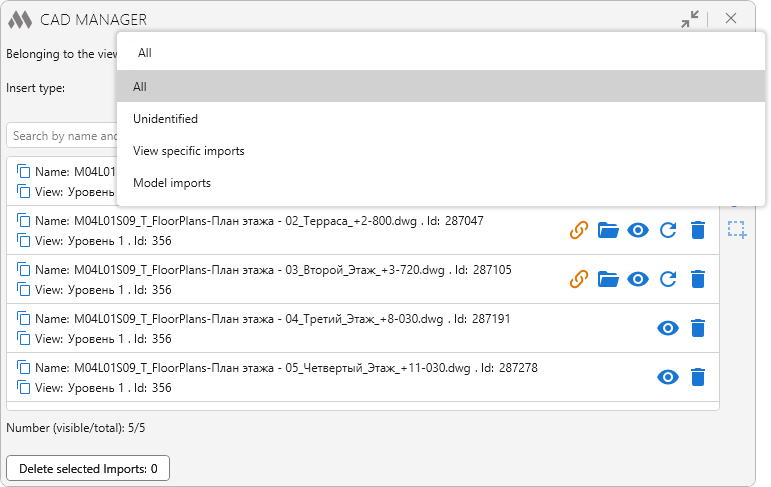
- Undefined – displays the list of dwg-imports that are unloaded from the project at the moment of plugin start.
- View specific imports – displays the list of dwg-imports that are placed on the Views.
- Model imports – displays the list of dwg-imports that are not placed on the Views.
Insert type – option to filter dwg-imports in the list by insertion type:
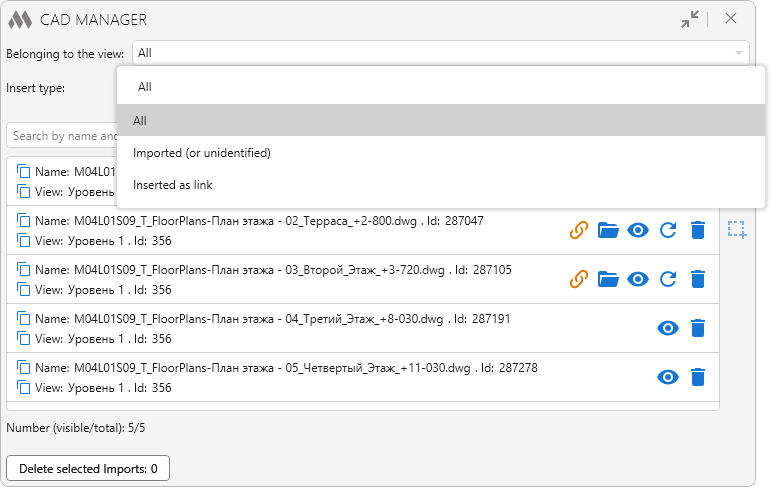
- Imported (or undefined) – displays the list of dwg-imports that were imported to the project ("Import CAD");
- Inserted as link – displays the list of dwg-imports that are inserted to the project as a link ("Link CAD").
Search by name and id of Import or view and id of view – search on the fly in the list of dwg-imports.
Below is the list of Dwg-imports of the current document. Each item in the list contains information about the Dwg-import: Dwg-import name, Dwg-import id, name of the View to which the Dwg-import belongs, view id. Each item allows to perform some actions:
 – copy the Dwg-import identifier or the View identifier
 – presence of an icon indicates that the Dwg-import is linked and not imported
 – opening the folder with the source file for the Import that is inserted as a link
 – select and show the Dwg-import
 – update the Dwg-import
 – delete the Dwg-import.
To the right of the list of Dwg-import s there are buttons:
 – select all Dwg-imports in list
 – deselect all Dwg-imports in list
 – select in the project the Dwg-imports highlighted in the list.
Items in the list support multiple selection by holding the Ctrl or Shift key and clicking the left mouse button.
The bottom part of the window displays the number of visible and total number of Imports in the list.
Delete selected elements – deletes several Dwg-imports selected in the list.

 YouTube