


Layout manager

Call options
- ModPlus floating menu or palette
- AutoCAD ribbon
- Command line: _mpLayoutManager
Icon


Related news and articles
Using
When the plugin starts, the layout manager opens in the form of an AutoCAD palette:
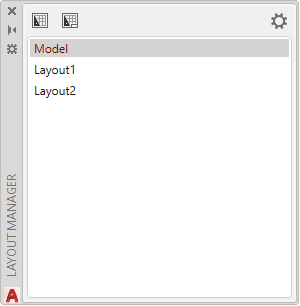
Layouts in the palette can be interchanged by simply dragging and holding the left mouse button.
The top of the palette contains several buttons:
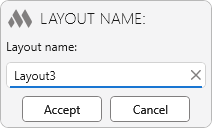
 – create a new layout. If in the plugin settings (see below) the Request name when creating a layout option is enabled, a window for specifying a name for a new sheet will be displayed:
 – launching the standard AutoCAD function – Creating layout from template.
 – opens the plugin settings window:
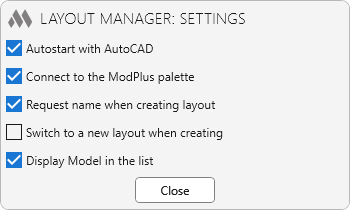
When right-clicking in a list of layouts on a layout, a context menu appears:
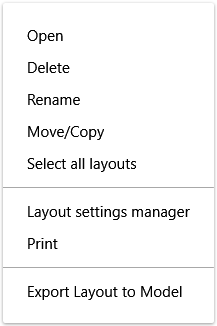
Open – switch to selected layout.
Delete – delete one or more selected layouts.
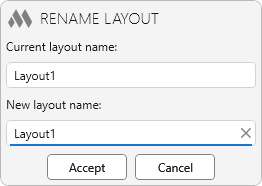
Rename – a window will open in which the current layout name is displayed and a field for entering a new layout name:
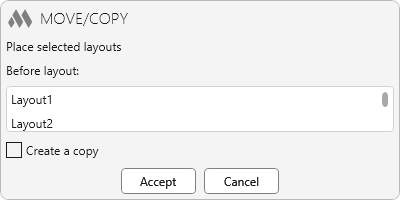
Move/Copy – a window for moving/copying the selected layout opens, similar to the standard AutoCAD window:
Layout settings manager, Print and Export Layout to Model – launch the corresponding AutoCAD functions. For these items to be active, the selected layout must be active.

 YouTube