


Layer breaking

Several Revit applications are running. Choose one:
| Name | Discount | Total value of individual orders | Total value of corporate orders |
|---|---|---|---|
| Regular user | 0% | ||
| 3% discount | 3% | $84 | $180 |
| 5% discount | 5% | $120 | $360 |
| 7% discount | 7% | $180 | $600 |
| 10% discount | 10% | $300 | $900 |
| 15% discount | 15% | $360 | $1 200 |
| Partners | 30% | ||
| BIM Consulting | 50% | ||
| Super VIP | 100% |
Icon


Related news and articles
Using
Walls
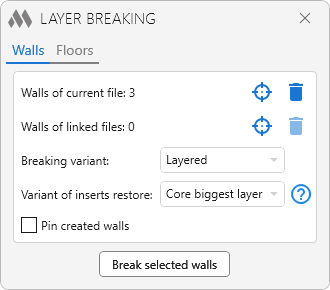
Walls of the current file – displays the number of selected walls in the current file.
Walls from linked files – displays the number of selected walls from linked files.
 – select walls in the current file or select walls in a linked file. If the walls were previously selected in the view, when you click the button, they will be processed and their count will be displayed in one of the above lines. If no elements are selected or there are no multilayer walls among the selected ones, the plugin will go into element selection mode and the walls will have to be selected.
 – clear wall list.
Break option – selects a breaking option:
- Layered – each layer of the original wall will be created as one new wall.
- By core edge – a three-layer wall will be created, where the layer above wrap will contain all layers above wrap of the original wall, the core layer will contain all layers of the original wall core, the layer below wrap will contain all layers below warp of the original wall. Accordingly, the wall may be created as a double-layer or single-layer wall, depending on the layers of the original wall.
When creating new walls, the types for them are selected from the existing ones in the project (check by thickness, material and function) or are created. The name of the types being created is determined by the material name and the layer width.
Variant of inserts restore – selection of the inserts reconstruction option. Inserts include openings and families in the "Windows" and "Doors" categories. The procedure for selecting the target layer for restoring inserts is described in the plugin window.
Pin created walls – if checked, the created walls will automatically be pinned.
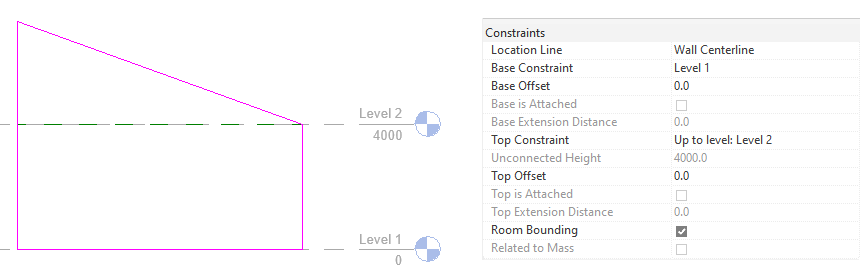
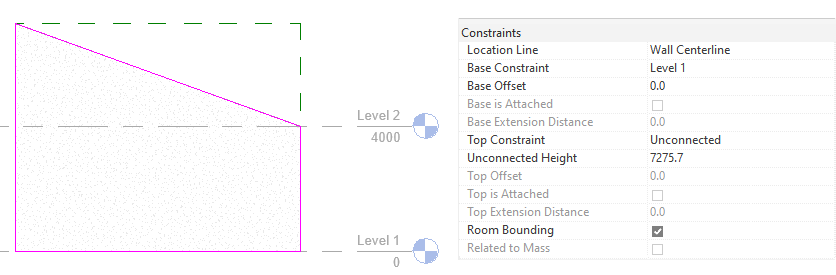
When breaking walls with an edited profile, in case the top of the wall is located above the level specified in the "Top Constraint" parameter, the created walls do not have a top constraint.
Original wall:
Created wall after breaking:
Floors
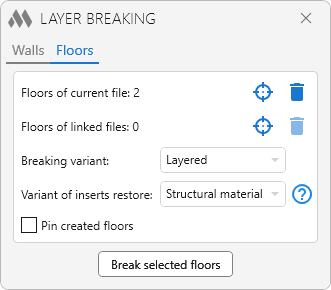
The settings for floors are similar to those for walls.
Let's look at an example of a wall breaking:
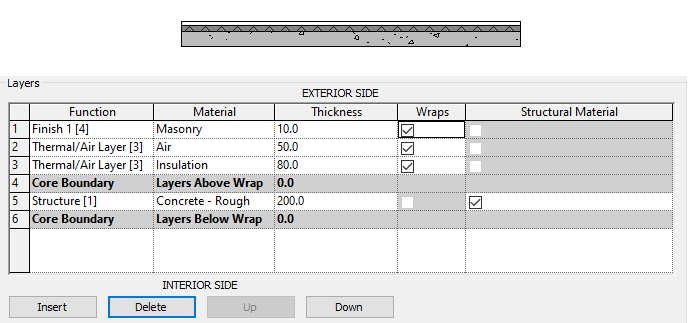
Select the wall, select the breakdown option – in layers and click the Break selected walls button.
Consider what types have been selected for the new walls.
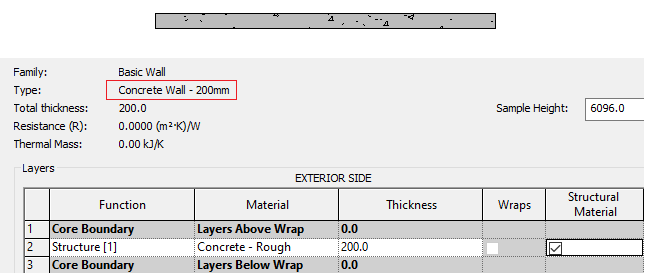
The project already has a wall type in which the thickness, material and function of the layer coincide with the same parameters of the new wall. So the new wall is created with the following type:
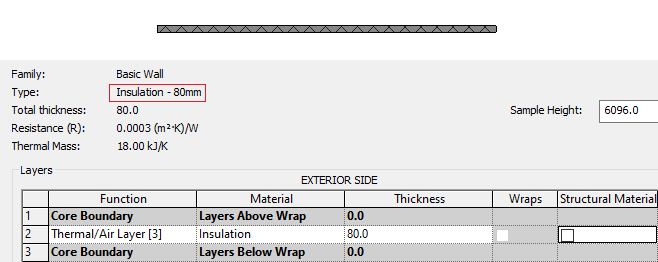
For the other layers there are no suitable wall types in the project, so new ones have been created:

 YouTube