
Wall layouts

Wall layouts
Show in Revit

Several Revit applications are running. Choose one:

Attention! The plugin is purchased for the specified version of Revit!
$7.20
Discount system: 0%
Discount system
Name Discount Total value of individual orders Total value of corporate orders
Regular user 0%
3% discount 3% $84 $180
5% discount 5% $120 $360
7% discount 7% $180 $600
10% discount 10% $300 $900
15% discount 15% $360 $1 200
Partners 30%
BIM Consulting 50%
Super VIP 100%
A subscription is your best choice. Find out why!
To use the purchased license, use the Personal Area of the ModPlus software installed on your computer
Create wall layouts

Icon

mprWallSweep_32x32 mprWallSweep_16x16 mprWallSweep_32x32_dark mprWallSweep_16x16_dark

Related news and articles


Using

Launching the plugin is only available on plans.

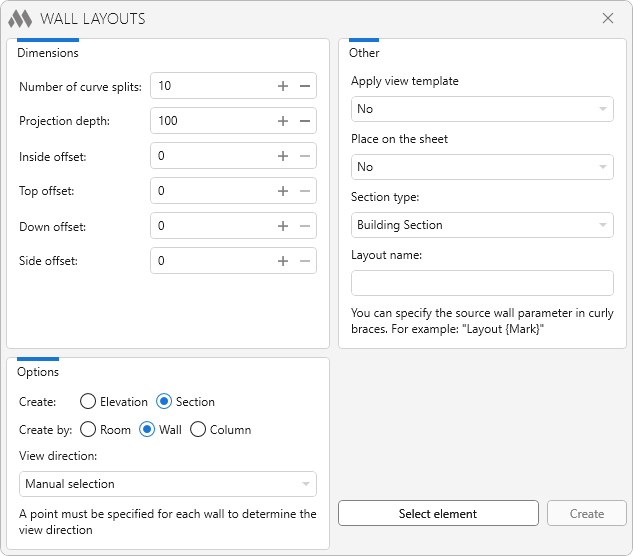
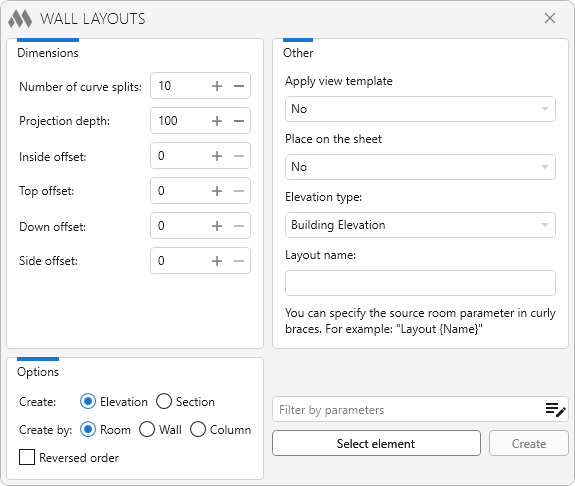
The main plugin window consists of three main parts: Dimensions, Options and Other:
1

Dimensions

Number of curve splits – the number of straight segments into which the curved walls will be split.

Projection depth – specifies the Far Clip Offset (mm) for the created views (into the wall).

Inside offset – specifies the Far Clip Offset (mm) for the created views (from a wall).

Top offset – specifies the offset of the view boundary from the upper boundary of the wall upwards .

Down offset – specifies offsets of the view boundary from the bottom wall boundary downward.

Side offset – specifies offsets of the view boundary from the side wall boundaries to the sides.

OPTIONS

Create: Elevation/Section – select the type of view with which the wall layout will be created.

Create: Room/Wall/Column – select the element category, on the basis of which the wall layout will be created.

If you select the create room, the Reverse order option becomes available. It allows you to choose the direction of wall layouts. If this option is on, the layouts are created counterclockwise, if it is off, they are created clockwise.

When selecting the option to create by wall, the View direction option becomes available, allowing you to choose the direction of the generated views relative to the walls:

  • Manual selection – for each wall, you must specify a point to determine the view direction. When selecting a single wall, you must always manually specify a point for the view direction.
  • Interior side – when selecting multiple walls, the views will be created automatically on the interior side of the walls.
  • Exterior side – when selecting multiple walls, the views will be created automatically on the exterior side of the walls.

OTHER

Apply view template – drop-down list of view templates available in the current document. If you don't want to apply the view template, select "No" from the list.

Place on the sheet – drop-down list of sheets available in the current document, on which you can place the created view. If the option No is selected in the list, the created view will not be placed on the sheet.

Section type/Elevation type – a dropdown list of section/elevation types in the current document.

Layout name – the field where you can set the name of the created view. You can write the parameter value of the source wall or source room to the layout name by specifying the parameter name in curly brackets.

After making all the settings, first select the elements and then create a wall, using the buttons at the bottom right of the plugin window.

When you click the Select Element In Current Document/In linked Document button, you need to select in which document the elements will be selected and select the walls, columns or rooms in the view for which the wall layout will be created.

Create – creates a layout of the selected wall or walls surrounding the selected room.

If you selected a single wall when running the plugin, then after clicking the Create button you will need to specify on which side of the wall you want to create the layout, by indicating a point on the plan.

If you choose to create a wall layout over the room, when you click Select Element, the In the active view in the current document option becomes available, which allows you to select all the rooms in the active view:
2

You can use Filter Elements by parameters playlist edit to select specific rooms.

ModPlus YouTube
Improved
The interface was migrated to the current version of the ModPlus styling library
Improved
Search was added to the template, sheet and section type selection lists
Improved
Ignoring errors that occur when searching for overlying floors
New
Added the ability to select multiple walls
New
Added creation of column elevations
New
Added information about selected rooms
New
Merging of boundary elements
New
Fixed an error in room processing
New
Added the ability to specify the type for an elevation or section
Fix
Fixed a bug where Curtain Walls were not processed in some cases
Improved
Added alphabetical sorting of the template list and sheet list
Improved
Restoration of breaks in Crop Box
Improved
The maximum offset value has been increased to 2000
Improved
Added sorting of view templates in alphabetical order
Improved
Added restriction on processing of room contour sections with length less than 20 mm
Improved
Improved algorithm for determining the direction of created views when processing rooms with complex configurations
Fix
Fixed some errors when working with elements from linked files
Fix
Correct location of Elevations/Sections when selecting rooms from a linked file inserted with an offset
Improved
Improved the algorithm for determining the direction along the wall to create views
Improved
Improved algorithm of wall processing taking into account the presence of a vertical profile in the wall
New
Added option to specify side offset
New
Added possibility to use source element parameters in the layout name
Improved
Exclusion of unlocated and redundant rooms from processing
Improved
Exclusion of Zones from processing
Improved
Improved algorithm for obtaining the room contour
Fix
Fixed a bug where all rooms were selected instead of rooms in the current view
Fix
Fixed a bug occurring when processing walls with height exceeding length
Improved
Added processing of walls with splines in their geometry
Improved
Using the ModPlus.Xaml.Behaviors.Wpf.dll library instead of Microsoft.Xaml.Behaviors.dll to resolve compatibility issues with other plugins
New
Added possibility to set reverse order of sweep creation
Improved
Algorithms of Curtain Walls processing improved
New
Added option to not create a sheet to place a created view
Fix
Fixed some errors when working with Curtain walls
Improved
Removed "Prefix" and "Suffix" settings
Fix
Corrected the orientation of views on the sheet
Improved
Considering the scale of the view when placing the view on the sheet
Fix
Fixed localization error on the selection button
New
Redesigned UI
New
Reworked the algorithm for creating wall layouts by rooms
New
Added ability to specify a name for the layout
New
Added possibility to process multiple selected rooms
New
Added possibility to select rooms in active view
New
Added an option to use the filter by parameters for rooms in the active view mode
New
Added saving of a selected template and sheet
Improved
Added command access settings on the ribbon
Fix
Fix some bugs
Fix
Fixed a critical error related to retrieving elements from linked files
New
Added an option to specify an offset at the top and an offset at the bottom
Improved
Removed "Only sections and elevations" filtering for templates of the view
New
Added ability to create an offset from the wall
New
Added ability to process surrounding structures that are in a linked file
New
Added ability to process rooms from a linked file
New
Added the ability to add a prefix/suffix to the names of created views
Fix
Fixed some bugs
Fix
Fixed a bug in getting walls from rooms that are surrounded by more than just walls