


Tagless elements

Several Revit applications are running. Choose one:
Icon


Related news and articles
Using
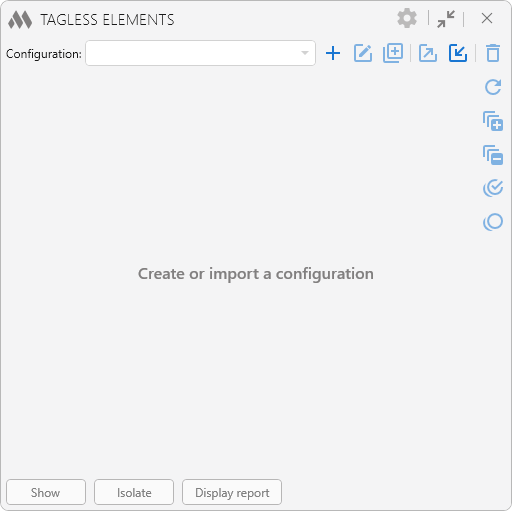
To start using the plugin, you need to create a configuration  :
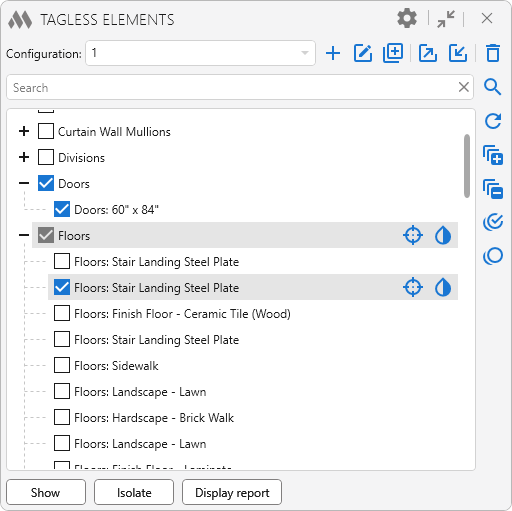
The current configuration can be renamed  , duplicated
 , exported
 , imported
 , and deleted
 using the corresponding buttons.
The plugin window is populated with a list of elements that do not have tags in the current active view.
To the right of the list are buttons for refreshing the element list  , expanding all element groups
 , collapsing all element groups
 , checking all elements in the list
 , and unchecking all elements
 .
Opposite each element category and individual element in the list are buttons that allow you to:
 – override the element graphics in the current view. The button is inactive if the Colorize lines and Colorize surfaces options are unchecked in the plugin settings.
 – reset the element graphics overrides in the current view.
 – select the element and show it in the center of the screen.
The following commands are located at the bottom of the plugin window:
Show – select the elements checked in the list and show them in the center of the screen.
Isolate – isolate all elements checked in the list.
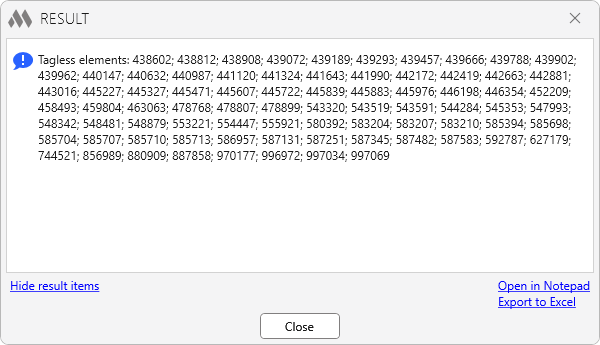
Display report – open the results window with a list of IDs of elements without tags, with the option to export it to Excel or a text document.
General plugin settings can be opened using the  button in the upper-right corner of the window:
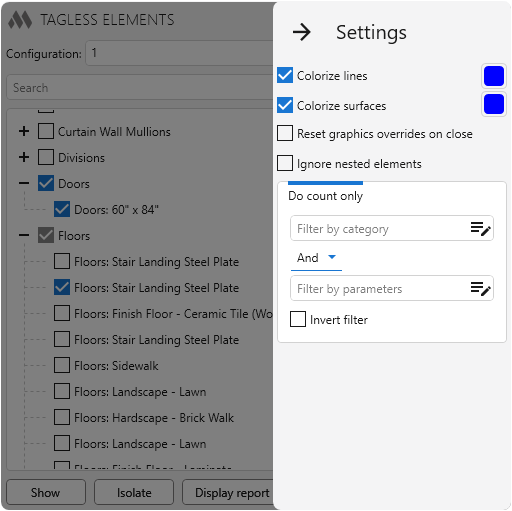
Colorize lines – when overriding the element graphics in the current view, the line color will be changed according to the specified color.
Colorize surfaces – when overriding the element graphics in the current view, the surface color will be changed according to the specified color.
Reset graphics overrides on close – resets element graphics overrides applied using the plugin when the plugin window is closed.
Ignore nested elements – excludes nested family elements from the check.
Do count only – allows you to limit the set of elements included in the check using the element filter. Only elements that meet the specified conditions will be processed.
Invert filter – inverts the filtering conditions. When this option is enabled, elements that match the specified filters are excluded from processing, and the Do count only group title changes to Do not count.