


Sheet copy

Several Revit applications are running. Choose one:
| Name | Discount | Total value of individual orders | Total value of corporate orders |
|---|---|---|---|
| Regular user | 0% | ||
| 3% discount | 3% | $84 | $180 |
| 5% discount | 5% | $120 | $360 |
| 7% discount | 7% | $180 | $600 |
| 10% discount | 10% | $300 | $900 |
| 15% discount | 15% | $360 | $1 200 |
| Partners | 30% | ||
| BIM Consulting | 50% | ||
| Super VIP | 100% |
Copying specified sheets with various settings
Icon


Related news and articles
Using
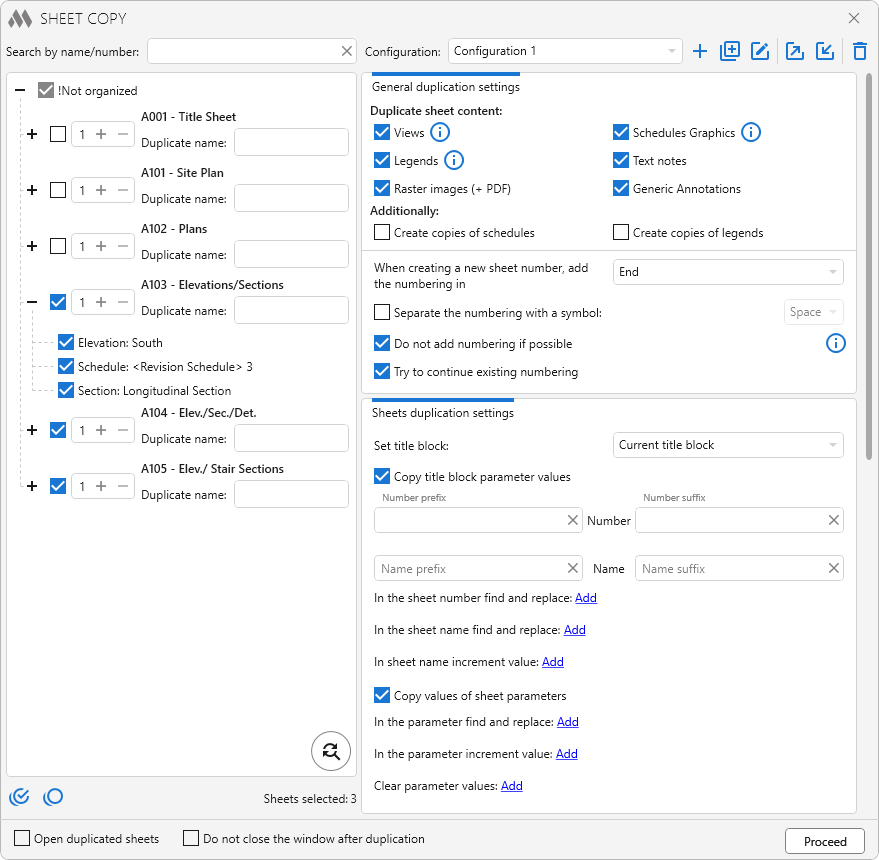
The left side of the plugin window contains a list of sheets of the current document. You must check the sheets you want to duplicate. You can also specify the number of copies of each sheet. Each sheet in the list has a Duplicate name field that allows you to specify a new name for duplicate sheets. If you expand the sheet, you can see the list of views, schedules and legends placed on it.
Search by name/number – text field for searching from the list of sheets. Works "on the fly" – enter a value and in the list there are only those sheets in the number or name of which the specified text is present. The search is case sensitive
Select all sheets – check the checkboxes on all sheets in the list or uncheck all the sheets in the list.
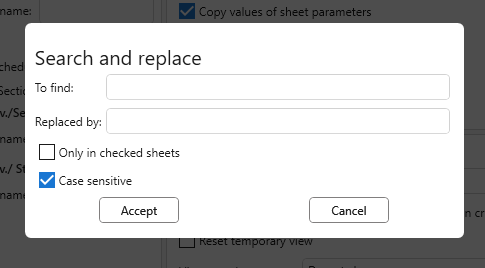
 – opens a dialog for searching and replacing text in new sheet names:
Open duplicated sheets – when this option is enabled, the created copies will automatically open after the duplication process is completed.
The right part of the window contains settings for duplicating sheets, including settings for duplicating sheet contents.
To the right of the drop-down list of configurations, there are buttons that allow you to create a new configuration  , duplicate a configuration
 , rename a configuration
 , export
 and import
 a configuration, and remove the current configuration
 .
General duplication settings
In this group, you should specify which sheet content you want to duplicate. For some items, when you select them, additional settings become available.
If you do not want to duplicate all views, schedules or legends placed on a sheet, you can uncheck the checkboxes next to the unnecessary items by expanding the list under the corresponding sheet.
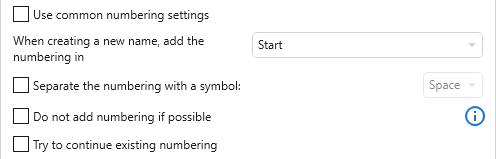
When duplicating a sheet or views to specify the uniqueness of a duplicate, function add the numbering to the sheet number or view name. Numbering is added at the beginning or end of the sheet number or view name, depending on the option selected in the window. The numbering can be separated by the symbol selected in the drop-down list by enabling the corresponding option. You can also add a prefix and a suffix for the number and name of the duplicate sheet or view. In this case, the plugin will continue to number without taking into account the prefix and suffix of the sheet number. For example, if you duplicate a sheet with the number А50, the prefix В-, adding the numbering at the beginning using the separating character "." will result in a new sheet number В-1.А50.
Do not add numbering if possible – when this checkbox is checked, if the sheet number, view name, schedule name or legend name will be unique with a prefix and/or suffix, the numbering will not be added.
Try to continue existing numbering – when enabled, the plugin searches for numbering in the sheet number according to the specified rules (position — at the beginning or at the end of the name, and the selected separator). If such numbering is found, it will automatically be continued when duplicating.
Sheets duplication settings
Change collection for duplicates – determines which collection the created sheet copies will be placed into. The following options are available:
- Do not change – duplicated sheets will be placed in the same collections as the original sheets.
- Distribute across collections – duplicates will be automatically distributed among existing collections according to the specified numbering settings. If suitable collections are not found, new collections will be created according to the number of sheet copies.
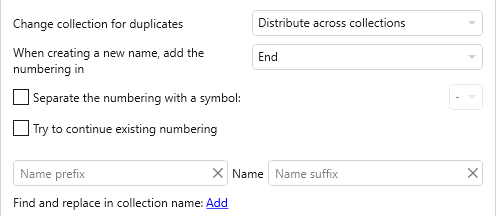
- Place in one collection – all created sheet duplicates will be placed into the specified collection. If the collection name is not defined, a new collection will be created according to the specified numbering settings.

Set title block: – drop-down list of main labels in the current drawing. When the sheet is duplicated, the selected title block in the list will be installed or the main label of the sheet will remain when the option Current title block is selected.
Prefix, suffix – setting of prefix and/or suffix for number and name of new sheets. In these fields it is possible to add Unicode characters through the right-click context menu.
In the sheet number find and replace – allows you to specify which value should be found in the sheet number and which value to replace. Clicking the button again adds additional fields and allows you to set multiple values to search and replace in the sheet number. If the search and replace will result in a unique sheet number and the option Do not add numbering if possible is selected, then the numbering will not apply to the sheet number.
In the sheet name find and replace – allows you to specify which value should be found in the sheet name and which value to replace. Clicking the button again adds additional fields and allows you to set multiple values to search and replace in the sheet name.
Increment value in sheet name – allows automatically increasing the numeric part of the sheet name value (+1) for each subsequent copy. The fields before and after the Counter specify the text parts located before and after the numeric value in the sheet name.
Copy values of sheet parameters – when enabled, parameter values from the source sheet are copied and the options below become available:
- In the parameter find and replace – allows replacing values in the selected sheet parameter. If the specified parameter does not exist in the document, it will be highlighted in red.
- In the parameter increment value – automatically increases the numeric part of the sheet parameter value by 1 for each subsequent copy. The fields before and after the Counter specify the text parts located before and after the numeric value in the parameter.
- Clear parameter values – removes the value of the selected parameter from all created sheet duplicates. If the specified parameter does not exist in the current document, it will be highlighted in red.
View duplication settings
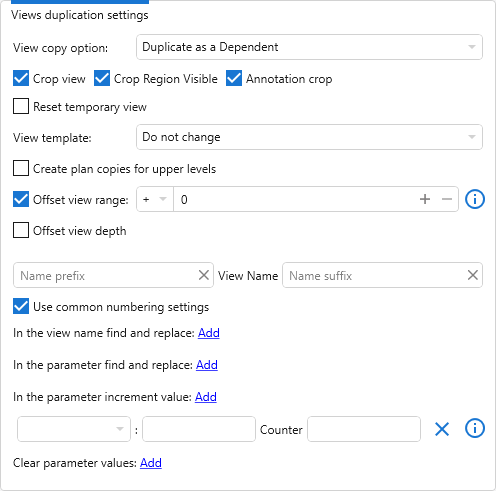
View copy option: – view copy option – Dublicate, Dublicate with Detailing, Dublicate as a Dependent.
Drafting views are copied with the option Dublicate with Detailing regardless of the option selected.
If you select Duplicate as a Dependent, additional options appear: Crop view, Crop Region Visible, Annotation crop.
View template – applying the specified template to a duplicate view.
Reset temporary view – if this option is enabled, the duplicated view will have its temporary view reset.
Create plan copies for upper levels – this option is used when duplicating plans. For the selected plan, the specified number of copies will automatically be created for all upper levels of the project.
Offset view range – allows for duplicated floor plans to offset the Primary Range by a specified value.
Offset view depth – allows to offset the View Depth for duplicated floor plans by the value set for offset view range.
For a duplicate view, you can add a prefix and/or a suffix for the name.
Use common numbering settings – when enabled, view numbering will follow the settings defined in the General duplication settings group. Otherwise, separate numbering settings for views become available:
In the view name find and replace – allows you to specify which value should be found in the view name and which value to replace. Clicking the button again adds additional fields and allows you to set multiple values to search and replace in the view name. If the search and replace will result in a unique view name and the option Do not add numbering if possible is selected, then the numbering will not apply to the view name.
In the parameter find and replace – allows you to specify which value should be found in the view parameter selected from the drop-down list and which value to replace. If a parameter previously specified in the settings is not present in the current document, it will be highlighted in red.
In the parameter increment value – automatically increases the numeric part of the view parameter value by 1 for each subsequent copy. The fields before and after the Counter specify the text parts located before and after the numeric value in the parameter.
Clear parameter value – removes the value of the selected parameter from all created view duplicates. If the specified parameter does not exist in the current document, it will be highlighted in red.
Schedules duplication settings
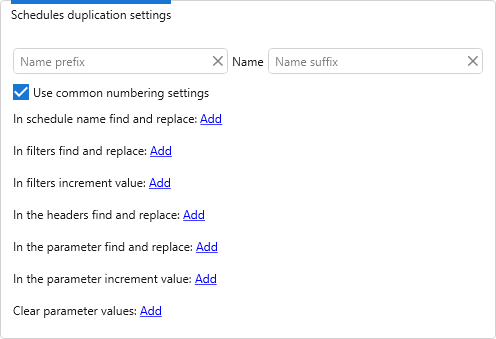
This group of settings is available when the checkbox Create copies of schedules in the General duplication settings is checked.
Schedule Graphics splits is saved for duplication starting with Revit version 2023.
Prefix, suffix – setting of prefix and/or suffix for the name of new schedules.
Use common numbering settings – when enabled, schedule numbering will follow the settings defined in the General duplication settings group. Otherwise, separate numbering settings for schedules become available.
In schedule name find and replace – allows you to specify which value should be found in the schedule name and which value to replace. Clicking the button again adds additional fields and allows you to set multiple values to search and replace in the schedule name. If the search and replace will result in a unique schedule name and the option Do not add numbering if possible is selected, then the numbering will not apply to the schedule name.
In filters find and replace – allows you to specify which value should be found in the schedule filters and which value to replace. Replacement is performed only in filters that use parameters with string and numeric data type.
In filters increment values – automatically increases the numeric part of the filter value by 1 for each subsequent copy. The fields before and after the Counter specify the text parts located before and after the numeric value in the schedule filter. For example, if the filter value is K2C, you must specify prefix "K" and suffix "C"; when duplicating, the values K3C, K4C, etc. will be generated.
In the headers find and replace – allows you to specify which value should be found in the schedule headers and which value to replace.
In the parameter find and replace – allows you to specify which value should be found in the schedule parameter selected from the drop-down list and which value to replace. If a parameter previously specified in the settings is not present in the current document, it will be highlighted in red.
In the parameter increment value – automatically increases the numeric part of the schedule parameter value by 1 for each subsequent copy. The fields before and after the Counter specify the text parts located before and after the numeric value in the parameter.
Clear parameter value – removes the value of the selected parameter from all created schedule duplicates. If the specified parameter does not exist in the current document, it will be highlighted in red.
Legends duplication settings
This group of settings is available when the checkbox Create copies of legends in the General duplication settings is checked.
Reset temporary view – if this option is enabled, the duplicated legend will have its temporary view reset.
Prefix, suffix – setting of prefix and/or suffix for the name of new legends.
Use common numbering settings – when enabled, legend numbering will follow the settings defined in the General duplication settings group. Otherwise, separate numbering settings for legends become available.
In the legend name find and replace – allows you to specify which value should be found in the legend name and which value to replace. Clicking the button again adds additional fields and allows you to set multiple values to search and replace in the legend name. If the search and replace will result in a unique legend name and the option Do not add numbering if possible is selected, then the numbering will not apply to the legend name.
In parameter find and replace – allows you to specify which value should be found in the legend parameter selected from the drop-down list and which value to replace. If a parameter previously specified in the settings is not present in the current document, it will be highlighted in red.
In the parameter increment value – automatically increases the numeric part of the legend parameter value by 1 for each subsequent copy. The fields before and after the Counter specify the text parts located before and after the numeric value in the parameter.
Clear parameter value – removes the value of the selected parameter from all created legend duplicates. If the specified parameter does not exist in the current document, it will be highlighted in red.
TEXT DUPLICATION SETTINGS
This group of settings is available when the checkbox Text in the General duplication settings is checked.
In the text find and replace – allows you to specify which value should be found in the text and which value to replace. Clicking the button again adds additional fields and allows you to set multiple values to search and replace in the text.

 YouTube