Parametrization

Parametrization
Show in Revit

Several Revit applications are running. Choose one:

Attention! The plugin is purchased for the specified version of Revit!
$25.20
Discount system: 0%
Discount system
Name Discount Total value of individual orders Total value of corporate orders
Regular user 0%
3% discount 3% $84 $180
5% discount 5% $120 $360
7% discount 7% $180 $600
10% discount 10% $300 $900
15% discount 15% $360 $1 200
Partners 30%
BIM Consulting 50%
Super VIP 100%
A subscription is your best choice. Find out why!
To use the purchased license, use the Personal Area of the ModPlus software installed on your computer
Fill element parameters with different strategies

Icon

mprParametrization_32x32 mprParametrization_16x16 mprParametrization_32x32_dark mprParametrization_16x16_dark

Related news and articles


PRACTICAL GUIDE

Guide version 5.0Download


Using

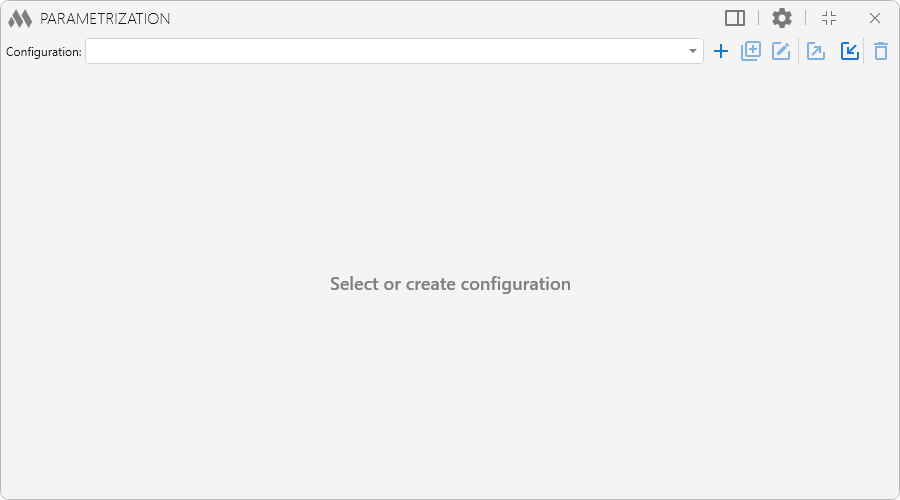
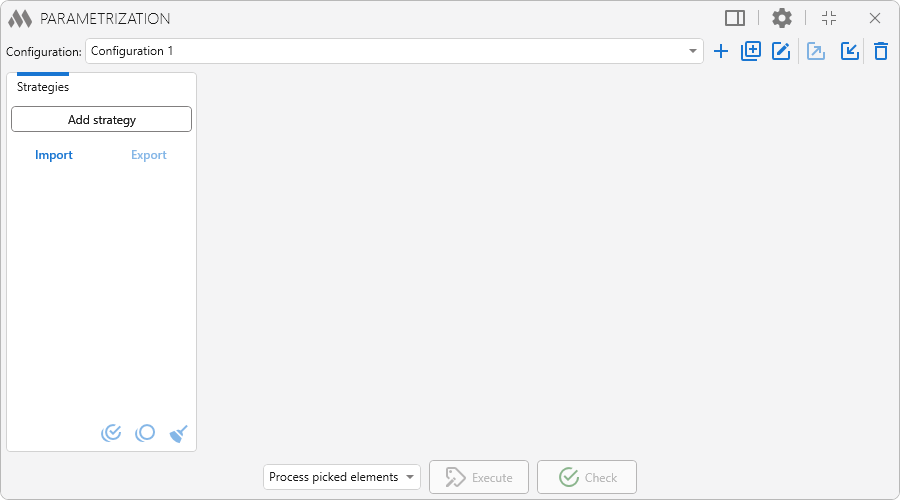
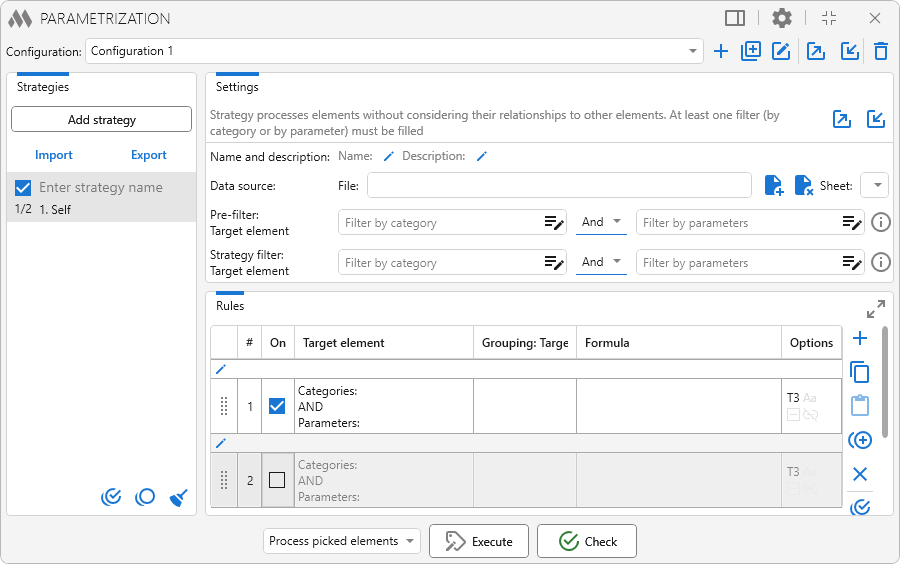
To use the plugin, create a new configuration or import import a previously created one.

1

The current configuration can be duplicated , exported export and deleted delete outline using the corresponding buttons. The button allows you to change the configuration name and group. The same window displays a list of configuration groups with the number of configurations included in each group. Groups can be renamed and deleted.

2

Duplicating configurations is only available in the full version of the plugin.

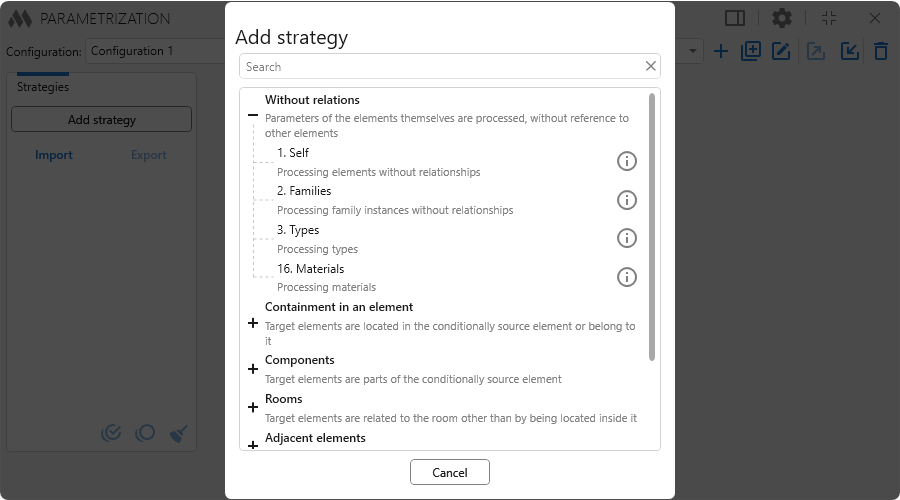
Each configuration contains a set of strategies. Strategies differ in the element processing algorithm. Clicking the Add strategy button opens a dialog box with a list of available strategies and their short descriptions:

3

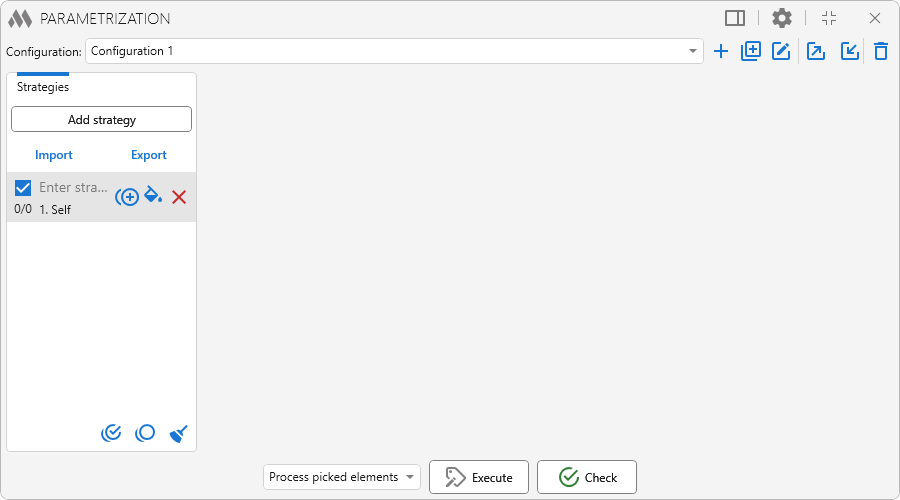
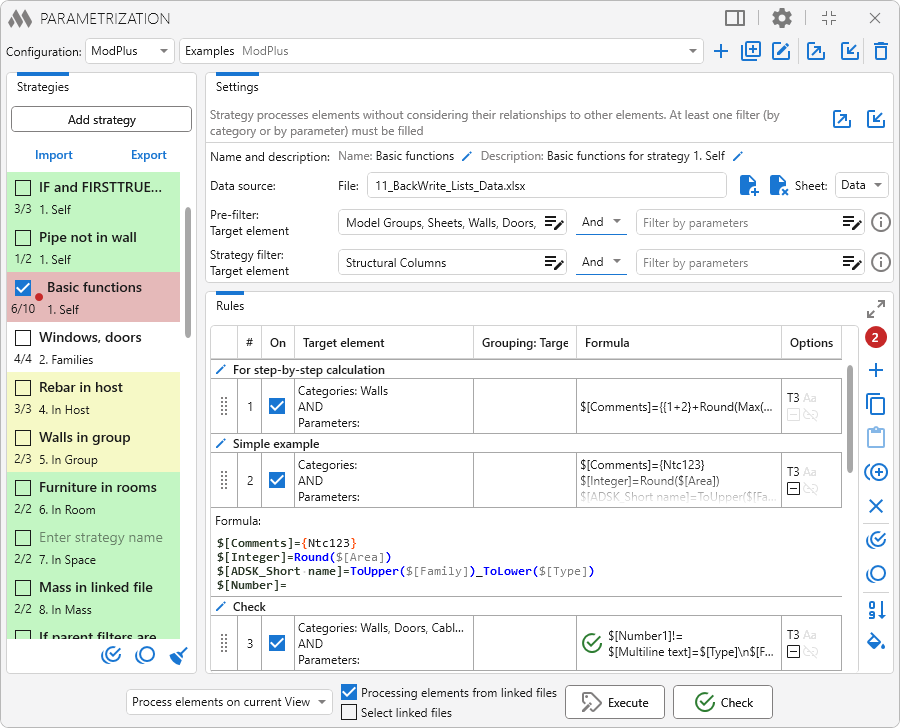
For each strategy, the list displays the custom name, system name, and the number of enabled rules relative to the total number of rules in the strategy. The checkbox on the left allows you to enable or disable the strategy. When you hover over a strategy, buttons become available to duplicate it plus circle multiple outline, change its background color format color fill, and delete the strategy close (red).

4

Duplicating strategies is only available in the full version of the plugin.

At the bottom left of the plugin window are buttons that allow you to check all strategies in the current configuration checkbox multiple marked circle outline, uncheck all strategies checkbox multiple blank circle outline, and delete all strategies in the current configuration broom.

When a strategy is selected, its contents are displayed on the right side of the plugin window, including the custom strategy name and description, data source, pre-filters, strategy filters, and the rules table:

5

Each strategy consists of rules. A rule specifies how the processed elements are filtered and the formula applied to the processed elements. Element filters by categories and parameters are used to filter elements. Depending on the strategy, a rule may contain filters for conditionally source elements (for the In Host strategy these are host elements, for the In Group strategy these are groups, for the Solid Touch strategy these are touching elements, etc.). Depending on the strategy, category filters may also be absent.

The pre-filter limits the set of elements passed to the strategy for processing in advance. Only elements that match the specified pre-filter participate in further processing.

After the pre-filter is applied, elements are additionally selected using strategy and rule filters. Strategy filters apply to all rules for which their own element filters are not filled in. If only the category filter is filled in the strategy filter and only the parameter filter is filled in the rule filter, a combined filter with the specified categories and parameters will be used. Conversely, only parameters can be specified in the strategy filter and only categories in the rule filter. If both the category filter and the parameter filter are filled in the rule, the strategy filter will be ignored.

You can connect a data source to the strategy in the form of a sheet from a specified Excel file. The file is connected and disconnected using the corresponding buttons. The sheet is selected from the drop-down list of sheets in the selected file.

To add a rule to the table, use . To delete selected rules, use close, and to duplicate selected rules, use plus circle multiple outline.

Duplicating rules is only available in the full version of the plugin.

If errors or inconsistencies are detected in the rule settings, an indicator showing the number of warnings appears next to the table. Hover over the indicator to display a description of the detected issues and their effect on element processing.

Rules of the current strategy can be exported by clicking export or imported by clicking import. Two export/import file formats are available: XML and Excel. When importing rules into an empty strategy, as well as when importing with replacement of the current rules, the strategy name and description will also be imported.
16

Rules of the current strategy can be copied to the clipboard content copy and pasted from the clipboard content paste into either the current strategy or another strategy. The rules list can be expanded using the arrow expand (gray) button.

All strategy rules can be checked using checkbox multiple marked circle outline and unchecked using checkbox multiple blank circle outline. You can also change the background color of the first cell of the selected rules using format color fill.

Rules can be moved within the list using the mouse and dragged to other strategies. After moving rules, they can be renumbered according to their position in the table by clicking sort numeric ascending.

Each rule can be excluded from processing by clearing the checkbox in the corresponding table cell.

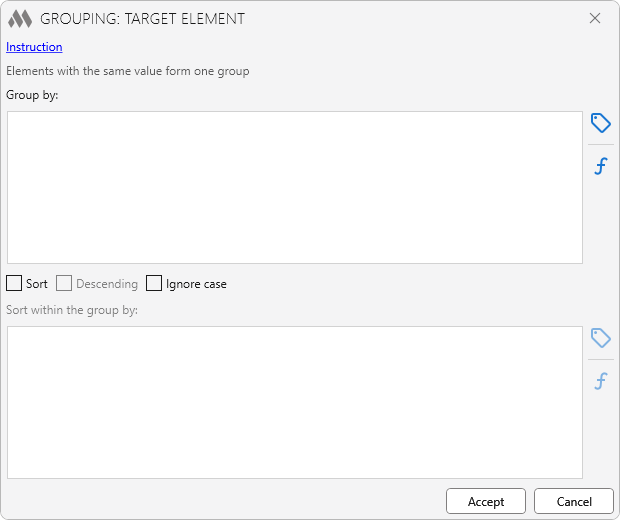
Depending on the selected strategy, additional Grouping and Matching columns may be available for target and conditionally source elements.

Grouping opens a separate window for configuring element grouping. Grouping is defined using an expression. You can also configure sorting within groups and case sensitivity.
18

Matching opens a separate window for configuring the matching of conditionally source and target elements. Elements for which the values calculated using the specified expressions match are placed in the same group. The window also provides sorting settings and a matching preview.
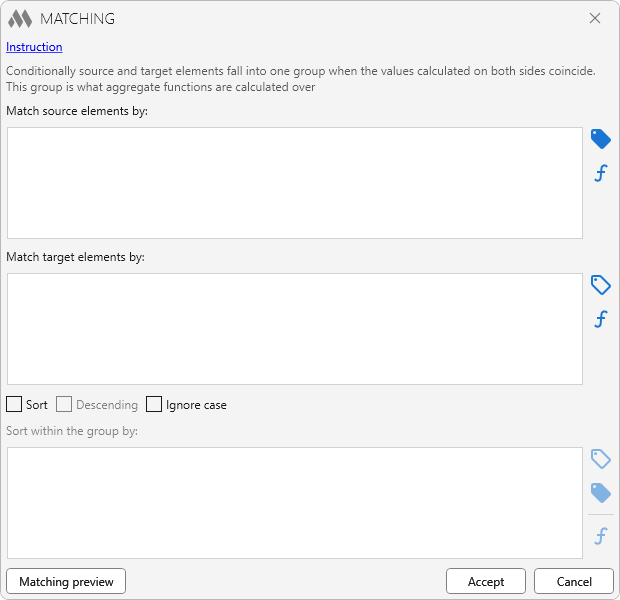
19

Double-clicking the Formula cell or the Formula options cell opens the formula editor:
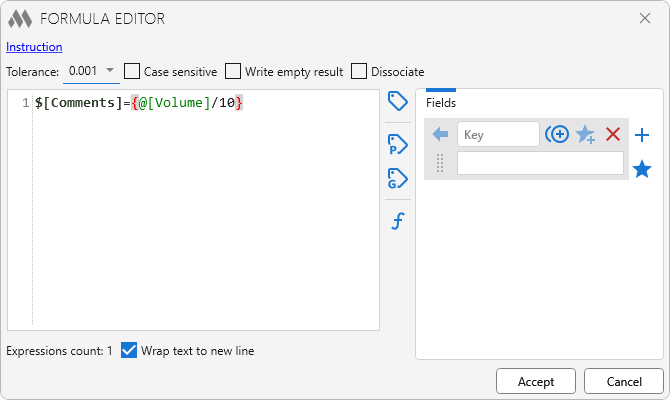
7

At the top of the formula editor is a link that opens detailed instructions for the formula editor:
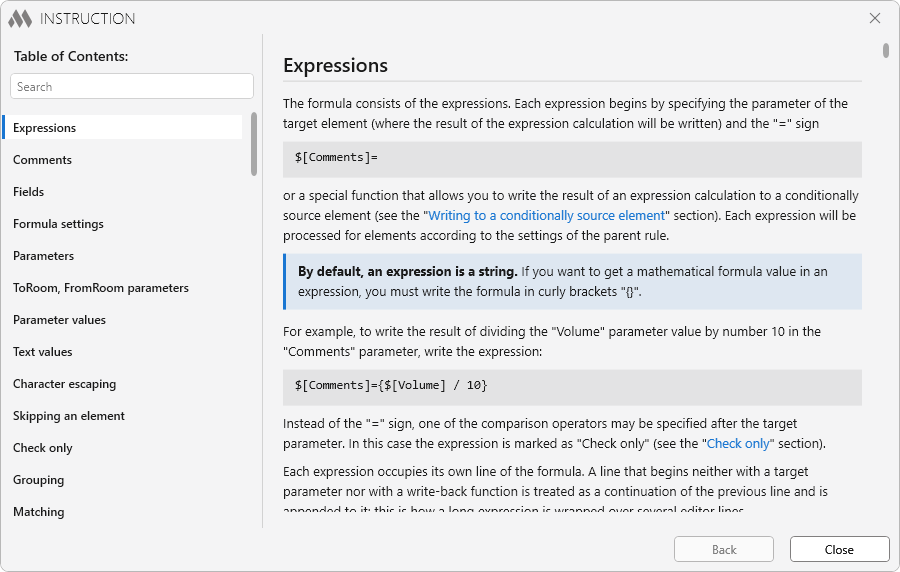
8

A formula consists of expressions, allowing several calculations to be performed for elements that match the filtering criteria of the parent rule. In addition to expressions, the formula has several options:

  • Tolerance – sets the tolerance used when comparing numeric values. For example, if the tolerance is set to 0.1, the condition "10.05 = 10.06" will be considered true.
  • Case sensitive – specifies whether string values are compared with or without regard to case.
  • Write empty result – specifies whether an empty result obtained when calculating an expression should be written to the target parameter. For string parameters, an empty result is an empty string. For numeric parameters, an empty result is 0.
  • Dissociate – allows you to remove the association between the target parameter and a global project parameter, if such an association exists.

There are auxiliary buttons to the right of the formula editing field:

  • tag outline is used to add a target element parameter to the formula. The parameter list is available if two conditions are met: 1. At least one category is specified in the target element filter; 2. The model contains at least one instance of an element from the specified categories. If both conditions are not met, the button will be inactive.
  • tag is used to add parameters of a conditionally source element to the formula. The parameter list is available if two conditions are met: 1. At least one category is specified in the conditionally source element filter; 2. The model contains at least one instance of an element from the specified categories. If both conditions are not met, the button will be inactive. If the parent strategy does not use a conditionally source element, the button will not be displayed.
  • tag outline p is used to add a Project Information parameter to the formula.
  • tag outline g is used to add a global parameter from the current document to the formula.
  • function is used to add a function to the formula.

On the right side of the formula editor are Fields, which allow parts of formulas to be replaced with keys. Fields can be nested within each other.

To add a new field, click plus on the right side of the window, or select part of the formula in the editing field, right-click it, and select Create field.

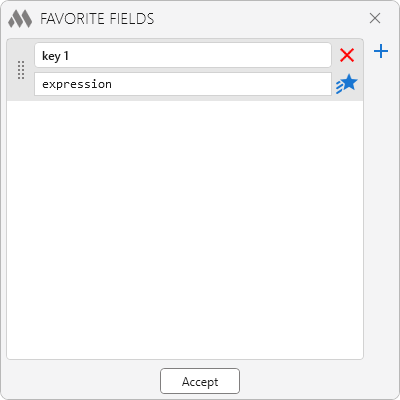
When hovering over a field, commands become available to duplicate the field plus circle multiple outline, delete the field close (red), add it star plus to or remove it star minus from the list of favorite fields. The star button on the right side of the window opens an editor from which selected favorite fields can be inserted into the list of fields of the current formula (multiple fields can be selected using Ctrl or Shift). This editor can also be opened from the plugin settings window to edit existing or add new favorite fields. Fields from the favorite fields list can be used in formulas of other rules, and field values can be updated in all rules of all configurations star shooting:

14

When hovering over the Formula cell, the arrow expand button appears, allowing you to show or hide the formula in the rules list,
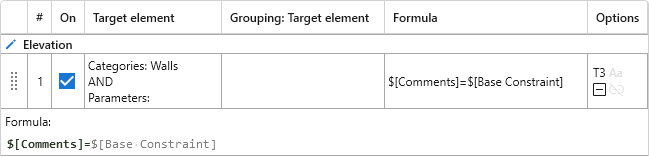
15

and the skript text play button opens Step-by-step calculation:
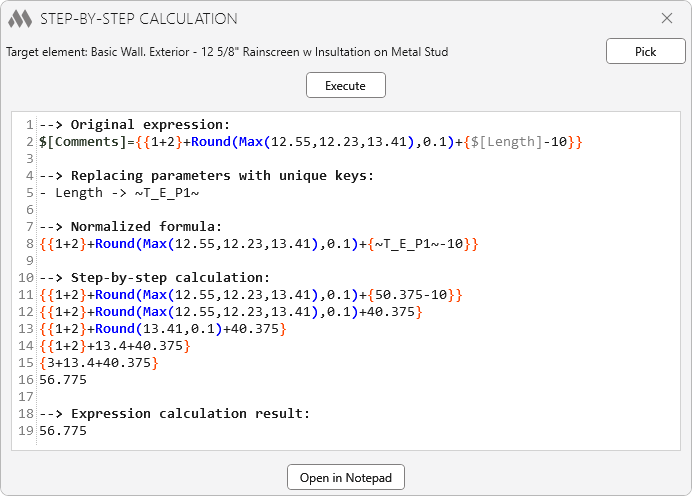
17

Step-by-step calculation is used to test formula calculation using a single element as an example. To do this, Pick the target element and, if necessary, the conditionally source element, and click Execute. The calculation result will be displayed in the window but will not be written to the element parameters.


Before running parametrization for the current configuration, specify the element selection option:

Each selection option has specific considerations depending on the strategies:

Process picked elements. If the configuration contains a Types strategy, only the types of the selected elements will be processed. If it contains a strategy that processes elements inside other elements (In Room, In Solid, In Mass, etc.), all elements must be selected, not only the parent elements.

Process elements on current View. Recommended option! If the configuration contains a Types strategy, the types of elements on the current View will be processed. For some strategies, the current View is important. For example, the In Room strategy will not work in a 3D View because rooms have no geometry in a 3D View. The detail level of the current View can also affect the results of geometry-related strategies (In Room, In Solid, Solid Touch, etc.).

Processing of elements on selected views. In the window that opens, select the views containing the elements to be processed. This option is similar to Process elements on current View.

Process elements in Document. If the configuration contains a Types strategy, all types in the document will be processed. This selection option is not recommended for strategies that work with element geometry (such as In Room, In Solid, Solid Touch, etc.), because element geometry will be obtained without taking interaction with other elements into account, which may lead to incorrect results.

The Processing elements from linked files option allows elements located in linked files to be used in some strategies (In Room, In Mass, OneToMany, etc.). When Select linked files is enabled, select the documents in which elements should be searched for in the window that opens. When the option is disabled, all linked files will be processed.

To start parametrization, click Execute and wait for the results.
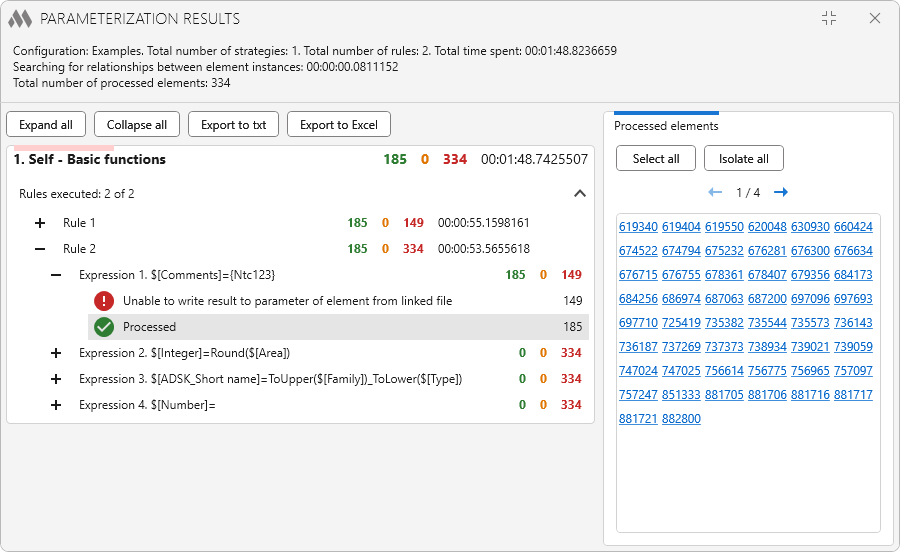
The results window displays general information about the number of executed strategies and rules, the time spent, and the number of processed elements. Below is a list of executed strategies showing the number of processed elements and the time spent. By expanding the list, you can see the number of elements processed by each rule expression.

For the expression selected in the list, the right side of the window displays a list of IDs of the processed elements, with the option to select or isolate all elements using the corresponding buttons. If elements from linked files were processed, their IDs will also be displayed in the list, but these elements cannot be selected.

The Check button runs a check to compare the formula calculation results with the current parameter values. For example, it can be used to find parameters with empty values. When the check is complete, a check results window similar to the parametrization results window will appear.


SETTINGS

General plugin settings can be opened using cog (gray) in the upper-right corner of the window:
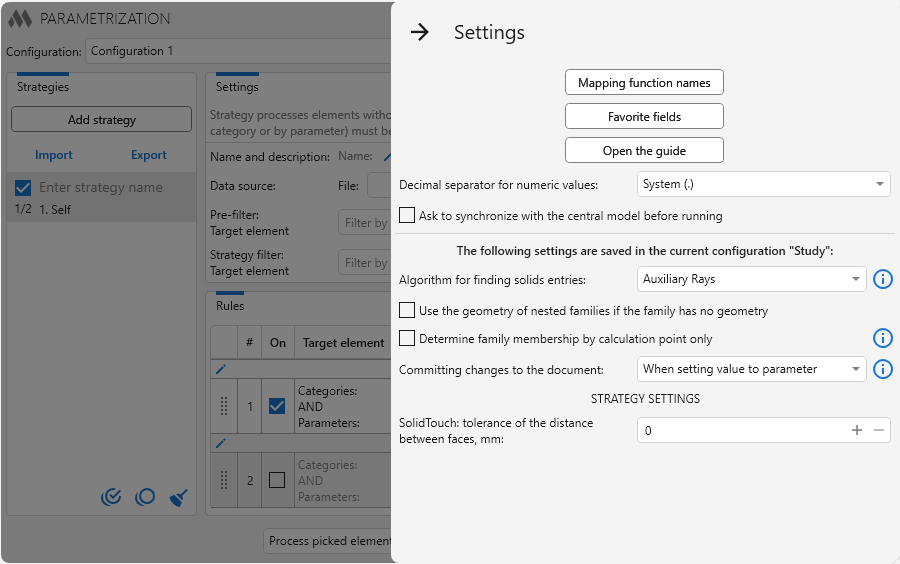
6

Mapping function names – opens a window where you can define your own names for the functions used in the formula editor:
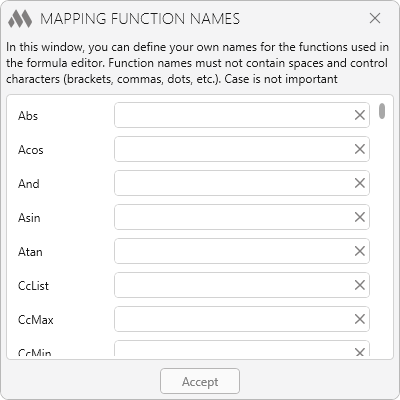
13

Favorite fields – opens a window for working with the list of favorite fields.

Open the guide – opens the formula editor guide.

Decimal separator for numeric values – specifies the separator used for numeric values.

Ask to synchronize with the central model before running – enables a prompt to synchronize with the central model before running parametrization.

Some settings are saved separately for each configuration. These include geometry processing settings, as well as:

Determine family membership by calculation point only – applies to the InRoom and InSpace strategies. If a family instance has a room calculation point and it is located within a room or space, the family is considered to belong to that room or space.

When this option is enabled, the family association is determined solely by the position of the calculation point, without checking its geometry. This speeds up processing, but a family that intersects multiple rooms or spaces will be associated with only one of them.

When this option is disabled, the family is additionally checked by geometry according to the selected solid intersection search algorithm and may be associated with multiple rooms or spaces. Families without a calculation point, families whose calculation point is outside rooms or spaces, and families whose calculation point does not fall within any room or space are always checked by geometry.

Committing changes to the document – specifies when changes are committed to the document: after each value is written to each element parameter, after all expressions of each rule have been processed, or after all rules of each strategy have been processed. The selected option can affect the plugin runtime: When setting value to parameter takes longer than When processing strategy.


WORK WITH GEOMETRY

For the In Room, In Space, In Mass, and In Solid strategies, one of two algorithms can be selected for determining whether solids are contained within other solids:

Auxiliary Rays

The containment check is performed using auxiliary rays projected from the centroid of the target element solid in four directions in the XY plane. If all four rays intersect the parent element solid, the target element is considered to be inside the parent element:
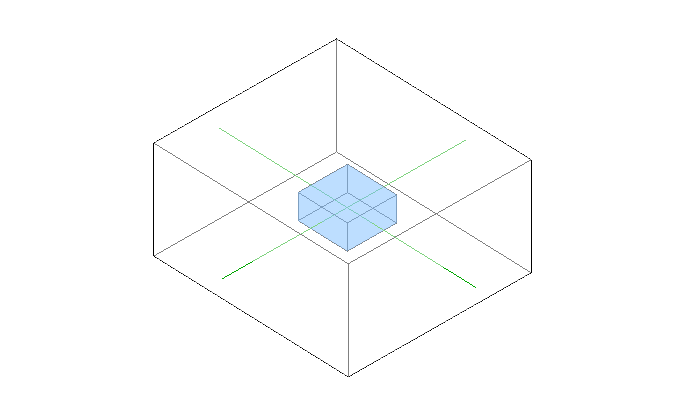
For the In Room strategy, intersections of 3 out of 4 rays are considered a positive result.

This algorithm works quickly but can determine containment of a solid in only one parent solid. The position of the solid centroid is important.

Boolean operations

Containment is determined using Boolean operations provided by the Revit API. Essentially, this algorithm determines the intersection of solids. For example, the algorithm will consider the beam to be inside both walls:
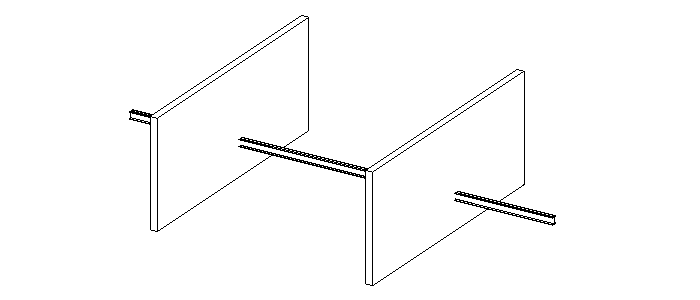
12

This algorithm works slowly but allows the containment of a solid in several intersecting parent solids to be determined.

For both algorithms, the solid volumes are checked: the volume of the parent solid must be greater than the volume of the target solid.

In the Solid Touch strategy, touching is checked only through parallel planar faces of element solids.


Parametrization. Palette

  mprParametrizationPalette_32x32 mprParametrizationPalette_16x16 mprParametrizationPalette_32x32_dark mprParametrizationPalette_16x16_dark

The plugin can be used in a compact palette mode. You can show or hide the palette using the button in the upper-right corner of the main window.
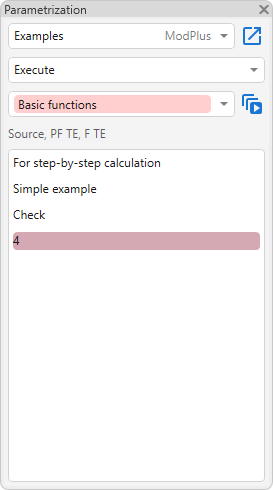
20

At the top of the palette is a drop-down list for selecting a configuration.

Below it is a drop-down list for selecting the element processing method. The following options are available:

  • Current view
  • Document
  • Selected elements
  • Selected views.

On the right, you can select the operating mode: Execute or Check.

Below is a drop-down list of strategies in the current configuration. Only strategies that are checked in the main plugin window are displayed. Selecting a strategy determines which rules appear in the list.

The list displays only the checked rules of the selected strategy. To run an individual rule, click its name. The button to the right of the strategy list runs all checked rules of the selected strategy.

ModPlus YouTube
ModPlus YouTube
New
Fixed an error due to which the window with the plugin results could end up behind the Revit window
New
A setting has been added to the SolidTouch strategy that takes into account only the contact with the largest area out of several contacts
New
The palette now lets you choose where to run the processing: in the current view, in the document, in the selected views or on the elements selected in the model before the run
New
Added the ability to interrupt the run
Fix
Fixed an error where, in the SolidTouch strategy, the face distance tolerance was not taken into account for every relative position of the elements
New
Added a separate line in the report of strategies with relationships for elements that matched the rule filters but remained without a relationship
Fix
Fixed an error where the license was requested when opening the palette and when its data was updated automatically
New
Added the "Determine family membership by calculation point only" option to the configuration settings for the InRoom and InSpace strategies
Improved
Accelerated the search for relationships in the InRoom, InSpace, InMass, InSolid and SolidTouch strategies during filling: relationships between two elements from linked files are no longer searched for, since values cannot be written to them
Fix
Fixed an error where, in the InRoom, InSpace, InMass and InSolid strategies, an element intersecting several parent elements was assigned only to the first one found
Fix
Fixed the crash of Revit 2025+ when exporting results to Excel
Fix
Fixed an error in searching for relationships for parts from an unloaded or nested link
Fix
Added case-insensitive recognition of the "And/Or" connector when importing from Excel
Fix
Added import of the data source file path from Excel even if the file does not exist
Fix
Moved the formula check during import from Excel to the stage after reading the fields
Fix
Removed the message about committing changes in the check mode
New
Accelerated the search for relationships in the InRoom, InSpace, InMass, InSolid and SolidTouch strategies: it is now performed only for elements of the categories specified in the filters
Improved
Added the "Copy identifier" and "Copy name" items to the context menu of the configuration list, the strategy list and the rule name row
Improved
Added the ability to specify strategy rules and set views by a mask (*, ?) in the automatic run
Fix
Fixed an error where re-importing a strategy gave the strategies the same identifier
New
Added a palette for quickly running the strategies and rules of the current configuration
New
Added the ability to collapse and expand functions in the Formula Editor
New
Added highlighting of function contents in the Formula Editor
New
Added the ability to write comments in formulas
New
Added the ability to use Project Information parameters and global parameters in formulas
New
Added tooltips for functions in the Formula Editor
New
Added the SKIP_ELEMENT keyword to formulas, which allows excluding an element from processing
New
Added new functions: CVOr, HasValue, DocTitle, TargetBottomZ, TargetTopZ, SourceBottomZ, SourceTopZ, CCMin, CCMax, CRMin, CRMax, FindItem, Item, ItemIndex, Trim, RgxMatch, RgxReplace, GetCurrentViewParameter
New
Added new strategies: InAssembly, ViewSpecific, StairComponents, RoomOpenings, ManyToMany, RoomFinishing, OnLevel, RebarCouplers, LevelViews
New
Added saving of the "Selected" state for strategies and rules to a separate file
New
Added strategy pre-filters
New
Added the ability to assign names to rules
New
Added the ability to use conditional expression operators in formulas, which are processed in the "Check" mode
New
Added grouping of configurations
New
Added the ability to group target elements
New
Added aggregate functions (with the G prefix)
New
Added new write-back functions Min, Max, Avg, First, Last
New
Added new operators =| (contained in) and !=| (not contained in), as well as the related functions List, CCList, CRList
New
Added the ability to ask the user to perform synchronization
Improved
Reworked the design of the cell with formula options
Improved
Redesigned the window with the guide
Improved
Added expanding of results when the number of nested objects is less than 4
Improved
Reworked the RoomBoundaries strategy: it now processes not only vertical room boundaries but also horizontal ones
Improved
Added an error when, while getting an element parameter, it turns out that the element has several parameters with the specified name
Improved
Removed comma highlighting in the step-by-step calculation
Improved
Added display of the number of rules with processed expressions in the results window for strategies
Improved
Changed the function naming style from UPPERCASE to CamelCase
Improved
Added processing of the "Circuit Number" parameter
Fix
Fixed an error where text selection did not work in field editors
Fix
Fixed an error where function mapping did not work if there was no space before the function
Fix
Fixed an error where materials were processed twice by the Materials strategy when running processing in the document
Fix
Fixed an error where the CVIF function worked incorrectly if the column names were specified in lowercase
Fix
Fixed an error where the values for a reference parameter were searched only among the project instances
Improved
Added handling of the window/door phase when retrieving the value from the special ToRoom, FromRoom parameters
Fix
Correct handling of conditions with special characters (" and <>) inside operands
Improved
Service update (internal changes)
Fix
Fixed a rounding error when using the SUM function in Revit version 2025 and above
Improved
Added intermediate formula output with parameter value substitution in the step-by-step calculation
Fix
Fixed an error where double-precision numbers with small values were processed incorrectly
Improved
Expanding the plugin window content if the window was already open and the content was collapsed when the plugin is relaunched
Fix
Fixed "Method not found" error occurring in Revit 2027
Improved
Improved the conditional expression evaluation algorithm
Improved
Improved condition checking algorithm with whitespace handling
Improved
Window background change when collapsing window content
Fix
Fixed an issue where it was impossible to remove internal insulation (external insulation was always removed)
Fix
Fixed an issue where insulation could not be assigned if the element already had insulation
Fix
Fixed an issue where checks with the >= and <= conditions were processed incorrectly
Fix
Fixed an issue where for some elements the inclusion within a solid could be determined incorrectly
Improved
Correct handling of a space within quotes in the STRINDEX and LSTRINDEX functions
Improved
Improved the algorithm for evaluating conditional expressions
Fix
Fixed an issue where inclusion in a solid might not be detected for some elements
Fix
Fixed an error where the check for intersection with solids from linked files did not work
Improved
Improved the algorithm for determining whether one solid intersects another using auxiliary rays
Improved
Improved the algorithm for determining whether one solid intersects another using auxiliary rays
New
Optimized search for element relationships
Fix
Fixed an error during export of results to Excel that occurred with a large number of element identifiers
Fix
Fixed some errors
Improved
Improved intersection checking of solids using auxiliary rays when the solids have complex shapes
Improved
Correct highlighting of commas that are not part of functions in formulas
Fix
Fixed an error where certain strategy properties were skipped when duplicating them
Fix
Fixed an error where in some cases custom function names were applied incorrectly
Fix
Fixed an error where search could fail in the view selection window
Improved
Service update due to replacement of auxiliary library to prevent conflicts with other plugins
Improved
Processing only parent electrical systems in the InMEPSystem strategy
New
Added validation functionality
New
Added "Step-by-step calculation" of formulas
New
Added export of parametrization results to Excel
New
Added the ability to specify linked files in which elements will be searched
New
Added search and multi-selection in the view selection window
Improved
Added automatic selection of views highlighted in the project browser to the view selection window
Improved
Added case sensitivity when retrieving a parameter from an element
Improved
Added grouping of functions by type and sorting of functions within a group in the instruction table of contents
Improved
Error generation if the label %NO_PARAMETER% is present in an arithmetic expression
Fix
Fixed an error where arithmetic expressions were incorrectly recognized if the system decimal separator was set to a comma
Fix
Fixed an error where the results window always recorded a positive result for SUM and JOIN functions, even if the function processing failed
Fix
Fixed an error where multiple SUM and JOIN functions in one formula were processed in reverse order
Improved
Creating a solid body 1 mm thick by extruding upwards from ceilings with no thickness to check solid body intersection and contact
Fix
Fixed an error where the intersection of elements with solids in a linked file might not be detected
Fix
Accounting for the "parameter has a value" option for numeric parameters when checking the match between the existing value and the specified one
Improved
Simplified Chinese language instruction added
Fix
Fixed a bug where nested families were not processed when processing selected elements
Improved
Optimized algorithm for obtaining solids from complex families consisting of a large number of pieces
Fix
Fixed an error in import from Excel that occurs if there is no value in a cell of the "Field" column
Fix
Fixed an error in CVIF function processing when the search for the required row was not performed if several conditions checking one cell were specified
Fix
Fixed an error occurring when processing the ROUND function if the second argument is written with a space
Improved
Improved algorithm for extracting a number from a string
Improved
Removing on load from configurations categories added in a later Revit version and missing in the current Revit version
Improved
Added the ability to remove insulation by setting an empty value
Fix
Fixed a bug where insulation was not being set for elements in the "Duct Fittings" category
Fix
Fixed a bug where insulation was not set for elements of the "Pipe Fittings" category
Improved
Updated instruction in Spanish
New
Optimization of element relations search when working with InSolid, InRoom, InSpace, SolidTouch strategies
New
Added export/import of strategies to/from XML
Improved
Updated instruction in German
Improved
Removed removal of unprintable characters from string parameter values
Improved
Added highlighting of paired curly braces
New
Added Parts strategy
New
Added NOT, DISTINCT, CVIF functions
New
Added ability to remove duplicates and perform sorting in JOIN function
Fix
Fixed a bug where a negative number was incorrectly extracted from a string if the string started with text
Improved
The "Walls" category have been added to the list of available categories of the Curtain Wall Components strategy
Improved
Removed checking of empty values of arguments in conditions
Fix
Fixed an error occurring when checking conditions if one argument is missing
Fix
Fixed a bug where arithmetic expressions were incorrectly calculated if a parameter had a negative value
Fix
Fixed an error that incorrectly counted arithmetic expressions when specifying a comma as an integer and fractional part separator
Improved
Improved algorithm for determining arithmetic expressions in curly brackets
Improved
Improved algorithm for determining condition arguments
Improved
The "Windows" and "Doors" categories have been added to the list of available categories of the Curtain Wall Components strategy
Fix
Fixed a bug where fields were not imported when importing from Excel
Improved
Updating the German language instruction
Improved
Some icons have been replaced
Improved
Changed order of configuration editing buttons
Fix
Fixed a bug where, in some cases, determining the position of an element inside the solid of another element did not work correctly
Fix
Ignoring errors that occur in some cases when trying to get the insertion point of an element
Improved
Correct processing of insulation by the InMEPSystem strategy
Improved
Removed removal of double quotes from the result of expression calculation
Improved
Added the ability to move to a new line in the strategy description
Fix
Fixed a typo in the instruction
New
New functions added: LSTRINDEX, COUNT
Improved
IMPORTANT: Changed the order of arguments in STRINDEX function
New
Added possibility to specify when changes in the document will be committed
Improved
Updating the German language instruction
New
Rewritten formula processing algorithm
New
Added new results window
New
Added possibility to write the result to a conditionally initial element
New
Added new functions: REPLACE, FORMAT, CV
New
Added new strategies: CurtainWallComponents, OneToMany
New
Added strategy filters
New
Added possibility to use Excel file as a data source in a formula
New
Added export and import of configuration
New
Added other features
Improved
Various design changes and improvements
Fix
Various bug fixes
Fix
Ignoring an error that occurs when checking the clipboard
Improved
Ignoring unplaced rooms when obtaining room solids
Improved
Add strategy description to exported excel file
Improved
Include strategy description from imported excel file when importing strategies or importing rules with replacement
Improved
Added processing of handrails and railing support as nested families
Fix
Fixed a bug where truss components were not processed
Fix
Fixed error in SMIRRORED function
Improved
Boolean parameters in conditions can be checked with 0 and 1, Yes and No, True and False
Fix
Fixed error of checking conditional values if checked values have the same conditional symbol
Improved
Changed STRINDEX function operation - the function returns position counting from zero
Fix
Fixed some errors in the formula editor
New
Added arithmetic function POW (ascending to a degree)
New
Added ability to specify values in the "Workset" parameter
New
Added the ability to specify the type parameter forcibly
Improved
Improved algorithm of processing IF and FIRSTTRUE functions taking into account the presence of non-calculated contents
Fix
Fixed a bug in the NestedFamilies strategy where nested families were not processed if no parent family filter was specified
Fix
Ignored an error occurring in some versions of Revit when running the InRoom strategy in a document
Fix
Fixed a bug where fields in the favorites list were not being added
Fix
Fixed a bug where parameters and functions could be inserted into a field when the formula editor was active
Fix
Fixed a bug where the favorite formulas window might not close in some cases
Fix
Fixed a bug where in some cases the integer and fractional part separator specified in the settings was not taken into account.
Fix
Fixed a bug where the result of an expression like "000" was converted to "0" when writing to a text parameter
Improved
Improved algorithm for determining the parameter data type for elements included in the Structural Connections
New
Improved work with parameters of elements included in Structure Connections
Fix
Fixed an error occurring when processing engineering system elements in Revit 2019-2020
Improved
Using the ModPlus.Xaml.Behaviors.Wpf.dll library instead of Microsoft.Xaml.Behaviors.dll to resolve compatibility issues with other plugins
Improved
Edits were made to the algorithm for calculating mathematical expressions to take into account the use of the comma as a decimal separator of numerical values
New
Added "Decimal separator of numeric values" option to the general settings
New
Added "Use the geometry of nested families if the family has no geometry" option to the general settings
New
Added the option to set a custom description for strategies
New
Added "Select all" and "Unselect all" buttons for the list of strategies
Improved
Added processing of the reference parameter "Subcategory" of reinforcing bars
Fix
Fixed a bug where the settings dialog was displayed incorrectly
Improved
Correct handling of line break characters (\r\n or \n) used when specifying a value in multiline text
Fix
Fixed a bug where hollow masses were not processed in the InMass strategy
Improved
Increased the limit on the number of functions in a formula
Improved
Adding to the list of processed elements of insulation of MEP curves regardless of the type of strategy
Improved
Added forced room collection when starting processing on 3D view
Improved
Added processing of isolation by InMEPSystem strategy
Fix
Fixed an error occurring when trying to get rays from the center of a solid having zero volume
Fix
Fixed a bug where types were incorrectly collected (not all) if there was a strategy that handled instances in the processing
Fix
Fixed export/import for InGroup, InMass, InRoom, InSpace, RoomBoundaries, ConnectionSubElements strategies
New
Added built-in dialog for strategy selection when creating a new strategy
Improved
In the formula editor the instruction window is made non-modal (does not block other windows)
Fix
Added a limit on the number of rules when pasting from the clipboard when using a limited version of the plugin
New
Changes were made to take into account the ability to select a configuration storage file, when using the organization settings
Improved
Replacing a pair of double quotes ("") with an empty string in the result of an expression evaluation
Improved
Saving the "Processing elements from linked files" option in the user settings file
Improved
Removing control characters LRM, RLM, ZWJ, ZWNJ, LRE, RLE, LRO, RLO, PDF, NADS, NODS, ASS, ISS, AAFS, IAFS, RS, US from string parameter value
Fix
Fixed bug, when selected categories in RebarInSystem, InMEPSystem strategy rules were not saved
Fix
Fixed an error that occurs when closing the formula editor
New
Added "Hide/Show formula" button in the list of rules
New
Added new strategies: Materials, InMEPSystem
New
Added new functions: STRINDEX, VALUESTR, EINDEX
New
Added dark theme support in formula editor
New
Added save of selected configuration
New
Added "Check all" and "Uncheck all" buttons for rule list
New
Added an icon to display fields in the formula editor that are in the favorites list
New
Added opportunity to launch Favorites Fields editor from the settings dialog
New
Added an option to update a favorite field in all rules of all configurations
New
Formula: added possibility to escape double quotes
New
Formula: added check for unescaped parentheses that do not relate to functions
New
Formula: extract all values in double quotes from a formula before checking and processing
New
Formula: added ability to use "Starts with", "Ends with", "Not starts with", and "Not ends with" conditions
Improved
Displaying a formula when a rule is selected in a list
Improved
Swapped user and system strategy names in the list of strategies
Improved
Added safe plugin launch: if an error occurs while reading the configuration file, the plugin will be closed without saving
Improved
Special processing of parameters "Type name" and "Family name" - if an instance is processed, these parameters will be taken from the type
Fix
Fixed an error that occurs when trying to get the value of a integer parameter of an element of a Structural Connection, when the parameter has never been set to a value
Improved
Замена экранированных символов в аргументах условных выражений
Improved
Added rounding to 6 decimal places when converting numeric values of parameters from internal units to displayed units
Fix
Fixed bug that occurs when one of the IF function results is a double quote (empty string)
New
Added InRebarSystem strategy
New
Added ability to delete all strategies in configuration
New
Added ability to take the value of a reference element parameter
New
Added ability to copy/paste rules via clipboard
Improved
Changed the algorithm for checking arguments by "Equal", "Not equal" conditions - if arguments are not checked as strings, they are checked as numbers, only if one of the arguments is a number
Improved
The integer format of rounding in the ROUND function
Improved
Improved pattern of the curly brackets processing
Improved
Improved algorithm for processing conditional expression arguments
Improved
Changes were made in the work with the organization settings file
New
Conversion of numeric parameter values instead of processing the displayed value
Fix
Fixed some errors in formula highlighting
Improved
Expanded the list of categories in the MEP Insolation strategy
Improved
Added processing of internal duct insulation in MEP Insolation strategy
Fix
Fixed an issue where a formula on a tooltip could be displayed with fields
New
Redesigned formula editor
New
Added MEP Insolation strategy
New
Added possibility to dissociate the target parameter from the global project parameter
New
Added NestedFamilies strategy (processing nested families)
New
Added function name mapping
Fix
Fixed "Method not found" error that occurs after updating working libraries to version 14.2.1
Improved
Removed spaces trim of arguments when processing IF, FIRSTTRUE, LSTR, RSTR, SSTR arguments
Improved
Using the average geometric centroid of composite solids in cases when it was not possible to obtain the centroid of a combined solid
Fix
Changes in the formula processing algorithm
Fix
Fixed incorrect operation of the MAX function
Fix
Fixed error in processing MIN and MAX functions
Improved
Changes were made to the algorithm for determining the location of families in space
Improved
Removed volume check for Solids for Rooms and Spaces
Improved
Repeated attempt to set the value of a numeric parameter with a comma replaced by a dot, in case the value with a comma was not set
New
New functions added: SMIRRORED, TMIRRORED, LSTR, RSTR, SSTR
Improved
Added possibility to insert GUID of shared parameter or system name of built-in parameter in formula editor
Improved
Added command access settings on the ribbon
Improved
Changed icons
New
Added the ability to use an instance/type ID as a parameter value
Improved
Added special case processing to the SolidTouch algorithm
New
By changing the "Type Name" parameter, the name of the type is changed
Improved
Changes have been made to the algorithm for determining relationships between elements, taking into account that instances of families can also be the Hosts
Improved
Improved algorithm for processing functions whose arguments are separated by a comma, taking into account that parameter values can also have a comma
New
Added possibility to change values of parameters of "Material" type
Improved
Defining conditions that reconcile numerical values, followed by reading the numerical values of the parameters in the IF, AND, OR functions
Improved
Improved formula processing algorithm
Fix
Fixed the formula editor launching error
New
Added ability to hide preview in formula editor
New
Added ability to duplicate fields in formula editor
Improved
Added removal of spaces at conditional expression arguments
New
Added possibility to change the "Type" parameter value
Improved
Added an option to move fields in the formula editor
Fix
Fixed an issue where the presence of fields in the list of favorites was not detected
Fix
Fixed an issue where field keys could be written to a parameter
New
Added modifying functions TOUPPER, TOLOWER
Improved
Added handling of two quotation marks ("") indicating empty value
New
Fields added to formula editor
New
Added RoomBoundaries strategy
New
Added ConnectionSubElements strategy
Improved
Coloring parameters with different colors in the preview in the formula editor
Fix
Fix some bugs
Fix
Fixed an bug that prevented functions written in lowercase from being detected
Improved
Added check of possibility to use conditionally source element parameters in formula depending on the type of parent strategy
Fix
Fixed an error of formula prevalidation that occurs when there is HAS() in a formula
Fix
Fixed an error that did not set values in parameters with the data type "Integer"
Fix
Replacing the comma with a point when obtaining numeric parameter values
Fix
Fixed an issue with AND, OR functions always converting parameters to numbers
Fix
Fixed an error which caused incorrect processing of formulas containing several curly brackets