


Numbering

Several Revit applications are running. Choose one:
Icon


Related news and articles
- New plugin for Revit: Order marking
- Revit. Numbering 3.0
- Revit. Numbering. New schedule numbering algorithm
- Revit. Numbering. Two algorithms for numbering in schedules
- Revit. Numbering 5.0
- Revit. Numbering 6.0. Configurations, grouping by parameter and other features
Using
The plugin operates in two modes depending on the view type:
Launching on Schedule viewLaunching on non Schedule view
Launching on schedule view
The plugin window consists of two groups – configuration and numbering setup:
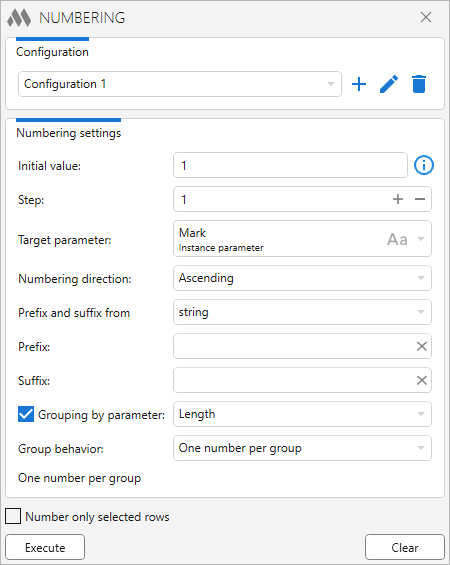
In the upper part of the plugin window there is a drop-down list of configurations, to the right of which the following buttons are available:
 – create new configuration
 – edit current configuration name
 – delete current configuration.
The lower part of the plugin window is occupied by the numbering settings:
Initial value – the initial value from which the numbering will be performed. Depending on the data type of the target parameter, the initial value can be either a number or a letter.
The initial number can be either integer or fractional, positive or negative, and you can add leading zeros to it. The detailed characteristics of the initial value are described in the plugin window.
When you specify a letter as the initial value, the alphabet selection button becomes available, allowing you to select the following languages: Russian, English, Ukrainian, as well as Custom alphabet. When selecting a custom alphabet, you should specify its value in a special window:
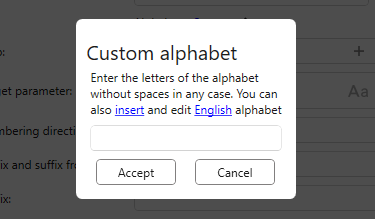
Custom alphabet can be either entered manually or inserted and edited alphabet of one of the three available languages.
Step - the value of the incremental numbering, can be either integer or fractional.
Target parameter – the parameter to which the number will be written. The plugin can only process parameters that contain a string and a numeric value. If the parameter is a numeric parameter, "123" will be indicated to the right of its name, and only numeric numbering can be used for such parameters. If the parameter has a string data type, "Aa" will be specified, in which case both numeric and alphabetic numbering can be used.
Numbering direction – indication of direction for numbering – Ascending or Descending.
If the Target parameter has a string data type, the option to add prefix and suffix to the numbers being created becomes available.
Prefix and Suffix from string/parameter – select the way to set the prefix/suffix for the number. When selecting from a string, the values are entered manually in the corresponding fields. When selecting from a parameter, the drop-down lists of parameters appear, as well as fields where you can enter the separator character:
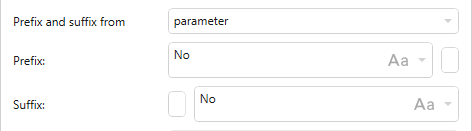
Prefix/Suffix – sets the prefix and/or suffix for the number.
If the "Itemized every instance" property is enabled in schedule settings, the list will contain only instance parameters. If the "Itemized every instance" property is disabled, the list will contain both instance and type parameters.
Grouping by parameter: – option that allows to number elements according to their grouping by the value of the specified parameter.
Four options of Grouping behavior are possible:
- Numbering in each group – elements in each group are numbered within the group according to the specified numbering settings
- One number per group – all elements belonging to the same group are assigned the same group number. Groups are numbered according to the specified numbering settings
- Through numbering with sorting by parameter (ascending) – elements are sorted by ascending value of the grouping parameter and numbered according to the specified numbering settings
- Through numbering with sorting by parameter (descending) – elements are sorted by descending value of the grouping parameter and numbered according to the specified numbering settings.
If the "Itemized every instance" property is disabled in the specification settings, grouping by the parameter will not be available, because in this case the elements are already grouped.
For example, let's fill in the value of the "Mark" parameter of the elements by grouping them by parameter "Length". In all variants the initial value and step are equal to "1", the numbering direction is "Ascending":
- Numbering in each group
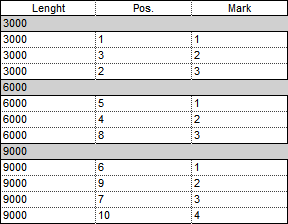
- One number per group
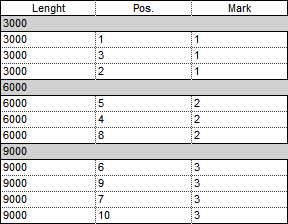
- Through numbering with sorting by parameter (ascending)
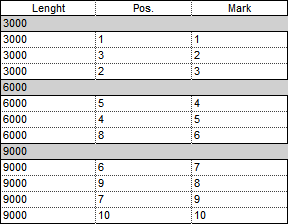
- Through numbering with sorting by parameter (descending)
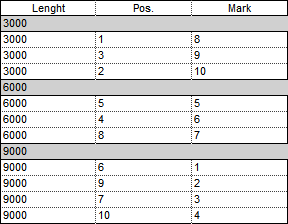
If lines in the specification were selected before running the plugin, the Number only selected rows option will be available at the bottom of the window, when enabled, the numbering will be performed only for the elements from the selected lines.
Execute – performs numbering according to the settings.
Clear – clears the specified parameter in all schedule elements.
The parameter is cleared for all elements of this schedule, regardless of the filtering settings. This means that if, for example, 10 columns are presented in the schedule, and only 5 columns are displayed in the filter settings, then the parameter will be cleared for all 10 columns!
LAUNCHING ON NON SCHEDULE VIEW
The plugin window consists of three groups – configuration, elements selection and numbering setting:
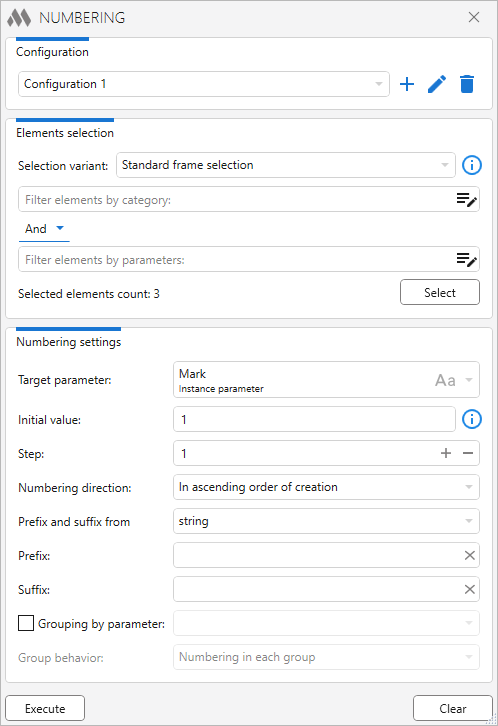
In the upper part of the plugin window there is a drop-down list of configurations, to the right of which the following buttons are available:
– create new configuration – edit current configuration name – delete current configuration.First of all, it is necessary to configure the selection and select elements for subsequent numbering:
Selection variant – variant for selecting elements in the current view:
- Standard frame selection – selection of elements in the current view with a frame with confirmation of the selection by pressing the "Finish" button. With this option, the numbering direction has ten options – in the order of creation and by the position of the elements.
- Ordinal selection – selects each element for numbering in the order in which the numbering will be performed. With this option, the direction of numbering can be ascending or descending. Completion of the selection is invoked by pressing the Esc key.
- Curve intersection – select a curve (model line or detail line must be previously drawn on the current view). The elements for numbering will be selected by finding the intersection of the curve with the geometry of the elements in the current view, projected onto the plane of the view. With this option, the direction of numbering can be ascending or descending.
Elements to be numbered can be filtered using Elements filter  . You can specify both the element categories and the parameters by which the elements will be selected.
Select – selects elements in the current view, depending on the selected selection variant.
After pressing the Select button and selecting elements, Selected elements count: n will be displayed and the numbering settings will become available.
Target parameter – the parameter to which the number will be written. The plugin can only process parameters that contain a string and a numeric value. The list is filled only with the parameters that each selected element has (the check is performed by the parameter name). If the parameter is a numeric parameter, "123" will be indicated to the right of its name, and only numeric numbering can be used for such parameters. If the parameter has a string data type, "Aa" will be specified, in which case both numeric and alphabetic numbering can be used.
Initial value – the initial value from which the numbering will be performed. Depending on the data type of the target parameter, the initial value can be either a number or a letter. The initial number can be either integer or fractional, positive or negative, and you can add leading zeros to it (you can read more about this in the plugin window).
When you specify a letter as the initial value, the alphabet selection button becomes available, allowing you to select the following languages: Russian, English, Ukrainian, and Custom alphabet.
Step – the value of the incremental numbering, can be either integer or fractional.
Numbering direction – indication of the direction for numbering depending on the elements selection variant.
If the Target parameter has a string data type, the option to add prefix and suffix to the numbers being created becomes available.
Prefix and Suffix from string/parameter – select the way to set the prefix/suffix for the number. When selecting from a string, the values are entered manually in the corresponding fields. When selecting from a parameter, the drop-down lists of parameters appear, as well as fields where you can enter the separator character:
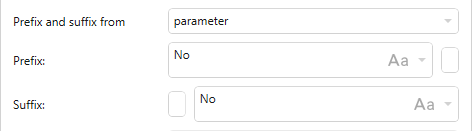
Prefix/Suffix – sets the prefix and/or suffix for the number.
Grouping by parameter: – option that allows to number elements according to their grouping by the value of the specified parameter.
Two options of Grouping behavior are possible:
- Numbering in each group – elements of each group are numbered within the group according to the specified initial value and step, the same for all groups
- One number per group – all elements belonging to the same group are assigned the same group number. Groups are numbered in ascending or descending order according to the Numbering direction
- Through numbering with sorting by parameter (ascending) – elements are sorted by ascending value of the grouping parameter and numbered according to the specified numbering settings
- Through numbering with sorting by parameter (descending) – elements are sorted by descending value of the grouping parameter and numbered according to the specified numbering settings.
Execute – performs numbering according to the settings.
Clear – clears the specified parameter in all selected elements.
If the element in the group, then the check for the option to change the parameter without ungrouping. Parameter will change without ungrouping, if:
- this is the system parameter "Mark"
- this is a Shared project parameter with the "Values can vary by group instances" property enabled
- this is type parameter.

 YouTube
 YouTube
 YouTube