


Associate parameters

Several Revit applications are running. Choose one:
Icon


Related news and articles
Using
Using the plugin, you can create new parameters in the parent family based on one or more parameters of nested families. There is a possibility to set a mask for the name of the created parameter by adding a prefix or suffix. Plugin also allows you to set and delete a link to existing parameters of the parent family.
Plugin start is available only in the family editor
Parent family – base for nested family.
Nested family – family uploaded to parent family.
Open edit the parent family and load the family into it (nested family).
After starting the plugin, a window will appear:
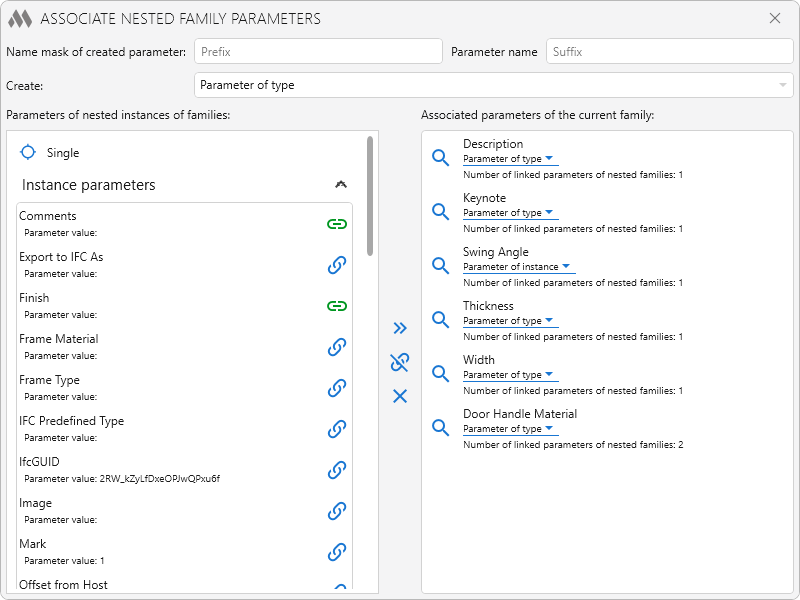
The upper part of the plugin window contains basic settings for creating new parameters:
Name mask of created parameter: Prefix Parameter name Suffix - mask of the name of the parameter to be created in the parent family, where Parameter name - name of the parameter of the nested family. You can add a prefix and/or suffix to the name of the created parameter as necessary.
Create: Parameter of instance/Parameter of type – switch that determines whether the associated parameter will be created by the instance parameter or type parameter.
The main part of the plugin window is divided into two fields:
Parameters of nested instances of families – field with a list of nested families and their instance and type parameters.
Associated parameters of the current family – field with parent family parameters associated with sub-family parameters.
 – selects an instance of a nested family in the current view
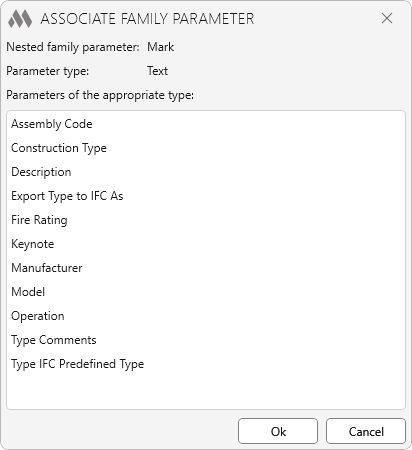
 – allows you to associate a parameter of a nested family with an existing parameter of the parent family. Communication can be established only for parameters of the same type (for example: text with text, size with size). Click on the hyperlink and in the window that opens, select the parameter with which you want to link:
 – there is a link between the nested parameter and the parent family parameter. Hover your mouse over the icon and you will see the name of the parameter that has been associated with.
There are buttons in the center of the window:
 – creates in the parent family the parameter(s) of the nested family. To create several parameters, you must select the parameters of the nested family while holding down the Shift or Ctrl buttons. When creating a parameter(s), the settings set at the top of the window are taken into account
 – unlink for selected options of nested family instances. The parameter with which the selected parameters were associated is not deleted from the parent family
 – delete selected associated parameters of the parent family.
Each parameter in the field Associated parameters of the current family has a drop-down list that determines whether the associated parameter will be an instance parameter or a type parameter.
To select in the list of nested instances all the parameters associated with the parameter of the current family, you can use  in the right field of the window. One parameter of the parent family can be associated with several parameters of the nested family.
If you create a related parameter, the name of which already exists in the parent family, the plugin will offer two actions to select:
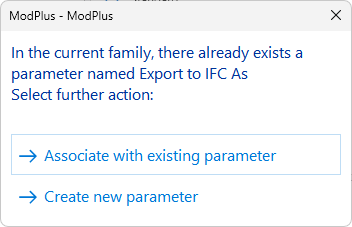
- Associate with existing parameter – the nested family will be assigned a link to the parent family parameter.
- Create new parameter – a new parameter will be created with the same name and suffix (_2).

 YouTube