


Model comparison

Several Revit applications are running. Choose one:
| Name | Discount | Total value of individual orders | Total value of corporate orders |
|---|---|---|---|
| Regular user | 0% | ||
| 3% discount | 3% | $84 | $180 |
| 5% discount | 5% | $120 | $360 |
| 7% discount | 7% | $180 | $600 |
| 10% discount | 10% | $300 | $900 |
| 15% discount | 15% | $360 | $1 200 |
| Partners | 30% | ||
| BIM Consulting | 50% | ||
| Super VIP | 100% |
Icon


Related news and articles
Using
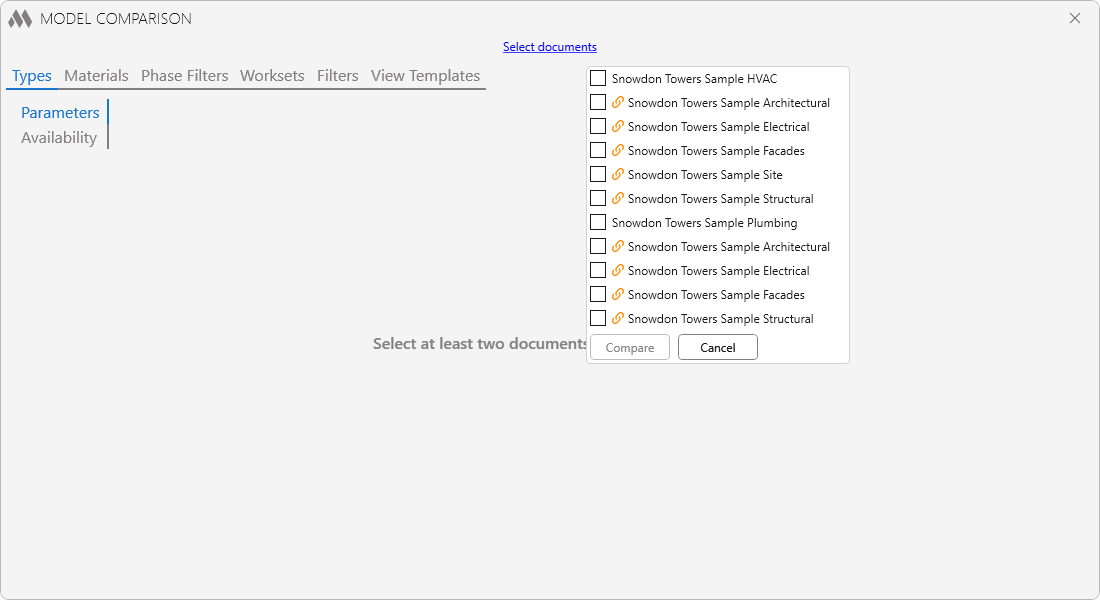
To start working with the plugin, use the Select documents button to check the projects to be compared in the opened window. The list includes all open documents except family documents, as well as linked files of the open documents. Then click Compare. Only the current tab of the plugin will be filled.
The plugin window consists of several tabs, whose names indicate the subject of the model comparison. Each tab includes two sections, each containing a Compare button to start the comparison and populate the tables of the current section.
Types
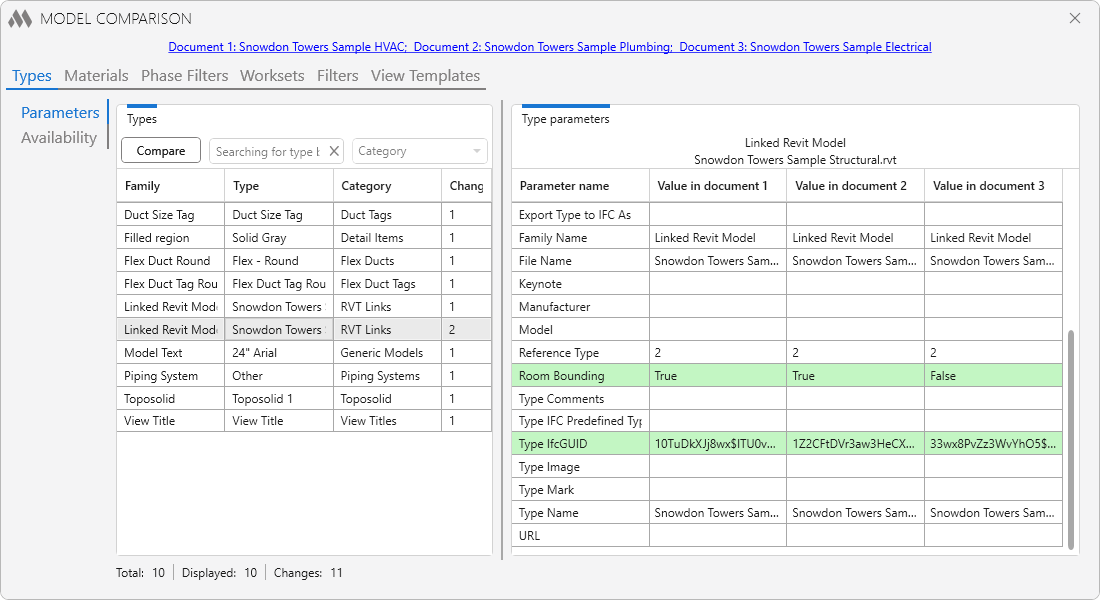
The Parameters section contains Types that are present in all compared models but have differences in parameter values.
For convenience, above the Types table you will find:
- a field for quick case-insensitive search by type name
- a dropdown list of available element categories.
When you select a type from the list, the Type parameters table becomes active. Above it, the family name and the Type name being compared are displayed. The table lists the Type parameters and their values in the compared documents. Rows with differing values are highlighted in green.
The status bar displays the total number of compared Types, the number of displayed Types, and the number of changes.
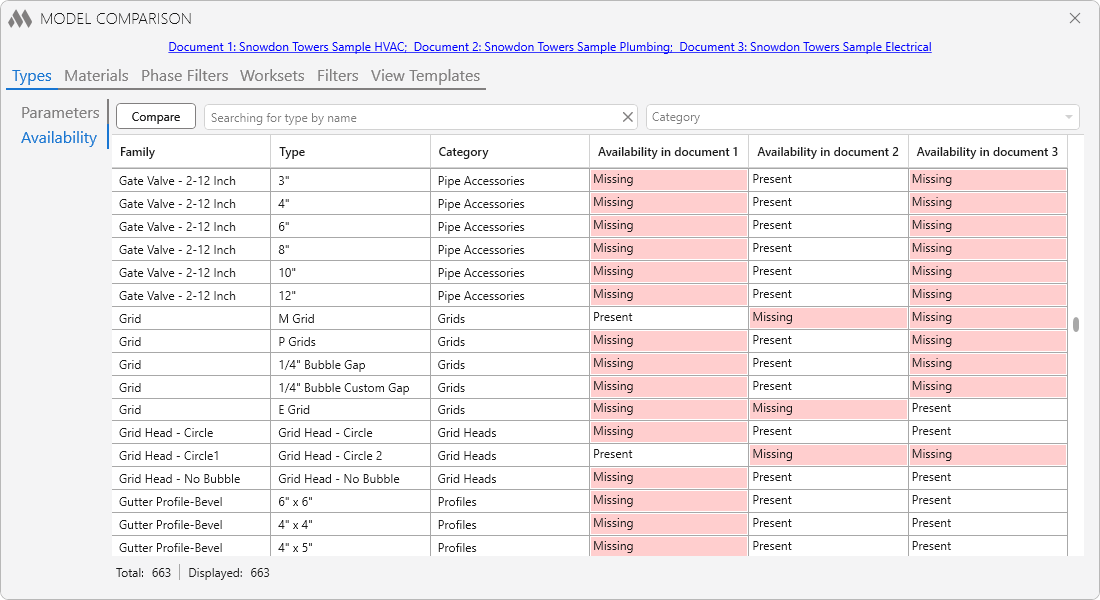
The Availability section contains Types that are missing in at least one of the compared models.
Types that are present in all compared models and have no differences are not included in any table.
Materials
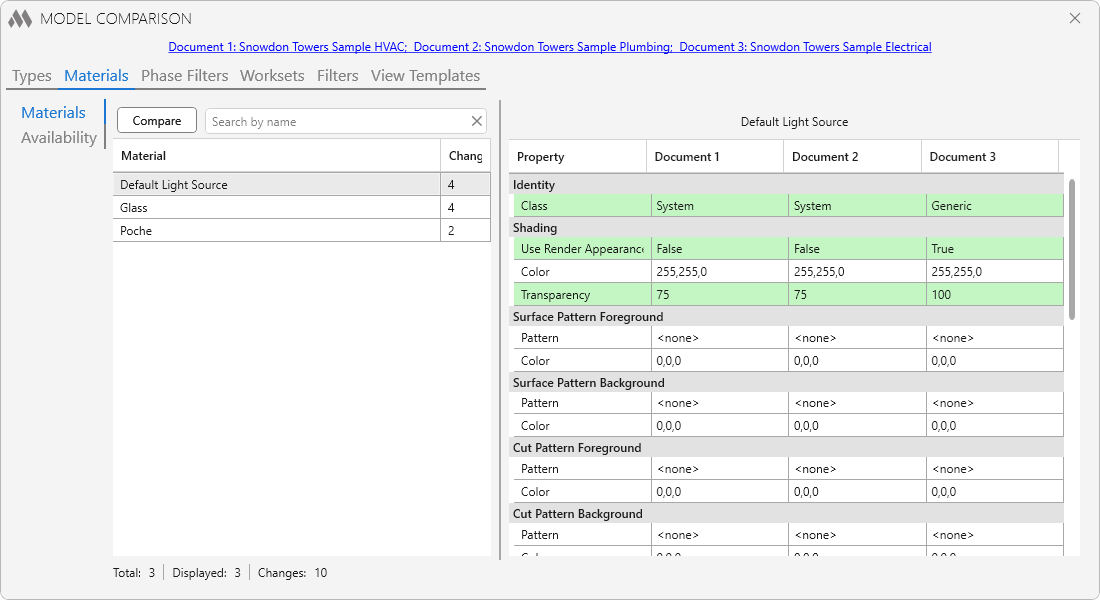
The Materials section contains materials that are present in all models but have differences in properties or parameters.
The Availability section contains materials that are missing in at least one of the compared models.
Materials that are present in all compared models and have no differences are not included in any table.
Phase Filters
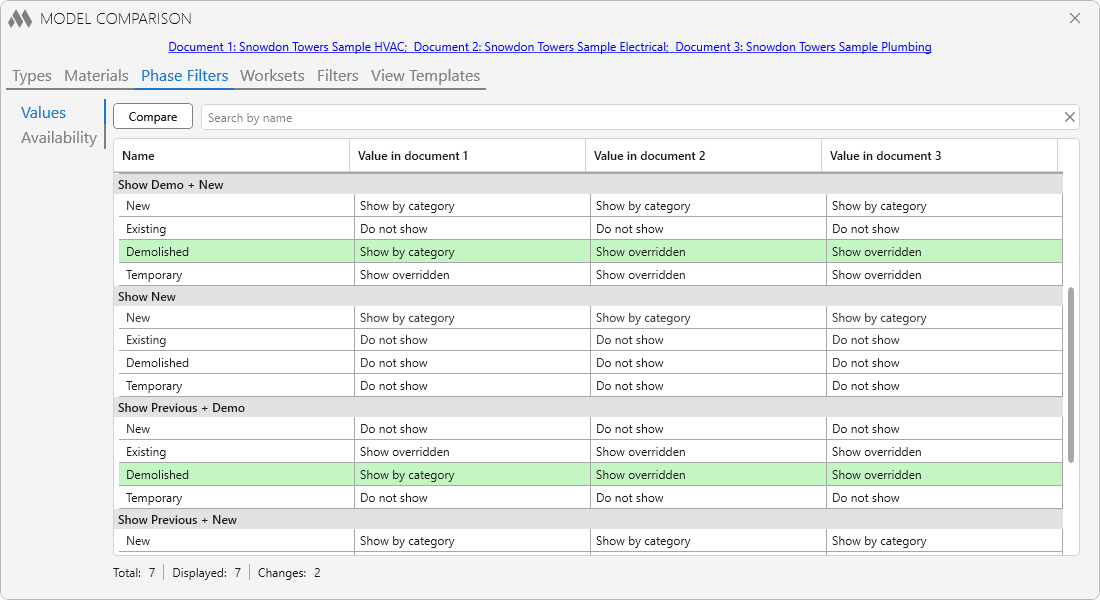
In the Values section, the conditions of phase filters with the same names are compared. Differing conditions are highlighted in green.
The Availability section lists all phase filters from all models, indicating their presence or absence in each model.
Worksets
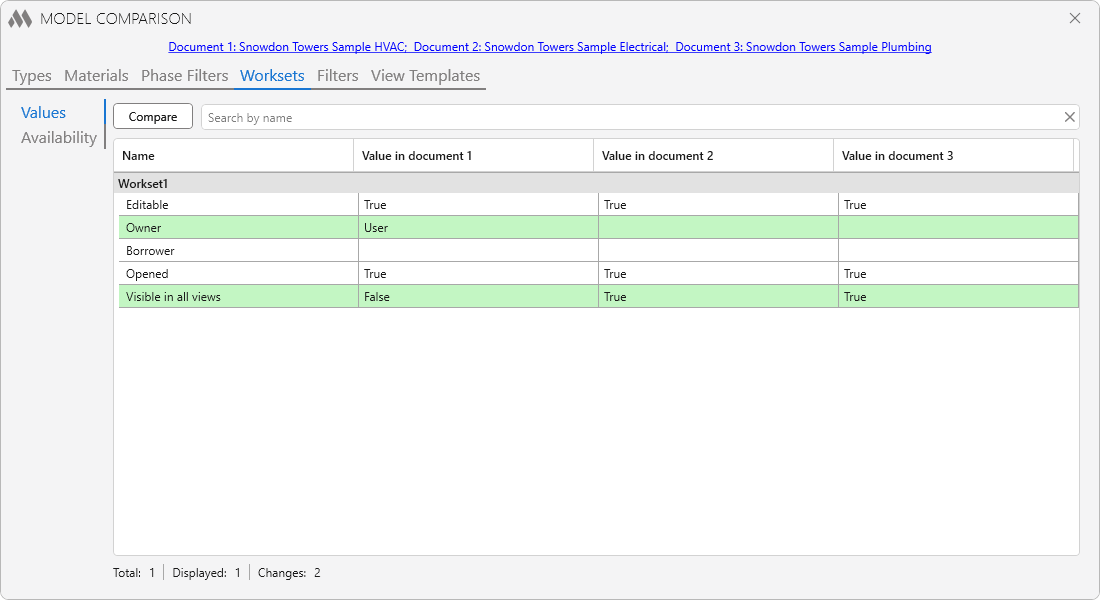
In the Values section, the properties of worksets with the same names are compared. Differing properties are highlighted in green.
The Availability section lists the names of all worksets in the compared models, indicating their presence or absence in each model.
Filters
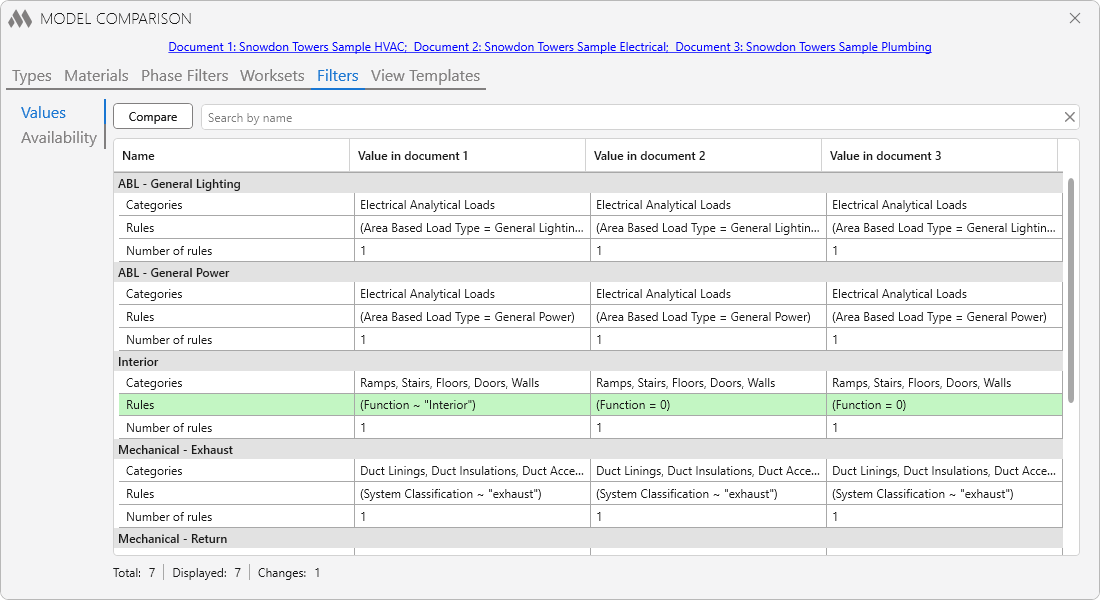
In the Values section, the conditions of filters with the same names are compared. Differing conditions are highlighted in green.
The Availability section lists the names of all filters in the compared models, indicating their presence or absence in each model.
View Templates
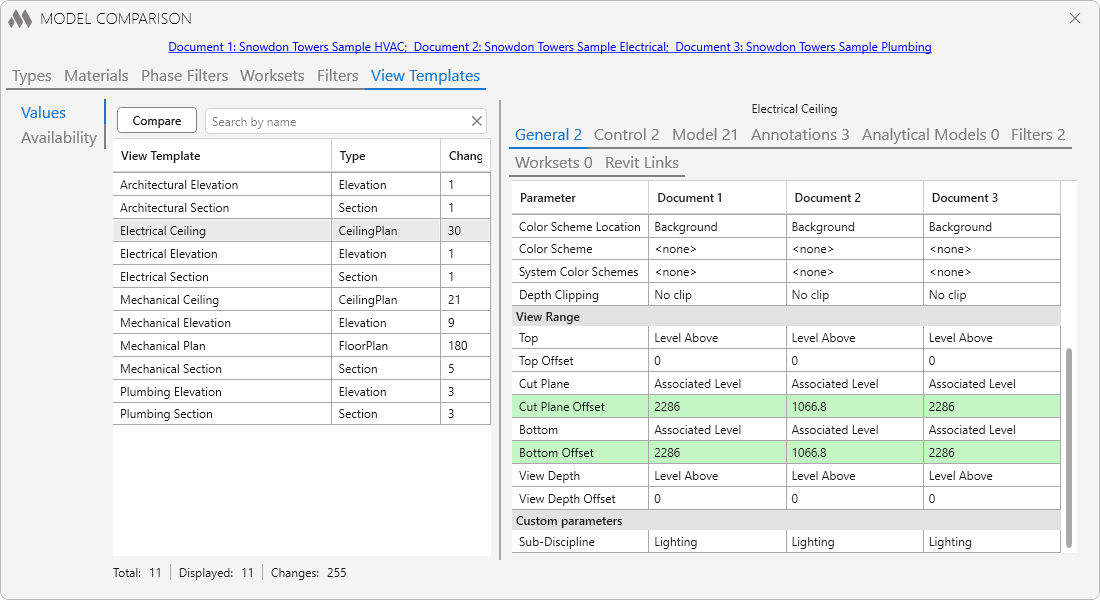
In the Values section, the settings of view templates with the same names are compared. When you select a view template, the tabs with various groups of settings (general, annotations, filters, etc.) on the right side of the window become active. The plugin compares most available settings. Differing values are highlighted in green.
The Availability section lists all view templates from the compared models, indicating their presence or absence in each model.

 YouTube