


Favorite views

Several Revit applications are running. Choose one:
Icon


Related news and articles
Using
The plugin allows you to save lists of favorite views for subsequent opening within a specific document. Multiple configurations can be created for a single document  . Each configuration can be duplicated
 , renamed
 , or deleted
 using the corresponding buttons.
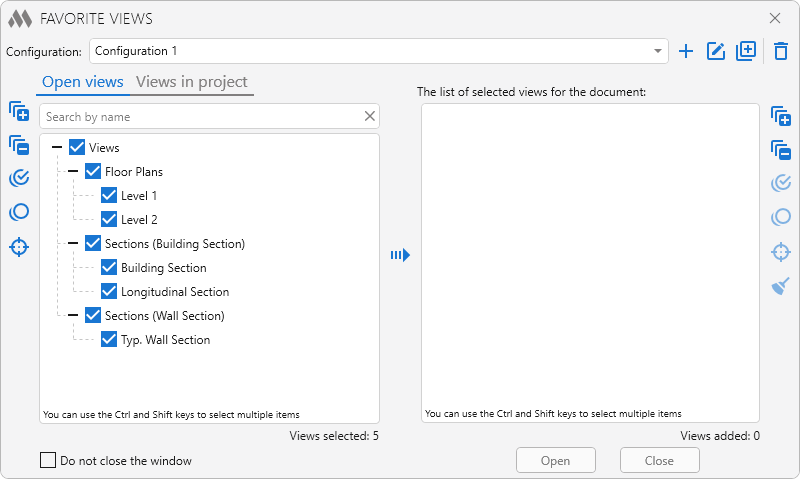
The plugin window is divided into two parts. The left side contains two tabs:
- Open views – displays the views currently open in the document;
- Views in project – displays the views of the current document in a tree structure corresponding to the Revit Project Browser hierarchy.
Above the list of views is a field for quickly searching by view name, case-insensitive. To the left of the list are the following buttons:
 – expand all groups in the tree
 – collapse all groups in the tree
 – check all items in the list
 – uncheck all items in the list
 – select the checked views in the document.
After selecting the desired views, click the  button to add them to the list of favorite views.
The right side of the window displays the list of favorite views in the current configuration, also presented as a tree structure. When you hover over a view name, the  button appears, allowing you to remove the view from the list of favorites. To the right of the list are tree management buttons similar to those on the left side of the window, as well as the
 button for clearing the list of favorite views.
Open – opens the checked favorite views in the current configuration.
Close – closes the checked favorite views in the current configuration.
Keep window open – when enabled, the plugin window remains open after executing the Open and Close commands, allowing you to continue working with the list of views without restarting the plugin.

 YouTube