


Copy along Curve

Several Revit applications are running. Choose one:
Icon


Related news and articles
Using
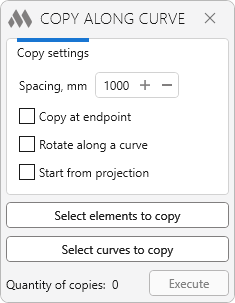
In the plugin window you should specify the copying parameters:
Spacing, mm – distance between the copies of the selected elements to be created.
Copy at the endpoint – if this option is enabled, a copy will be created at a distance equal to the curve length.
Rotate along a curve – option allows you to save the rotation angle of copied elements relative to the curve.
Start from projection – copying will start from the location of the element projection on the curve.
Use the buttons below to select the elements and curves to copy:
Select elements to copy – select elements to be copied in the model.
Select curves to copy – select a curve in the model, along the trajectory of which the elements will be copied. It is recommended to use model lines and detail lines as a curve, but it can also be any linear element defined by two points (wall, pipe, etc.). Several curves connected to each other will be considered as one curve for copying.
Execute – start copying elements according to the settings you have made.

 YouTube