


Commands

Several Revit applications are running. Choose one:
| Name | Discount | Total value of individual orders | Total value of corporate orders |
|---|---|---|---|
| Regular user | 0% | ||
| 3% discount | 3% | $84 | $180 |
| 5% discount | 5% | $120 | $360 |
| 7% discount | 7% | $180 | $600 |
| 10% discount | 10% | $300 | $900 |
| 15% discount | 15% | $360 | $1 200 |
| Partners | 30% | ||
| BIM Consulting | 50% | ||
| Super VIP | 100% |
Icon


Related news and articles
Using
The plugin consists of two commands:
Commands. Panel Mode
Search and launch commands through a floating panel with tracking of recent commands and a list of favorite commands
The plugin consists of two commands:
Commands. Panel Mode
Search and launch commands through a floating panel with tracking of recent commands and a list of favorite commands
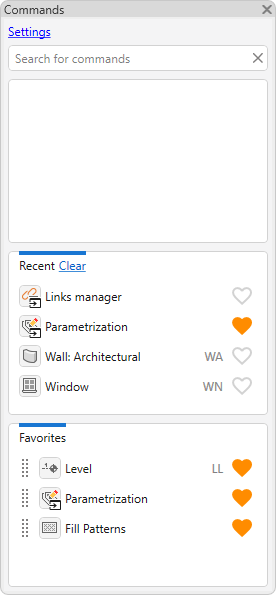
The floating panel can contain the following zones:
- Search – a search bar and a list of found commands. The search is performed by part of the command name and is case-insensitive. When entering text, autocomplete is supported, and input made using an incorrect keyboard layout is also taken into account. Search results are sorted based on command usage frequency: more frequently used commands appear higher in the list. To launch a found command, click its name in the list.
If a found command is not currently available on the Revit ribbon (for example, when sketch or group editing mode is active), it cannot be launched using the plugin.
If any third-party plugin commands were hidden from the Revit ribbon when Revit was loaded, these commands cannot be launched using the plugin during the current Revit session, even if they are subsequently restored to the ribbon.
- Recent – a list of recently launched commands for quick relaunch. Clicking Clear removes all commands from the list.
- Favorites – a list of commands added to favorites for quick access. To add a command to favorites, click the
 icon to the right of its name in the search results or in the Recent section. Clicking the icon again removes the command from favorites. The order of commands in the Favorites section can be changed by dragging them.
If a Revit keyboard shortcut is assigned to a command, it is displayed to the right of the command name. Revit creates the file containing the assigned keyboard shortcuts only after the keyboard shortcut settings are changed for the first time. If keyboard shortcuts are not displayed in the plugin, change any keyboard shortcut setting in Revit. After the file is created, the shortcuts will appear in the command list. You can open the settings using the Open keyboard shortcuts settings link in the information message.
At the top of the panel is a Settings link that opens the panel zone display settings.
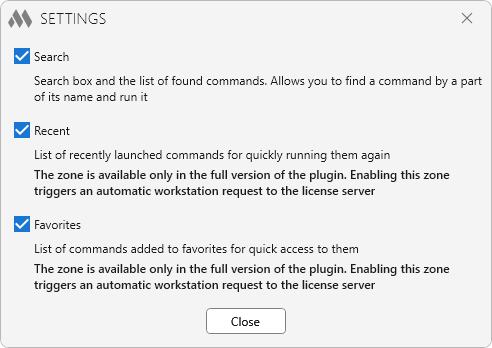
The following options are available in the settings:
Search – displays the search bar and the list of found commands on the panel.
Recent – displays the section containing the list of recently launched commands.
Favorites – displays the section containing commands added to favorites.
The Recent and Favorites zones are available only in the full version of the plugin. When they are enabled, a license seat is automatically requested from the license server.


After launching the plugin, you must select in which part of the screen the command line will be placed:
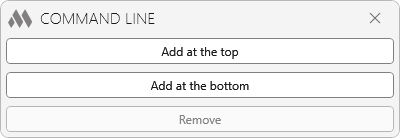
Add at the top – the command line will be located at the top of the Revit workspace
Add at the bottom – the command line will be located at the bottom of the Revit workspace
Remove – removes the previously added command line.
When entering a command name, a quick case-insensitive search is performed and a list of found commands is displayed. To run the command you are looking for, click on its name in the list.

 YouTube