
Base level

Base level
Show in Revit

Several Revit applications are running. Choose one:

Attention! The plugin is purchased for the specified version of Revit!
$7.20
Discount system: 0%
Discount system
Name Discount Total value of individual orders Total value of corporate orders
Regular user 0%
3% discount 3% $84 $180
5% discount 5% $120 $360
7% discount 7% $180 $600
10% discount 10% $300 $900
15% discount 15% $360 $1 200
Partners 30%
BIM Consulting 50%
Super VIP 100%
A subscription is your best choice. Find out why!
To use the purchased license, use the Personal Area of the ModPlus software installed on your computer
Changing constraints for elements

Icon

mprBaseLevel_32x32 mprBaseLevel_16x16 mprBaseLevel_32x32_dark mprBaseLevel_16x16_dark

Related news and articles


Using

The plugin allows you to change an element's association with the base and top levels without changing the element's position in the model.

To use the plugin, create a new configuration using the button.
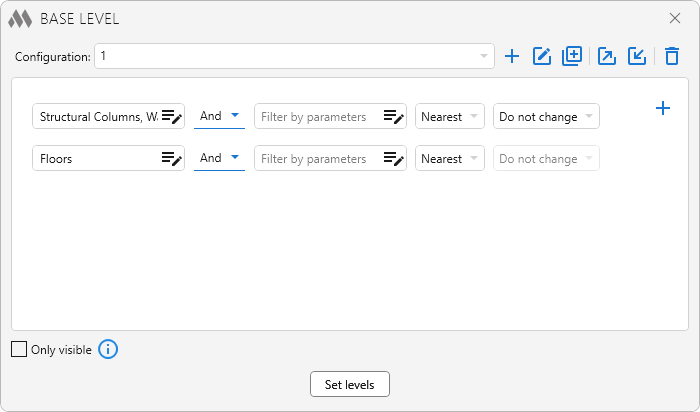
1

Created configurations can be duplicated plus box multiple outline, renamed square edit outline, exported export, imported import, and deleted delete outline using the corresponding buttons.

Each configuration consists of a list of settings. To add a setting, click plus to the right of the list.

Each setting consists of an element filter by categories and parameters and two level selection drop-down lists. The second list is available only for categories that have an association with a top level.

In the drop-down lists, you can select a specific level of the current document or one of the following association options:

  • Nearest – associates the element with the level nearest to it by elevation, regardless of whether the level is above or below the element
  • Nearest below – associates the element with the nearest level located below it
  • Nearest above – associates the element with the nearest level located above it
  • Do not change – leaves the element's current association with the corresponding level unchanged
  • Do not associate – removes the level association for elements for which the corresponding type of association may be absent. For example, you can remove a wall's top level constraint and set its top to Unconnected without changing its position in the model.

For the Nearest, Nearest below, and Nearest above options, the element position is determined by the bottom elevation of its Bounding Box when selecting the base level and by the top elevation when selecting the top level.

When a specific level of the current document is selected, the element is associated with that level. In all cases, the element's position in the model is preserved by changing the corresponding offset from the level.

The category and parameter filter can be left empty. In this case, all elements will be processed according to the selected options, but errors may occur because not all elements have the “Base Level” property.

Only visible – when this option is enabled, only levels visible in the current view will be used for the Nearest, Nearest below, and Nearest above options.

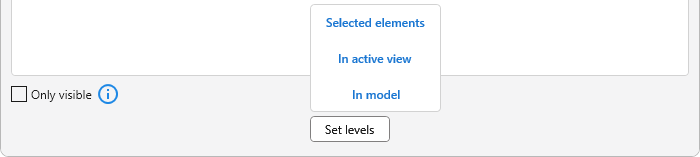
At the bottom of the window is the Set levels button, which starts the process of changing the base and top levels for the specified element selection option: Selected elements, In active view, or In model.
2

ModPlus YouTube
Improved
Added the ability to change the upper level of rooms
Fix
Fixed the vertical shift of rooms when trying to change their base level, which cannot be edited in Revit
Improved
Service update (internal changes)
Improved
The interface was migrated to the current version of the ModPlus styling library
New
Added "Nearest below" and "Nearest above" options for level selection
New
Added consideration of level visibility
New
Added support for Organization Settings
New
Added configuration export/import
Improved
Changed the logic of the "Nearest" option: now the truly nearest level is selected
New
Added processing for Railings
Fix
Fixed an issue where slabs in the "Structural Foundations" category were not processed
Fix
Fixed a bug where the nearest level was incorrectly determined in some cases
Fix
Fixed a localization error
Fix
Changed the "Offset from Level" parameter instead of the "Offset from Primary Model" parameter
Fix
Fixed an error where the specified upper level was taken instead of the specified lower level
Fix
Fixed a bug that could cause a hang or crash when changing the configuration
Improved
Added processing of families in the categories “Windows” and “Doors”
New
Added processing of elements in the category "Structural framing"
Fix
Fixed a bug where the contents of the switched Organization Settings configuration were not reloaded
Fix
Fixed a bug where model groups were not processed
Fix
Fixed an error occurring when attempting to load a configuration file of an obsolete type
Improved
Added the ability to select the top level for the Telephone Devices category
Fix
Correct processing of families without host
New
Added the ability to change the top constraint
New
Added processing of the category "Structural Columns"
Fix
Fixed a bug where elements of some categories were being moved
Improved
Using the ModPlus.Xaml.Behaviors.Wpf.dll library instead of Microsoft.Xaml.Behaviors.dll to resolve compatibility issues with other plugins
Improved
Added processing of cable tray fittings
Fix
Fixed errors when linear elements were processed incorrectly
New
Added consideration of the fact that the element is already located on the given level
Improved
Added selection of elements when selecting the "Selected elements" option, if the elements were not selected before running the plugin
Improved
Added output of processed elements identifiers in the result window
Improved
Changes were made in the work with the organization settings file
Improved
Skip from processing of families created based on a level or plane
Improved
Added processing of pipe fittings
New
Added floor processing