


Notes

| Name | Discount | Total value of individual orders | Total value of corporate orders |
|---|---|---|---|
| Regular user | 0% | ||
| 3% discount | 3% | $84 | $180 |
| 5% discount | 5% | $120 | $360 |
| 7% discount | 7% | $180 | $600 |
| 10% discount | 10% | $300 | $900 |
| 15% discount | 15% | $360 | $1 200 |
| Partners | 30% | ||
| BIM Consulting | 50% | ||
| Super VIP | 100% |
Call options
- ModPlus floating menu or palette
- Menu, toolbar, or ribbon in nanoCAD
- Command line: _mncNotes
Icon


Using
The main window of the plugin contains three main parts: work with user notes, work with standard notes, settings
User
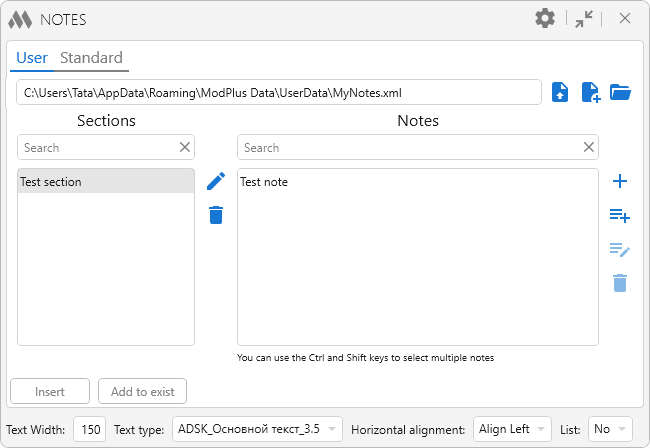
When working with user notes, a note file must be specified. In the upper left corner there is a field displaying the current notes file. To the right of the field are buttons for working with the file:

 – create a custom notes file.
All notes are divided into sections. In the left part of the window there is a list of sections, in the right - a list of notes for the selected section. The controls for the corresponding list are right. The section controls include.

 – delete the selected section. When you delete a section, all notes related to the section that you are deleting will also be deleted!
Note controls include:

 – add a note from the text. When this button is clicked, the function will switch to AutoCAD to select the text. The function supports adding a new note only from multi-line and single-line text. After specifying the text, a special window will open for adding a new note. This window is described below.
 – edit the selected note. The button is active only when the note in the list is selected. A special window will open for editing the note. This window is described below. – delete selected note.
When adding or editing a note, a special window opens:
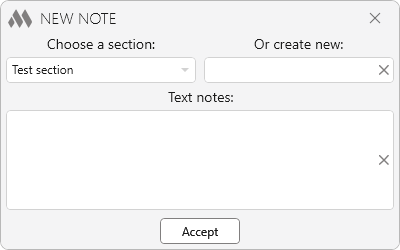
Choose a section – a drop-down list containing sections already added to the user notes file.
Or create new – text field in which you can specify a name for the new section. When specifying an existing section and specifying the name of a new one, preference is given to the new one. a new partition will be created.
Text notes – text field containing the text of a new or edited note.
Standard
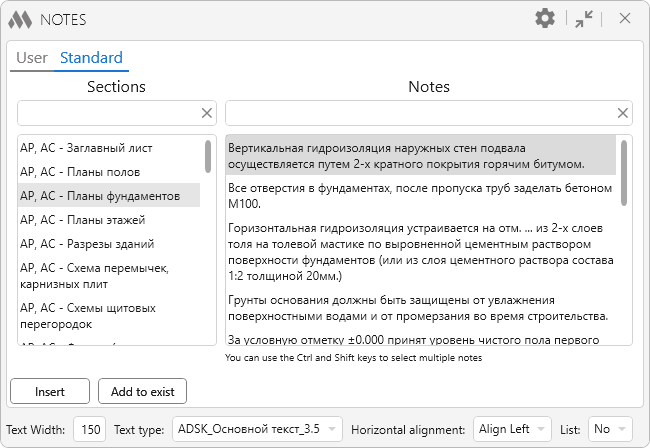
Working with standard notes is similar to working with user notes except for the ability to add or remove notes from the database.
Insertion
The lower part of the plugin window contains the elements for inserting the selected note:
Insert – go to AutoCAD to select an insertion point:
Specify the insertion point: – specify the insertion point. A new multi-line text with a custom width will be inserted.
Add to exist – go to AutoCAD to select existing multiline text:
Select multiline text: – in the selected multi-line text, a note will be added from the new line.
Text Height, Text Width and Text style – set the appropriate properties for the inserted text.
Settings

– opening/closing the departing field with settings:
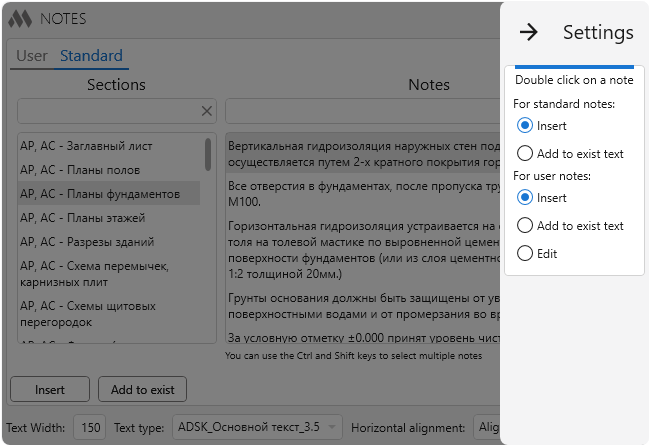
Context menu for text – when setting a checkmark in the context menu of AutoCAD for multi-line and single-line text, the item MP:Save as a note is added. Clicking on this item will open a window for adding a new note (described above).
Double click on a note – setting the corresponding action by double clicking the left mouse button on the note in the list.