


Copy with numbering

| Name | Discount | Total value of individual orders | Total value of corporate orders |
|---|---|---|---|
| Regular user | 0% | ||
| 3% discount | 3% | $84 | $180 |
| 5% discount | 5% | $120 | $360 |
| 7% discount | 7% | $180 | $600 |
| 10% discount | 10% | $300 | $900 |
| 15% discount | 15% | $360 | $1 200 |
| Partners | 30% | ||
| BIM Consulting | 50% | ||
| Super VIP | 100% |
Copying text or block with an attribute, changing the numeric value by a specified step
Call options
- ModPlus floating menu or palette
- AutoCAD ribbon
- Command line: _mpTxtNumCopy
Icon


Related news and articles
Using
Select text, block with attributes or a multileader: — select one-line or multi-line text, block with attribute (s), or multileader.
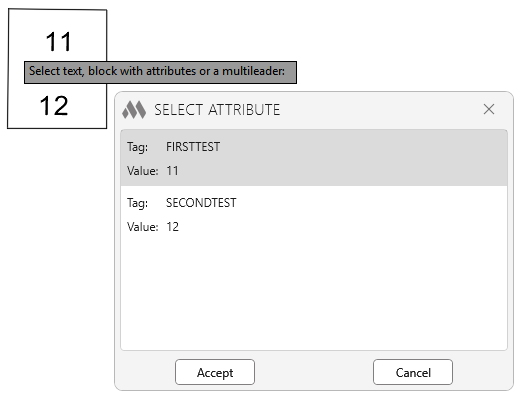
If the selected element is a block with multiple attributes, the attribute selection window will appear, followed by the settings window:
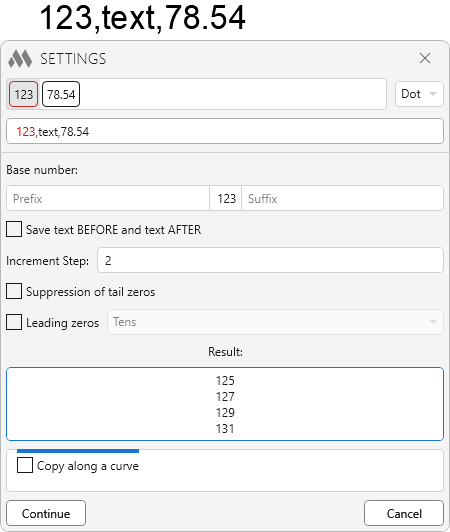
If you select text with numeric values, the numbering settings window will automatically open with the option to select a number. If several numbers are specified in the text, you will be prompted to select one of them.
Copy with insertion point
The following options are presented in the middle part of the plugin window:
Base number — selected number.
Increment step — the number by which the base number will increase.
Save text BEFORE and text AFTER — save the text before and after the variable number. Disables the ability to specify a prefix and a suffix.
Prefix/Suffix — fields for entering a Prefix and/or Suffix.
Leading zeros — add leading zeros to a number in case the number does not satisfy the form of the digit. For example, if you select the "Dozens" option and copy the number 1 in steps of 1, you will get the values: 02, 03, 04, 05, 06, 07, 08, 09, 10, 11, etc.
Suppression of tail zeros — removing from the number of all tail zero.
Result: — field in which an example of the plugin is displayed with the specified settings.
Continue — close this window and continue the plugin.
Cancel — close this window and abort the plugin.
Next, the plugin will go into the AutoCAD space to continue execution:
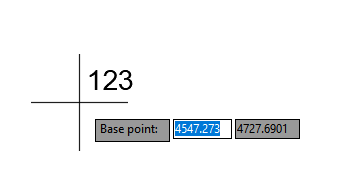
Base point: — specify base point.
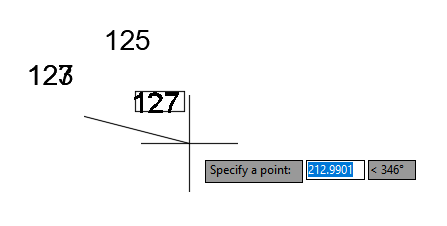
Specify a point: — specify an insertion point for a new single-line or multi-line text, block, or multileader. Specifying the insertion point for a new object will occur cyclically until the plugin is canceled by the user (by pressing Esc).
Copy along curve
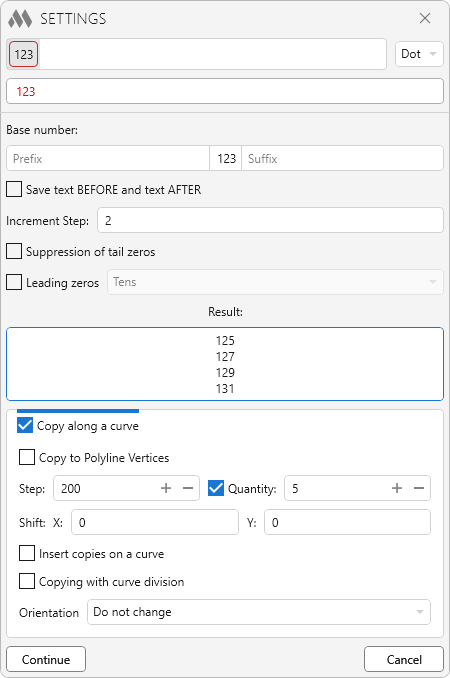
Copy along a curve — enabling the mode of copying the selected object along the specified curve.
Copy to Polyline Vertices — when this option is enabled, copies of the object will be placed at the vertices of the specified polyline.
Step — distance between object copies.
Quantity — if this option is enabled, the quantity of object copies with the specified step is specified in the field. If this option is disabled, the copies will be placed along the entire length of the curve.
Shift — displacement of the object copies relative to the original object along the X and Y axes.
Insert copies on a curve — the object copies will be placed on the selected curve with copying starting from the original number.
Coping with curve division — if this option is enabled, the number of object copies specified in the Quantity option field will be evenly distributed along the entire length of the curve. The option is available when the Quantity option is enabled.
Orientation — selection of the position of the object copies relative to the curve. The following options are available in the drop-down list:
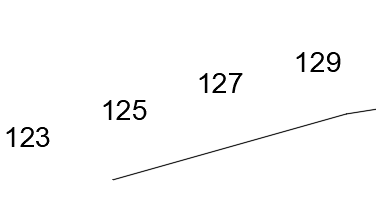
- Do not change — the orientation of the copies will be the same as for the original object.
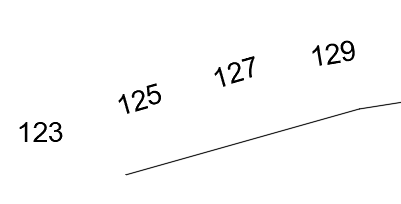
- Along the curve — the object copies will be positioned parallel to the curve.
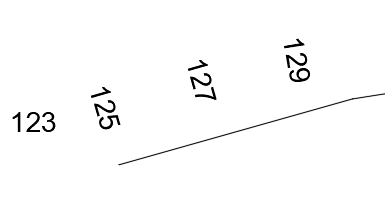
- Perpendicular to the curve (left) — object copies will be located perpendicular to the curve (rotated to the left relative to the curve direction).
- Perpendicular to the curve (right) — object copies will be located perpendicular to the curve (rotated to the right relative to the curve direction).
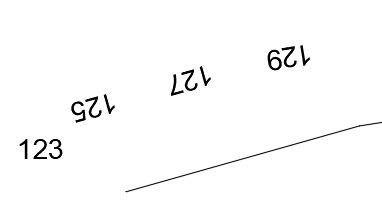
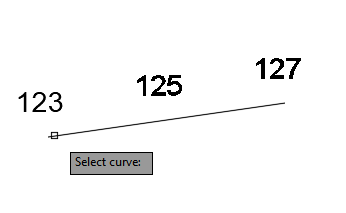
After clicking the Continue, the plugin will go to AutoCAD space to continue execution:
Select curve: — specifies the curve along the path of which the objects will be copied.

 YouTube