


Table sorting

Attention! The plugin is purchased for the specified version of AutoCAD!
Discount system
| Name | Discount | Total value of individual orders | Total value of corporate orders |
|---|---|---|---|
| Regular user | 0% | ||
| 3% discount | 3% | $84 | $180 |
| 5% discount | 5% | $120 | $360 |
| 7% discount | 7% | $180 | $600 |
| 10% discount | 10% | $300 | $900 |
| 15% discount | 15% | $360 | $1 200 |
| Partners | 30% | ||
| BIM Consulting | 50% | ||
| Super VIP | 100% |
A subscription is your best choice. Find out why!
To use the purchased license, use the Personal Area of the ModPlus software installed on your computer
Sorting rows and columns in tables
Launch Options
- AutoCAD Context Menu
Icon


Related News and Articles
Using
When AutoCAD is loaded, new items appear in the context menu:
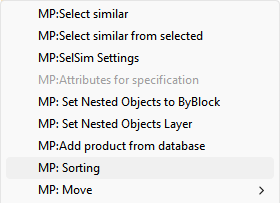
MP:Sort
The command is intended for sorting data in tables with the ability to select direction, sorting area, and preserve cell styles.
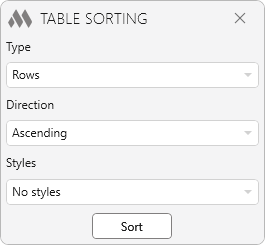
Type – defines the sorting scope:
- Rows – sorts data vertically within the selected area, separately in each column
- Columns – sorts data horizontally within the selected area, separately in each row
- Rows completely – sorts whole rows within the selected area
- Columns completely – sorts whole columns within the selected area
Direction – defines sorting order:
- Ascending – from smaller to larger (A–Z, 0–9)
- Descending – from larger to smaller (Z–A, 9–0).
Styles – defines whether cell styles are preserved during sorting:
- No styles – only cell values are sorted, styles remain in original positions
- With styles – data is moved together with formatting styles (color, text height, alignment, etc.).
MP:Move
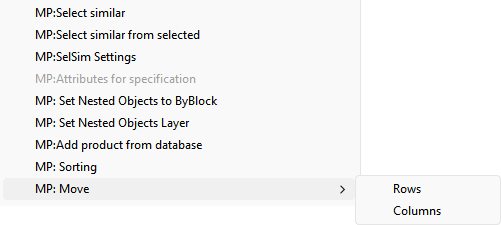
The command is intended for moving rows or columns in a table.
- Move rows – select individual cells or entire rows, then choose MP: Move → Rows and specify the position before which the selected rows should be placed. Rows are moved to the new location, and the remaining rows shift automatically.
- Move columns – select individual cells or entire columns, then choose MP: Move → Columns and specify the position before which the selected columns should be placed. Columns are moved to the new location, and the remaining columns shift automatically.

 YouTube