Select similar

Select similar
Attention! The plugin is purchased for the specified version of AutoCAD!
$7.20
Discount system: 0%
Discount system
Name Discount Total value of individual orders Total value of corporate orders
Regular user 0%
3% discount 3% $84 $180
5% discount 5% $120 $360
7% discount 7% $180 $600
10% discount 10% $300 $900
15% discount 15% $360 $1 200
Partners 30%
BIM Consulting 50%
Super VIP 100%
A subscription is your best choice. Find out why!
To use the purchased license, use the Personal Area of the ModPlus software installed on your computer
Selecting objects similar to sample objects from all objects in the drawing or from a specific set

Call options

  • ModPlus floating menu or palette
  • AutoCAD context menu
  • Command line: _mpSelSim; _MpSelSimSel; _MpSelSimSettings

Icon

mpSelSim_32x32 mpSelSim_16x16 mpSelSim_32x32_dark mpSelSim_16x16_dark

Using

Plugin commands can be added to the AutoCAD context menu according to the plugin settings:
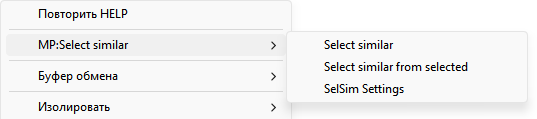
Select similar (_MpSelSim)

Select sample objects or [Settings]: — you should select one or more entities, which will be the sample entities to search for such. The search will be performed on all entities in the drawing.

Select similar from selected (_MpSelSimSel)

Select sample objects or [Settings]: — you should select one or more entities that will be sample entities to search for similar.

Select objects among which to search for analogues: — you should select the entities in which such entities will be searched.

Settings (_MpSelSimSettings)

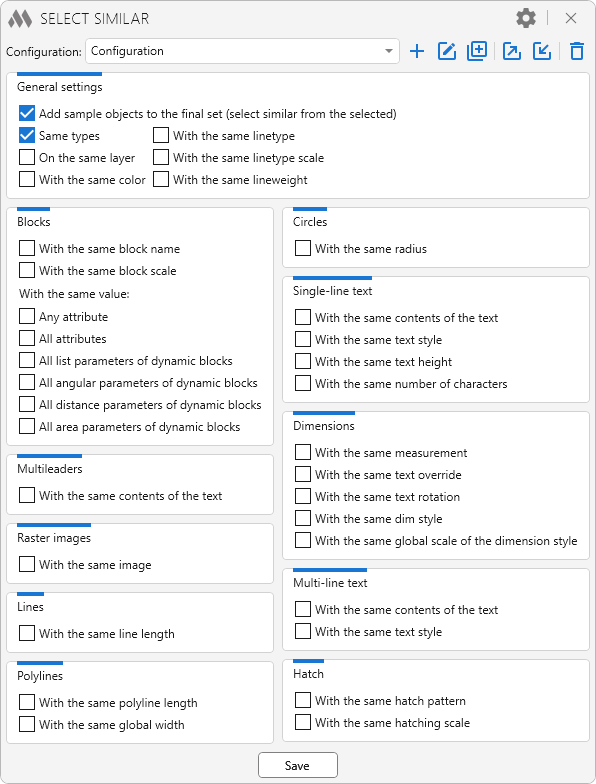
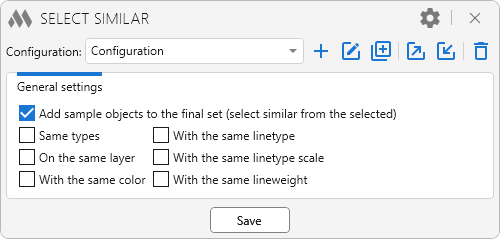
Opens the plugin settings window:
1

2

At the top of the window is a list of configurations. Using the buttons on the right, you can create a new configuration, rename, duplicate, export, import, and delete a configuration.

Save — closes the window and saves the settings of the current configuration.

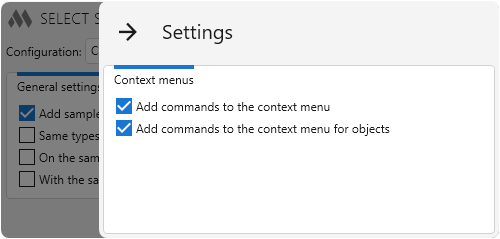
The cog (gray) button in the upper-right corner opens the settings for adding plugin commands to the AutoCAD context menu:
4

Add commands to the context menu — adds plugin commands to the AutoCAD context menu.

Add commands to the context menu for objects  — adds plugin commands to the context menu displayed for selected objects.

Improved
Service update (internal changes)
New
Reworked the settings saving system: configurations are now used
New
Added the ability to remove the plugin from the context menu
Fix
Fixed an error where the filtering settings could be reset when the "Same types" option was disabled
Improved
The interface was migrated to the current version of the ModPlus styling library
New
Added the ability to determine matching of dynamic blocks by different parameter types
New
Added the ability to determine matching of dimensions by the global scale of their dimension style
Fix
Fixed an error that occurred when using the Chinese localization
New
Added ability to select blocks with the same attribute values
New
Added "With same dim style" option for dimensions
New
Added "With same global width" option for polylines
Improved
Skipping hidden entities when searching for similar entities
New
Added multileader processing by the "Text content" property
New
Added dimension processing by "Measurement", "Text override" and "Text rotation" properties
FIX
ModPlusStyle styling
FIX
Replacement of main function icons adding icons for dark themes the AutoCAD ribbon
FIX
Fixed a bug leading to overwriting settings when AutoCAD initialized
FIX
Added option for single line of text analogues on the length of the string
FIX
Fixed bug removing the backlight when the cancellation of the team's work
FIX
Added option (in settings) "to Add the samples in the resulting set (the choice on the model selected)"
FIX
Added option comparison a single-line text height
FIX
Corrected the function icon in the ribbon, and the Configurator is displayed normally